How to Recover a Lenovo System
This guide covers the process to recover a Lenovo system within a Logitech bundle.
Overview
Navigate to the Lenovo support page.
Enter the Serial Number in the box to the left. The image that is shown may not match your system.
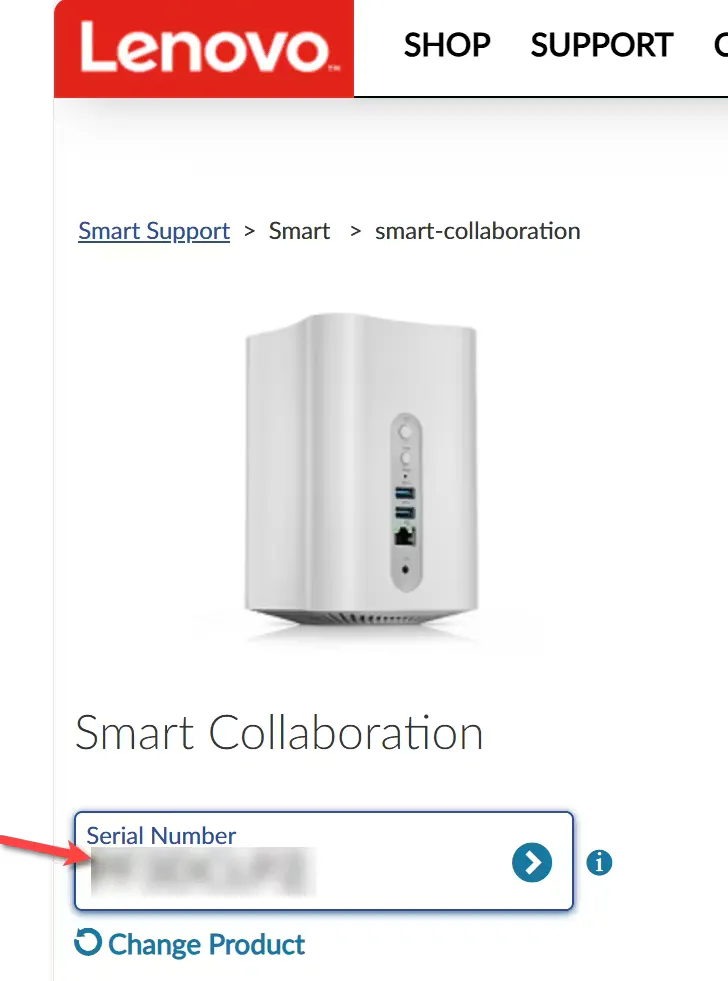
STOP: If your system is still Under Warranty go to the section Restoring a System Under Warranty.
If the system is Out of Warranty, go to the section Restoring a System out of Warranty.
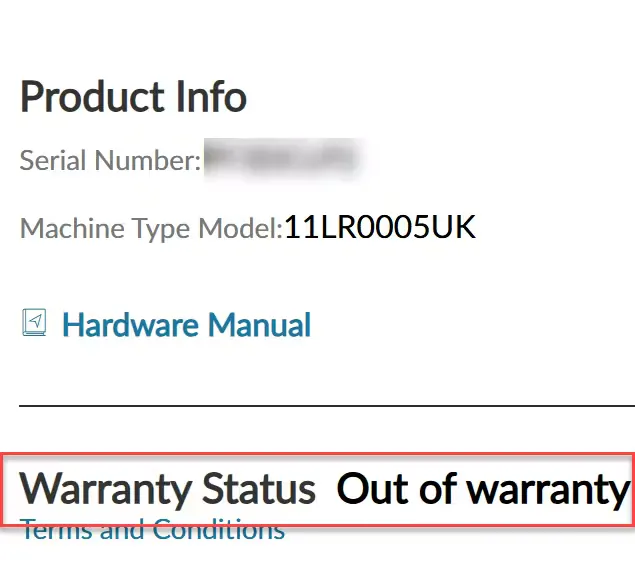
Restoring a System Under Warranty
If your system is still under Warranty, please see Lenovo's Operating System Recovery Process Quick Start Guide.
Restoring a Out-of-Warranty System
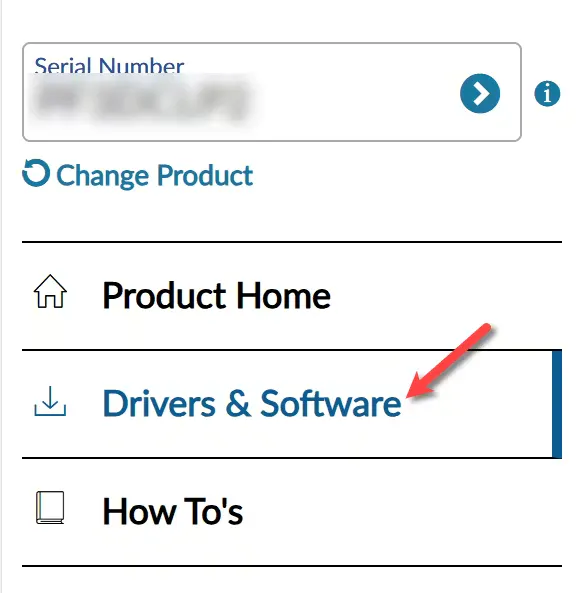
Click on the Drivers and & Software link
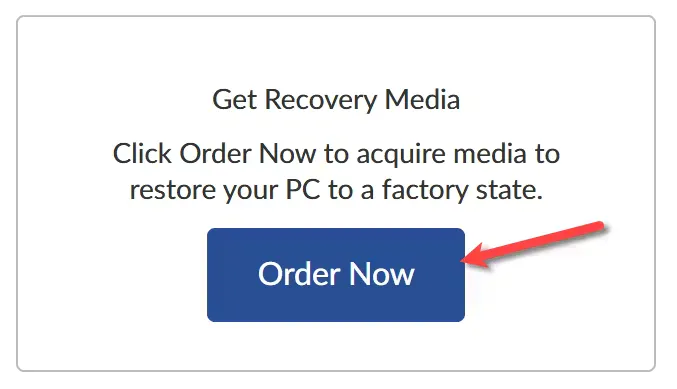
Under Get Recovery Media, click Order Now
Click the Continue Button

Click the Select and Continue Button

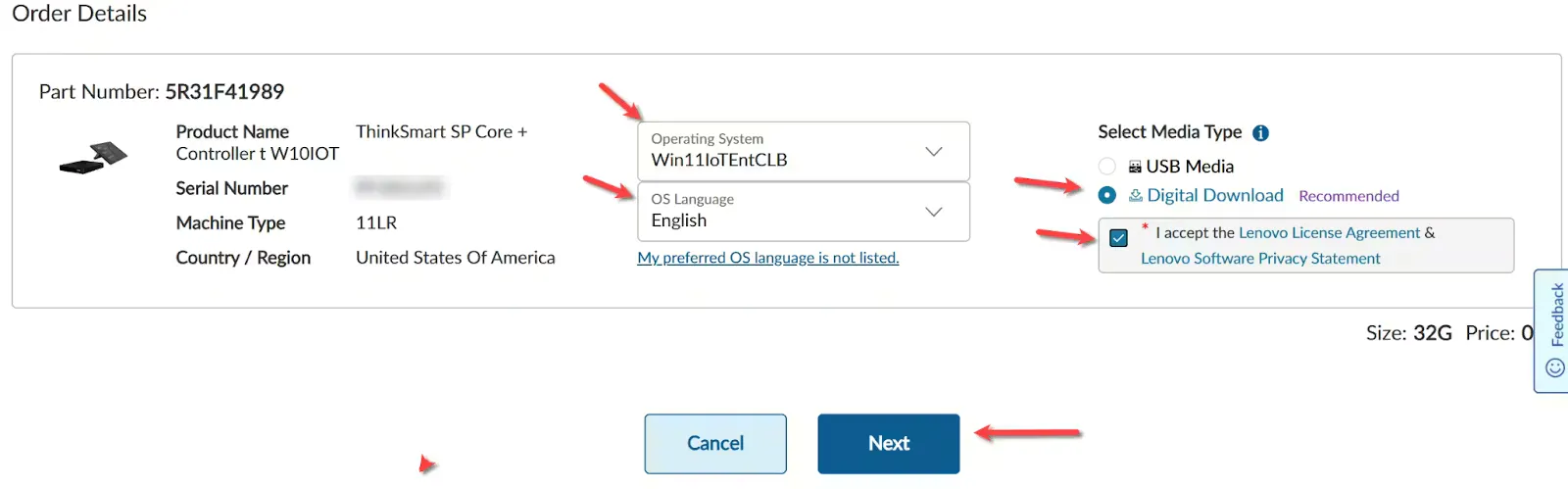
Select the operating system version. It may show Windows 10 or 11 depending on when the system was purchased.
Choose your language, choose digital download, accept the EULA and click Next.
You will be asked to login or create a new account
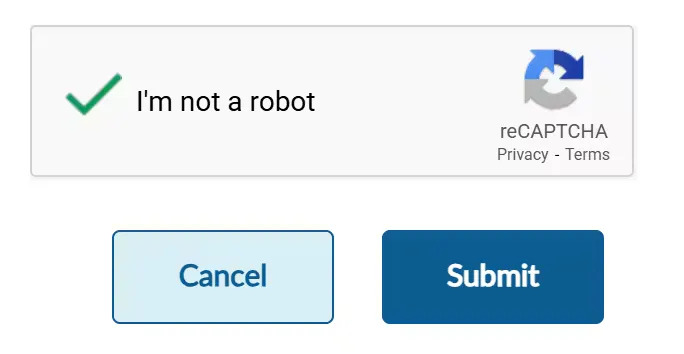
On the next page, finish filling in your information and click Submit
Click on Digital Download

This will download a file USBRecoveryCreator.exe
Run the application with elevated permissions
Click on the Start button
Log in using the credentials used in the download process earlier (you must use the same credentials for the process to work as intended)
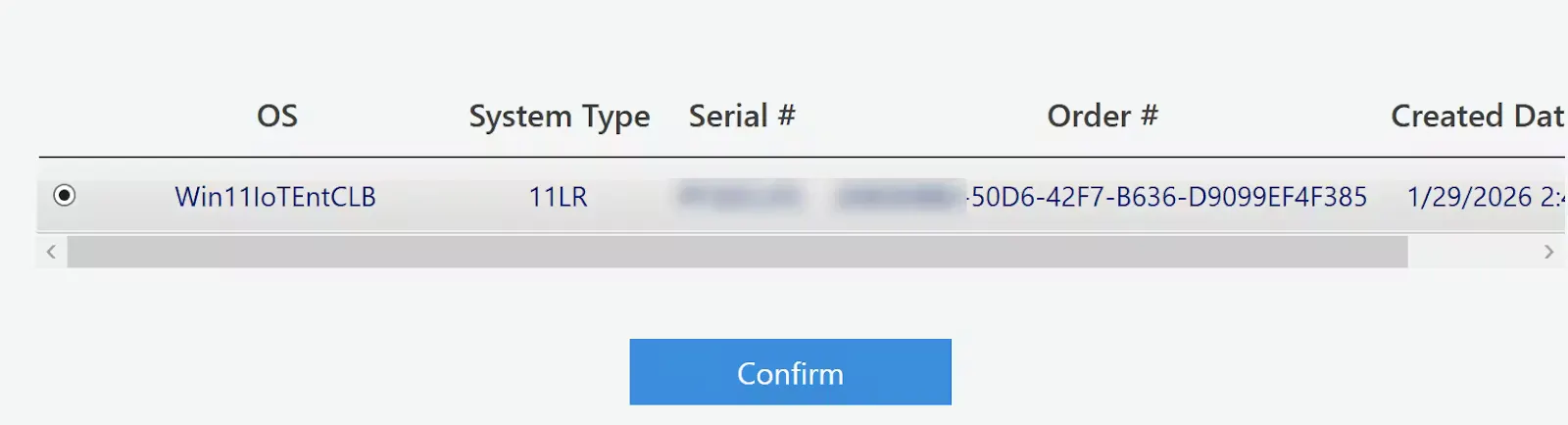
You will see the system you requested. If you have more than one system, select the one you want to restore.
Click Confirm
Select your Download and make sure to place it into a sub folder. For example ~\Downloads\LenovoRecovery. This will ensure the restore media files stay organized.
Click Download
After the download is completed, insert a USB drive at least 32GB in size. The drive will get formatted.
The speed at which it takes to restore is based on how fast the drive is.
Click Next
Select your USB Drive and click Next
Click Yes at the warning that your drive will be erased
Eject the USB drive
Imaging the System
Insert the USB drive into the Lenovo computer.
Power on or restart the computer.
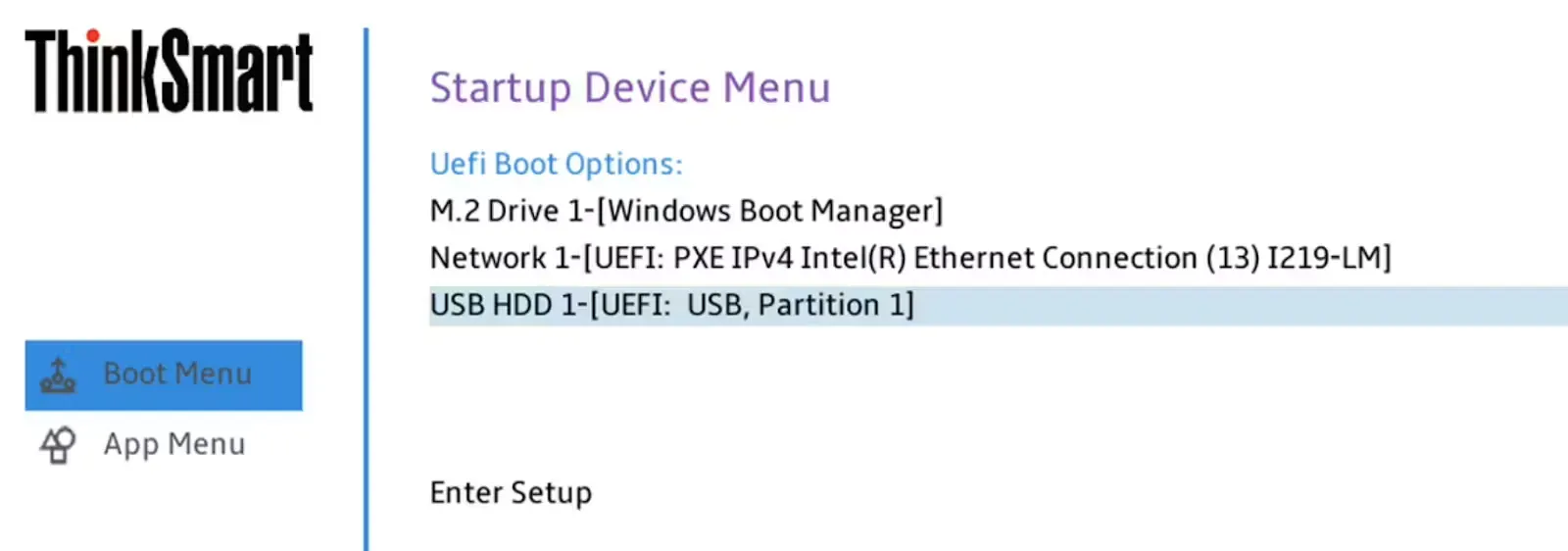
During Boot, press the F12 Key repeatedly until you get the loader.
Choose the USB Drive.
Click Next at the instructions Screen.
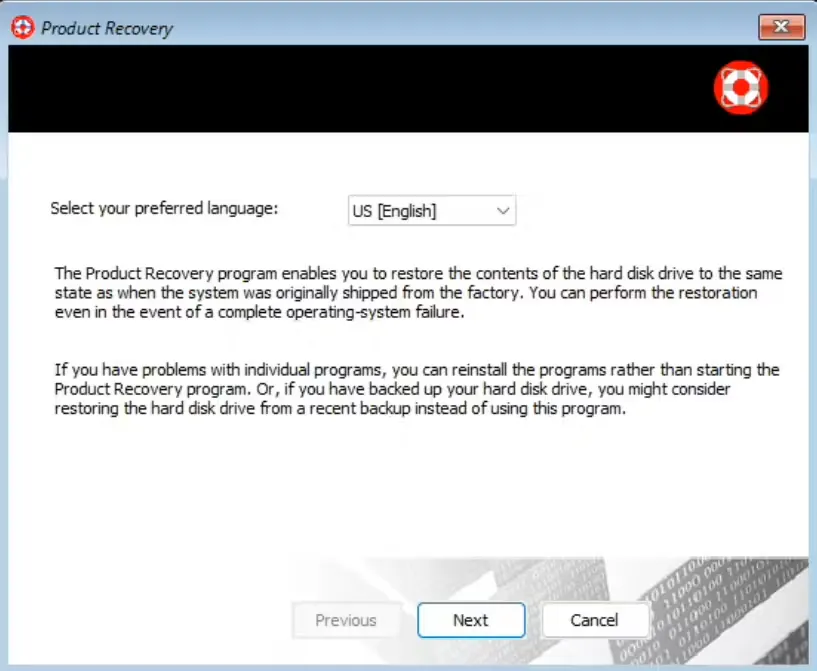
Read and agree to the EULA.
Click Yes to the warning that your system will be erased.
When the first part completes, remove the USB drive and click Yes to reboot.
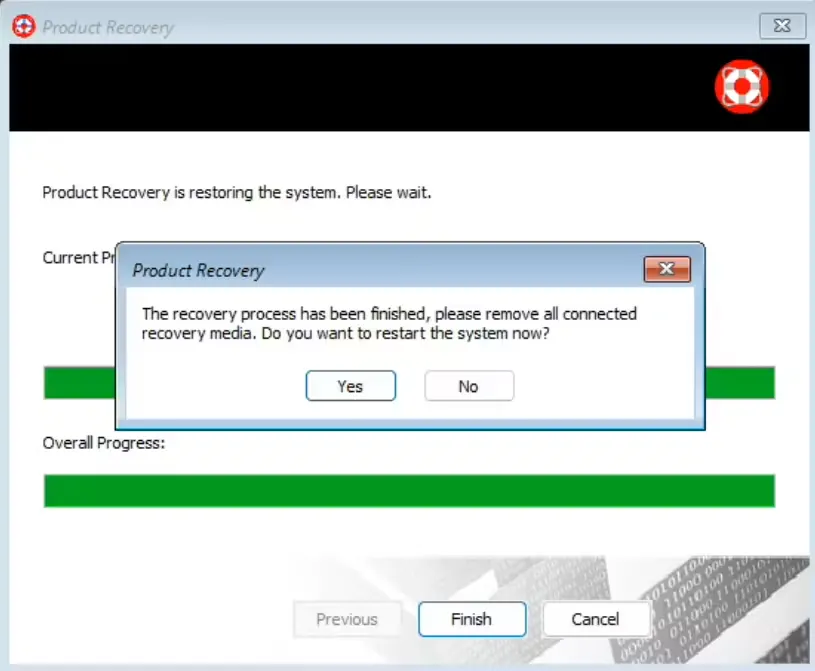
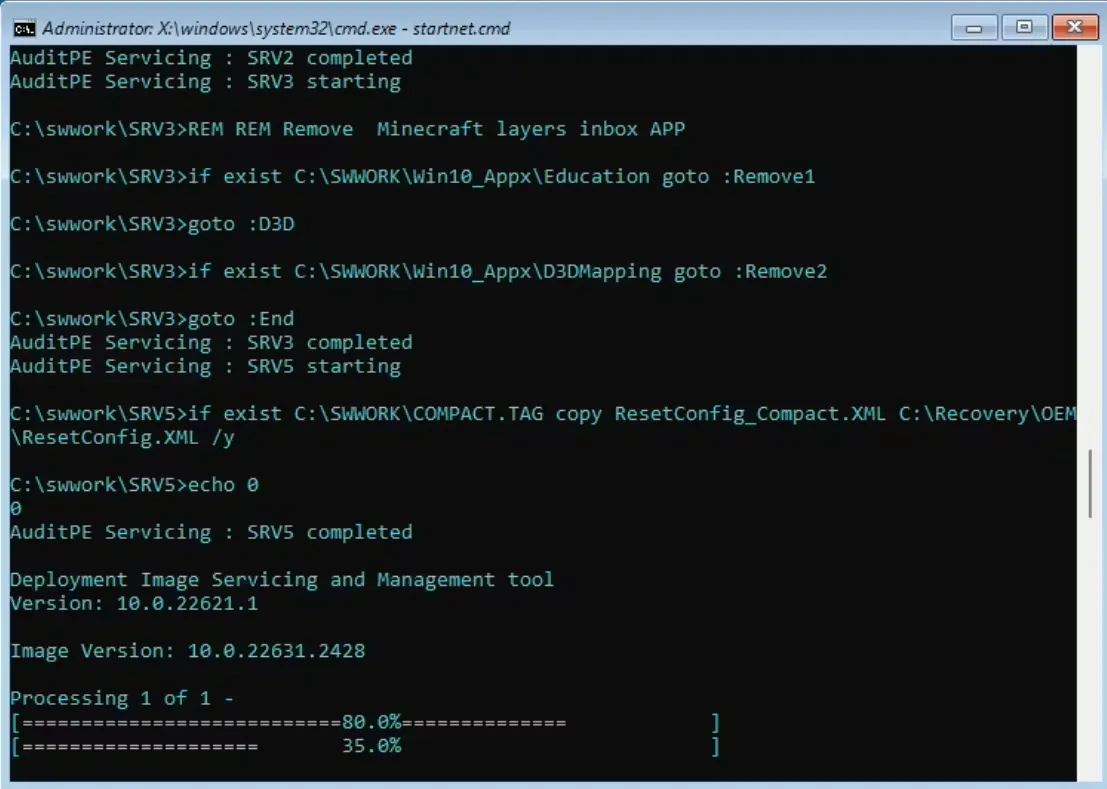
The re-imaging process can take ~30 minutes or more to complete. During this time you will see a command window that will show errors, and the system will reboot multiple times. This is expected. Please allow the process to complete.
Once the Room system loads and appears, log in to the desktop.
Download the following MSI application from Logitech https://gtm.vc.logitech.com/PartnerBuilds/Lenovo/Lenovo-Post-Install.msi (File Hash: 274572FA51B5903F61CA38A2D144B97A48AACDABCEC2E6689572C2296F8DE43D). This application will finalize any last configurations to make the system work with a Logitech Tap and remove the Lenovo Touch interface.
Once the installer is completed, reboot the system
After the nightly reboot, the system will be updated to the latest Windows version, driver updates, and BIOS version.
The recovery is completed.
If you have more systems to recover, you can use the same USB drive on other Lenovo systems of the same model.