3.5 Camera Zone
Camera Zone allows you to define a specific area for the camera to actively detect and frame meeting participants, eliminating distractions from individuals outside of meeting rooms and designated meeting spaces.
This feature is compatible with RightSight 2’s Group View, Speaker View, and Grid View.
Camera Zone is supported on:
Rally Bar
Rally Board 65
Rally Bar Mini
Rally Bar Huddle
MeetUp 2
Depth Blur is also supported on Rally Board 65 from CollabOS 2.1 onwards, in a Public Beta.
Notes:
Users in USB Mode can evaluate this feature by setting a zone in Appliance Mode. An established zone will then apply to USB Mode.
You can set the zone using Tap IP, Tap USB, LNA, Touch TV, Sync app, and Sync portal.
Enable On Device
Go to Logitech settings:
Tap on Camera.
Activate RightSight 2.
Enable Camera Zone.
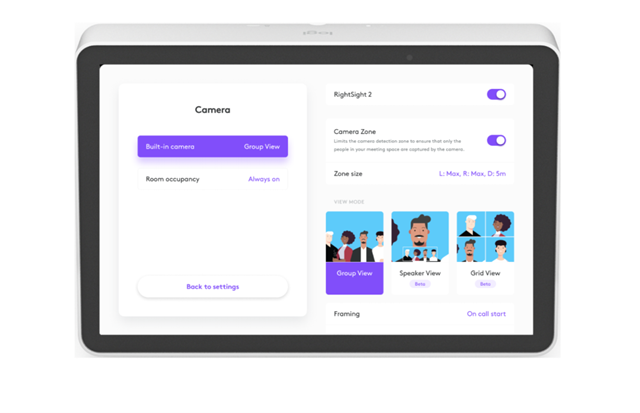
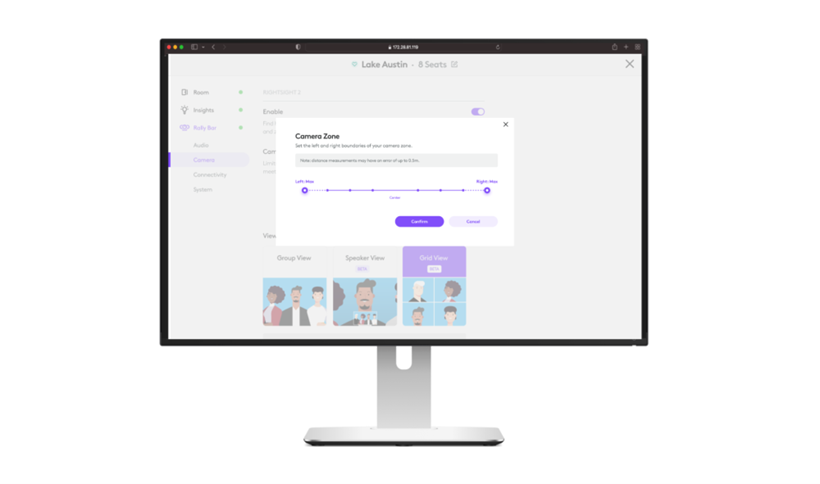
Set the preferred left and right edges using the sliders on your touch controller.
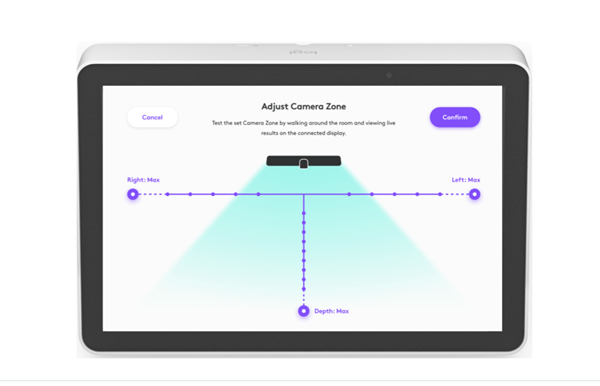
Set the distance for the zone.
Preview the zone on the display. Test it by walking around in the meeting space. The interface will indicate if you are in or out of the zone.
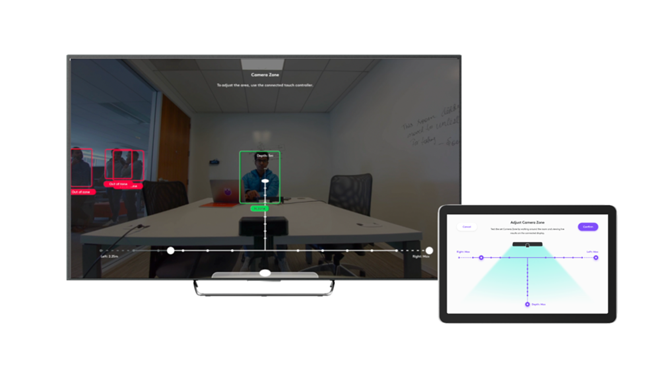
Enable in Local Network Access
Login to your Local Network Access portal.
Tap on Camera.
Activate RightSight 2.
Enable Camera Zone.
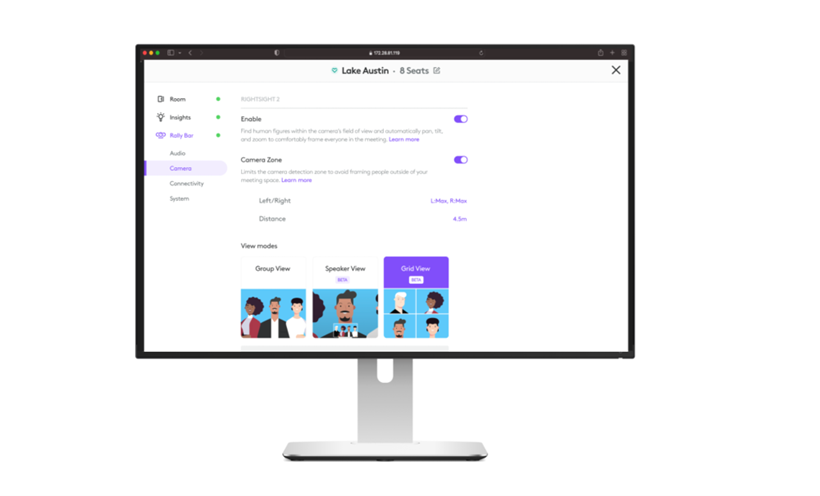
Set the preferred left and right edges using the sliders on your touch controller.
Set the distance for the zone.
Preview your changes live by calling into the room with at least one in-room participant and making adjustments while on the call.
Depth Blur (Beta)
Depth Blur, an additional optional feature when configuring the Camera Zone feature on Rally Board 65, will blur areas and people outside of the established camera zone, reducing distractions. The amount of blur progressively increases the further the area/person is from the Rally Board 65.
Depth Blur is in Public Beta starting from CollabOS 2.1 onwards.
Requirements
Rally Board 65
CollabOS 2.1
Camera Zone must be enabled
Enabling Depth Blur in CollabOS Settings
Access System Settings
Steps vary depending on the Service Provider app
Tap Camera
Select RightSight 2 in the left menu
Enable RightSight 2, if necessary
Enable Camera Zone, if necessary
(Optional) Click the text beginning “R:...” to change the Camera Zone size from the default values
Adjust the Right, Left and Depth values and click Confirm
Enable Depth Blur
Enabling Depth Blur in Local Network Access (LNA)
Log in to Local Network Access (LNA)
Select Camera
Expand RightSight2
Enable RightSight 2, if necessary
Enable Camera Zone, if necessary
(Optional) Click the text beginning “R:...” to change the Camera Zone size from the default values
Adjust the Right, Left and Depth values and click Confirm
Enable Depth Blur
Depth Blur Limitations and Known Issues
Depth Blur may only be enabled from CollabOS settings or Local Network Access (LNA). Support for Sync App and Sync portal will be added in a future release.
Depth Blur is not available when RightSight2 is disabled and the device is using manual camera mode. Support for manual camera mode will be added in a future release.
Depth Blur is not available when using the RightSight2 Grid View mode. Support for Grid View will be added in a future release.
Depth Blur is not available when using Zoom Rooms Appliance multi-stream camera mode (aka “Smart Gallery”). Support for Zoom Rooms Appliance multi-stream camera mode is planned for a future release.
Frequently Asked Questions
What is the level of accuracy for the Camera Zone boundary detection?
The Camera Zone has a margin of error of up to 0.5 meters. The detection speed may vary based on the person's movement while entering or leaving the zone to prevent sudden changes in the camera framing.
How does the Camera Zone handle people at the edge of the zone?
To maintain a smooth video stream and ensure a high-quality user experience, the AI algorithm is programmed to function slower than normal when the user is near the zone's edges and can take up to 10 seconds to frame.
What are the maximum width and depth for Rally Bar, Rally Bar Mini, and Rally Bar Huddle Camera Zone boundaries?
Maximum
Right
Left
Depth
3m
3m
5m
Minimum
Right
Left
Depth
1m
1m
1m
How do RightSight 2 Smart Switching and Camera Zone interact?
When a Rally Bar or Rally Bar Mini is deployed with single or dual Sights, and Smart Switching is enabled, the Rally Bar or Rally Bar Mini will automatically enable Camera Zone as well. If Camera Zone was previously disabled, it will be automatically enabled with default settings. Camera Zone is enabled to ensure the field of view of the Rally Bar or Rally Bar Mini camera matches the Sight.
If you are facing any device specific issue, please contact Logitech Business Support.