
MeetUp Audio Guide
This article provides a comprehensive overview of the audio capabilities, configurations, and troubleshooting steps for the Logitech MeetUp.
MeetUp features three built-in beamforming microphones and a custom-tuned speaker designed specifically for huddle room acoustics. For MeetUp supported configurations and wiring options, please see MeetUp Wiring Diagram Guide.
Microphone Expansion and Compatibility
MeetUp’s built-in microphones feature a pickup range of 4 meters (13.1 feet), which can be increased for larger rooms by connecting an optional Expansion Mic for MeetUp. This expansion mic provides a pickup range of 3.7 to 4.2 meters (12-14 feet) and comes equipped with a 6-meter (20 ft) integrated cable. If additional distance is required, a dedicated 10-meter (33 ft) Expansion Cable for MeetUp is also available for purchase, allowing for a total reach of 16 meters (53 ft) from the MeetUp unit.
For setups requiring different audio configurations, you can also utilize a separate external computer-connected microphone. This is achieved by muting the MeetUp’s internal microphones and selecting your preferred hardware device within the settings of your specific conferencing application.
FAQ and Troubleshooting
Can I use MeetUp's internal microphone while the video is turned off?
Yes. Turning off the video capture does not mute the internal microphone. You can use MeetUp for audio-only applications.
Does MeetUp have an audio output jack?
No, MeetUp does not have an audio output jack. It utilizes its built-in loudspeaker for audio output.
Why is my MeetUp not showing correct volume changes on my computer?
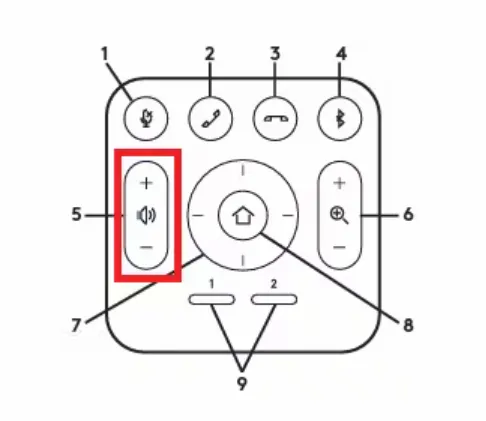
Ensure MeetUp is selected as the audio output device in your device’s System Preferences. Also, verify you are using the correct volume buttons on the remote.
Does the MeetUp speakerphone work through a phone line?
No. MeetUp is a USB device that utilizes computer software (VOIP) for connections and cannot be connected to a traditional analog phone line.
How to Improve Audio Quality in MeetUp
Audio performance can be affected by network conditions, environmental factors, or software settings. Follow these steps to optimize your quality:
Verify that the video conferencing application has MeetUp selected as both the Microphone (input) and Speakerphone (output).
Test the hardware locally using an audio recording application to rule out network or service issues.
Update to the latest firmware using the Sync Portal.
Adjust the mic gain volume in your operating system settings:
For Windows: Right-click the Speaker icon > Sounds > Recording > Properties > Levels.
For Mac: Apple Logo > System Preferences > Sound > Input.
Test the device in a different room to determine if room acoustics (like glass walls or concrete floors) are causing reverberation.
Need help?
If you require additional assistance with MeetUp audio configurations or troubleshooting, please contact Logitech Support.