
Logitech Rally Mic Pod 2 Manual
Introduction
This manual provides important information about wiring, mounting, and using Logitech Rally Mic Pod 2.
Rally Mic Pod 2 provides studio-quality audio pickup for any meeting space with Rally Board 65. Cutting-edge audio processing amplifies voices and minimizes background noise, so conversations sound natural and remote listeners feel like they’re in the room.
If you have additional questions after reviewing this manual, visit our support site at https://hub.sync.logitech.com/meeting-room-support
Compatibility & Number of Mic Pods Supported
Rally Mic Pod 2 is compatible with Rally Board 65. It is not compatible with Rally Plus, Rally Bar, or Rally Bar Mini.
Device
Maximum supported Rally Mic Pod 2 devices
Rally Board 65
2
Connect Rally Mic Pod 2 to the LINK* RJ-45 port on Rally Board 65 via Cat5e or Cat6 cable. The LINK port on the Rally Board 65 can support up to two Rally Mic Pod 2 in a daisy-chain configuration.
* Rally Board 65 devices with a serial number starting with 26xx or lower may label the "LINK" port as "EXT." There is no functional difference based on the port label.
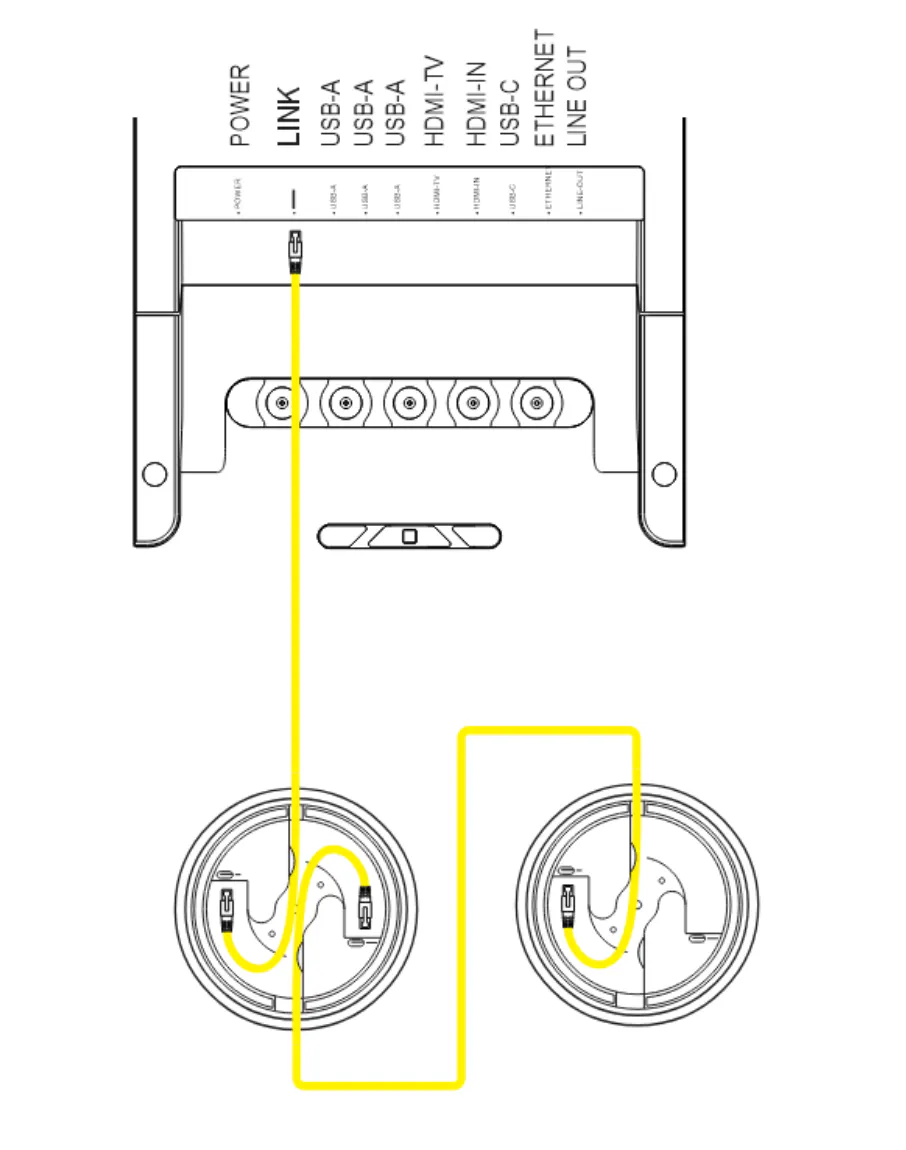
Cable diagram showing the Rally Board 65 ports connected to two mic pods in a daisy-chain configuration.
Wiring
Rally Mic Pod 2 is compatible with Cat5e SF/UTP and Cat6 SF/UTP shielded cables (or higher).
Cat5e SF/UTP
With Cat5e SF/UTP cables, the maximum cable length between Rally Board 65 and the first Rally Mic Pod 2 is 40 meters (131.2 feet). The maximum cable length between two mic pods is 10 meters (32.8 feet).
Cat6 SF/UTP
With Cat6 SF/UTP cables, the maximum cable length between Rally Board 65 and the first Rally Mic Pod 2 is 70 meters (229.6 feet). The maximum cable length between two mic pods is 10 meters (32.8 feet).
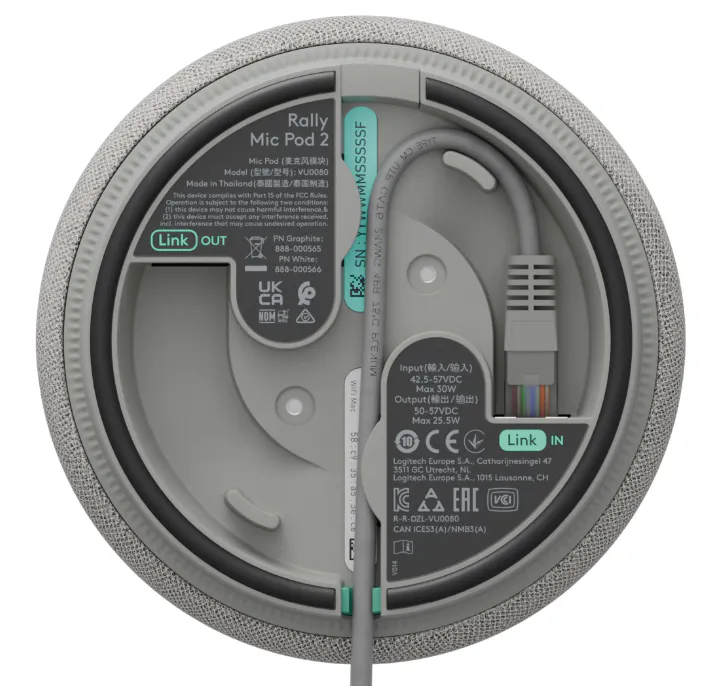
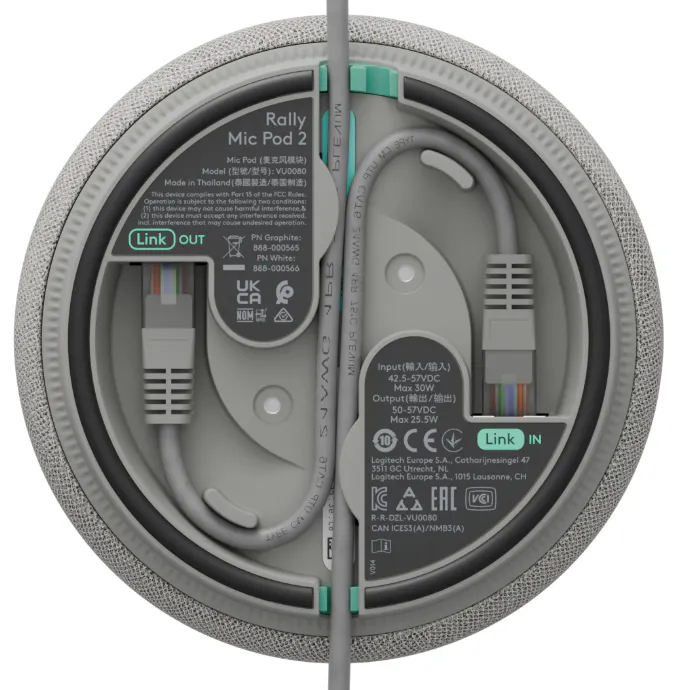
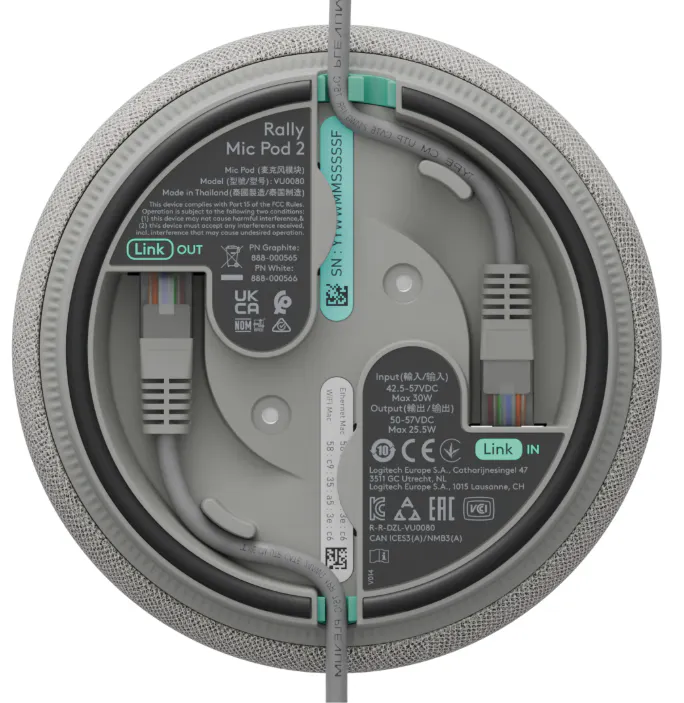
Rally Mic Pod 2 offers a number of cable routing options to suit your installation. In all cases, the Cat5e or Cat6 SF/UTP cable connecting to Rally Board 65 must connect to the Link In jack on the first Rally Mic Pod 2. When daisy-chaining mic pods, connect the Cat5e or Cat6 SF/UTP cable to the Link Out jack on the first Rally Mic Pod 2 and to the Link In jack on the second Rally Mic Pod 2.
The image below shows to connect to a single Rally Mic Pod 2.
The images below show three different options for wiring the first Rally Mic Pod 2 in a daisy-chained configuration.
Option 1
Option 2
Option 3
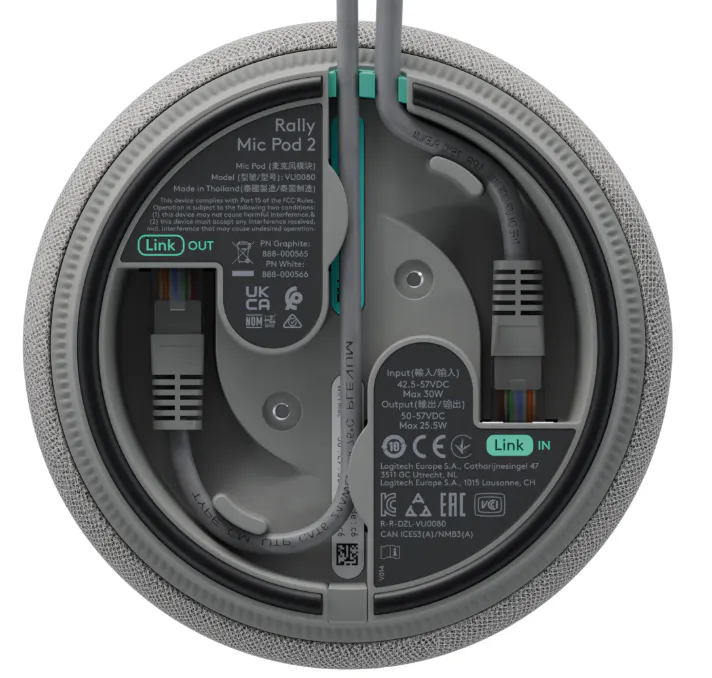
In addition, cables can be routed through a grommet hole on the table and held in place using Rally Mic Pod 2 Grommet Mount (see below).
Mounting
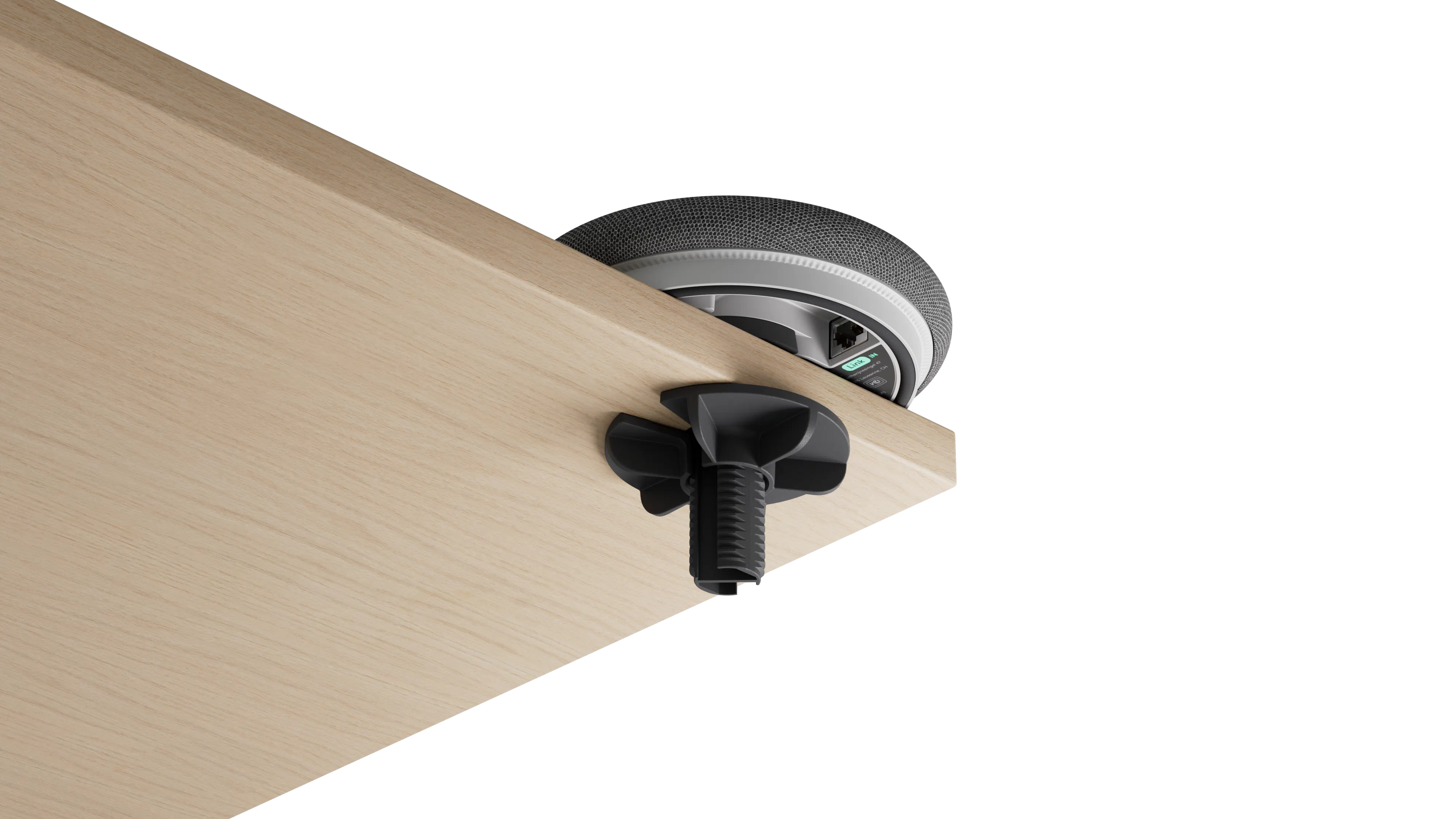
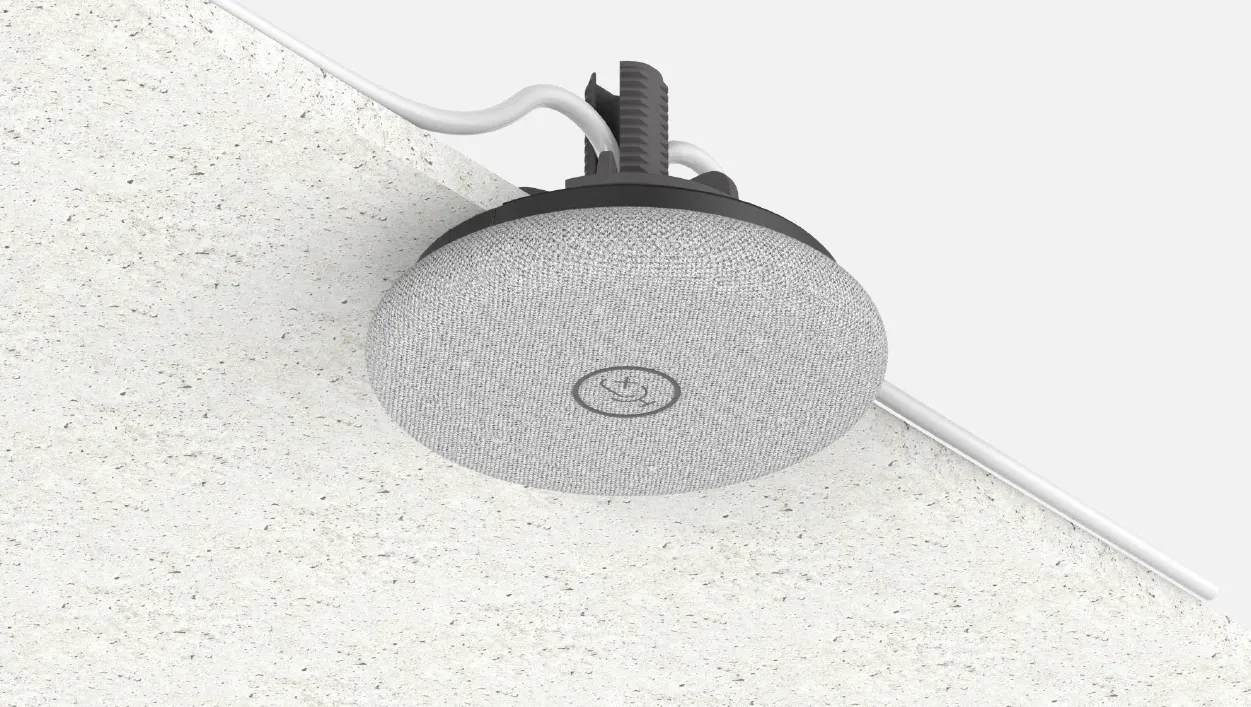
Rally Mic Pod 2 can be placed on a table with one or both cables running out the sides. In addition, an optional Rally Mic Pod 2 Grommet Mount is available for more secure mounting. This is a convenient way to route cables through the table and keep Rally Mic Pod 2 in the proper position on the table. The Grommet Mount can also be used to attach Rally Mic Pod 2 to the ceiling.
Grommet Mount on a Table
Attach the threaded rod to the bottom of Rally Mic Pod 2 using the supplied screws. Pull the cable(s) through a 25 mm (1 in) grommet hole in the table and connect the cable(s) to the mic pod. Route the cable(s) in the slots on the threaded rod, place the mic pod mount through the grommet hole, and tighten it down with the included nut.
Grommet Mount on the Ceiling
Attach the threaded rod to the bottom of Rally Mic Pod 2 using the supplied screws. Pull the cable(s) through a 25 mm (1 in) grommet hole in the ceiling and connect the cable(s) to the mic pod. Route the cable(s) in the slots on the threaded rod, place the mic pod mount through the grommet hole, and tighten it down with the included nut.
Using Rally Mic Pod 2
Muting the Mic Pod
Muting the mic pod can be done by simply pressing the mute icon on the mic pod to toggle mute on and off. When the mic pod is muted, the LED is red.
Note: When any of the mic pods are muted, all microphones (including the built-in microphones in Rally Board 65) are also muted.
Updating the Firmware for Rally Mic Pod 2
When a Rally Mic Pod 2 is first connected to a CollabOS host device such as a Rally Board 65, it will automatically update as needed to a version compatible with the host device’s CollabOS software. While the Rally Mic Pod 2 remains connected, the CollabOS host device will update the Rally Mic Pod 2 firmware (if necessary) as part of the host's normal CollabOS update process.
LED Information
When Rally Mic Pod 2 is powered on it will go through this LED sequence:
For the first several seconds, the LEDs will be red.
The LEDs will then cycle through several colors as the Rally Mic Pod 2 finishes powering on: blue, lilac, white, and cyan in sequence.
When the Rally Mic Pod 2 is fully powered up, the LEDs will reflect the current call state: no LEDs when idle, white when in an active meeting, and red when in an active meeting and the microphone is muted.
LED Color
Indication
White
In an active meeting
Red
In an active meeting, but muted
Lilac (pulsing)
Firmware update in progress
Red (pulsing)
Device error
No color
Idle