
Set up Scribe to use with Google Meet hardware
The below guide covers the process of setting up a Scribe for use with Google Meet hardware:
Prerequisites to using Logitech Scribe with Google Meet
Logitech Scribe is only supported with Google Meet on ChromeOS. Google Meet on Android does not support Logitech Scribe.
Ensure your Google Meet Compute (Chromebox) is updated to the latest version.
Ensure Logitech Scribe is on the latest firmware version: Version 1.1.4 or later. Use Logitech Sync to manage the firmware updates for Scribe.
How to set up Scribe for use with Google Meet on ChromeOS
Start or join a Google Meet call.
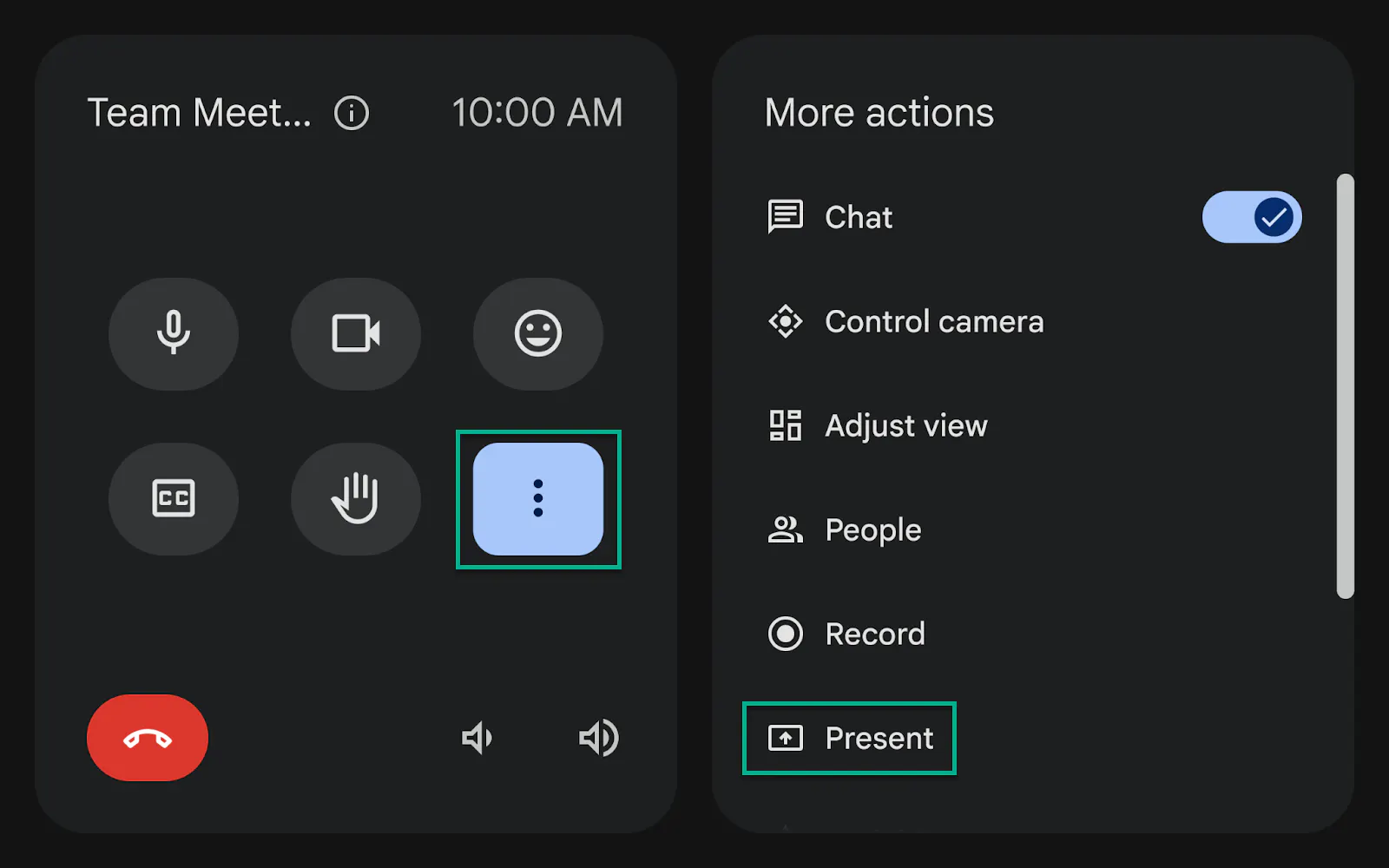
From the Tap, select the More Options button (three dots), select the Present option, choose Whiteboard Camera, then Start Presenting.
When you are finished presenting, choose Stop Presenting on the Tap. Or, simply leave the call.
Known Issues/Troubleshooting
The Share Button included with the Logitech Scribe is not supported with Google Meet.
If you are having trouble seeing the Whiteboard Camera sharing option on the Tap, try switching the USB ports the Scribe, Tap, and your conference camera are connected to on the Google Meet Compute.