System Settings - Location Management
Sync Portal lets you associate real-world locations - like a building's address - with individual rooms and spaces. This enables Sync Insights to compare indoor and outdoor temperatures for actionable HVAC recommendations that optimize comfort and energy use. It also ensures rooms with Spot sensors stay aligned with local time for accurate scheduling, while capturing presence, environmental, and health data to boost productivity.
Add a location to a room
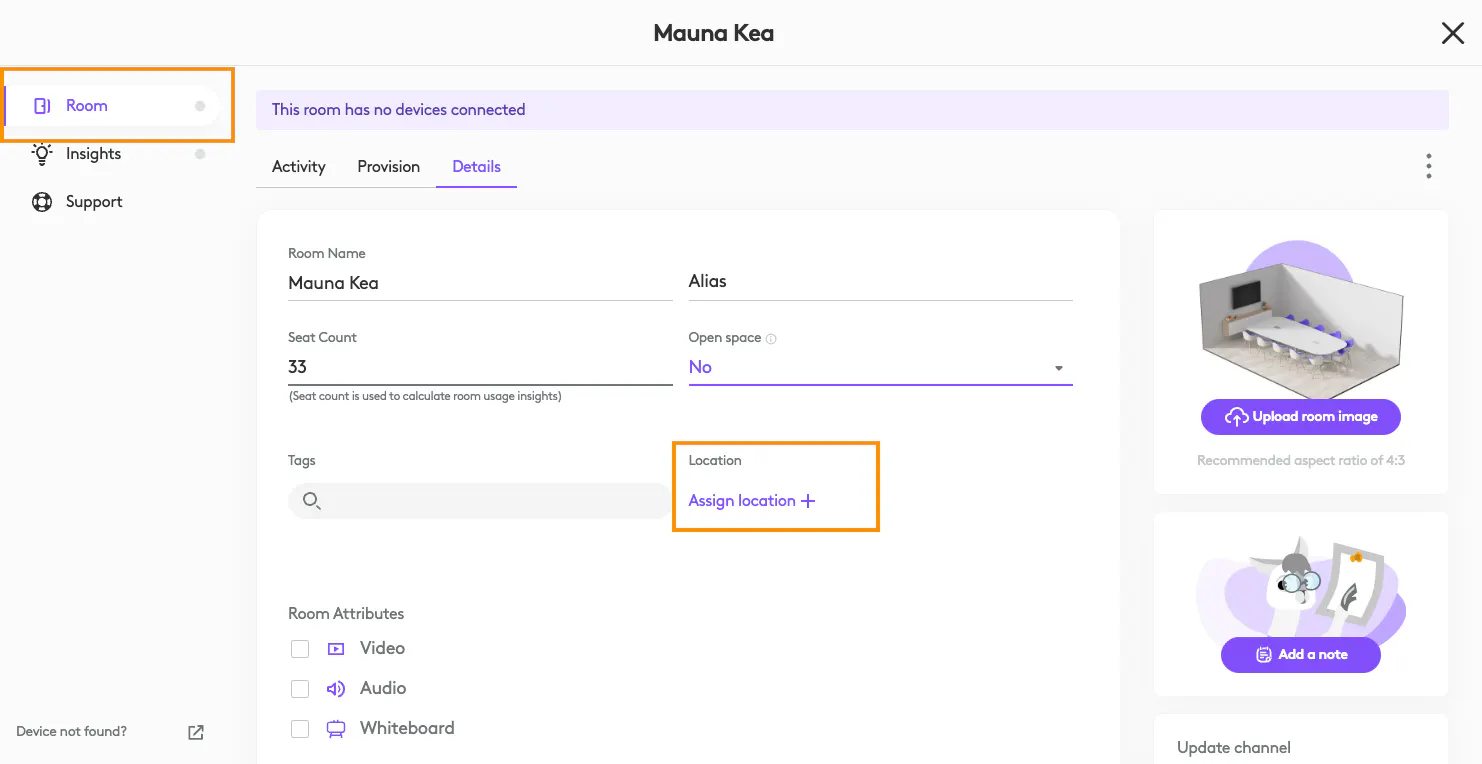
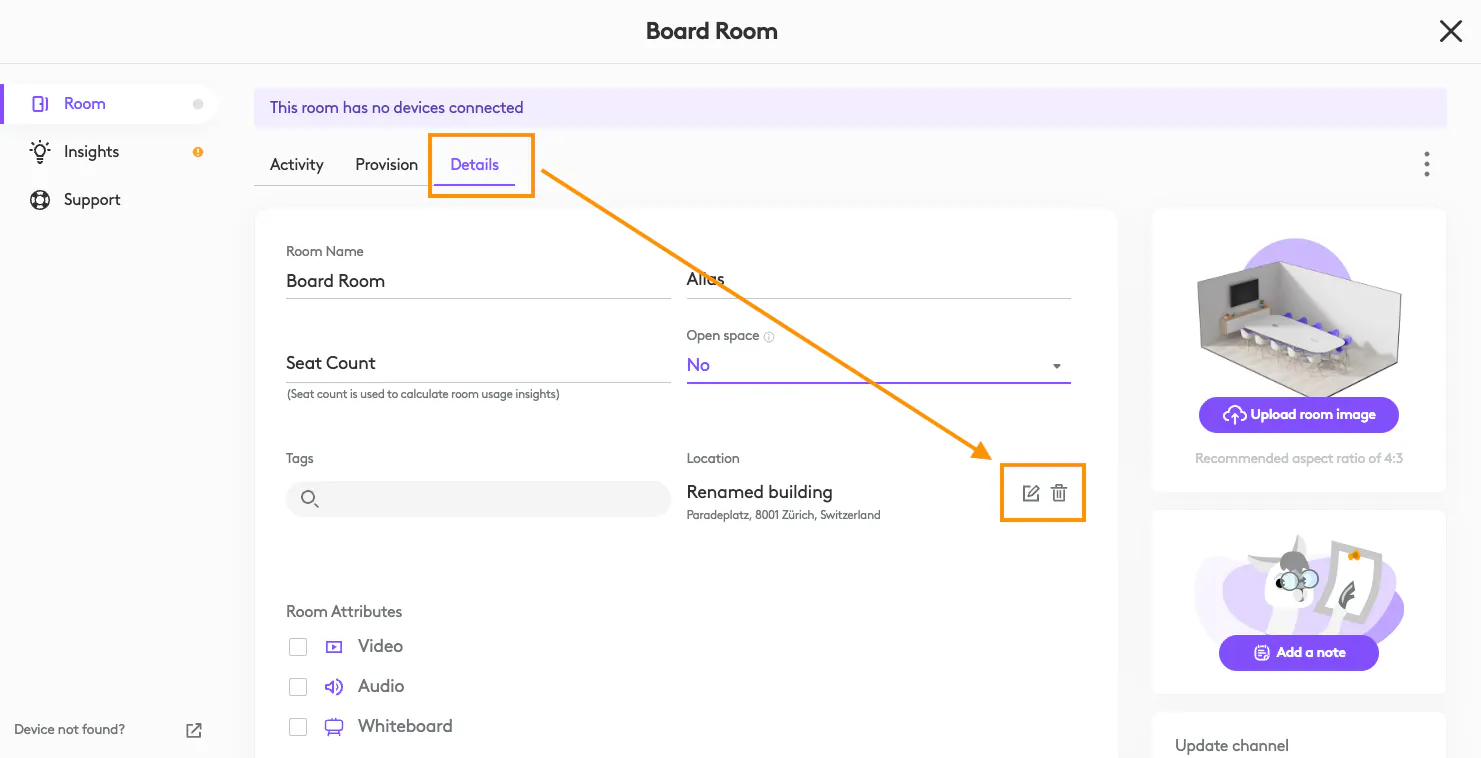
Select a room and navigate to the “Details” page. Select “Assign location+”.
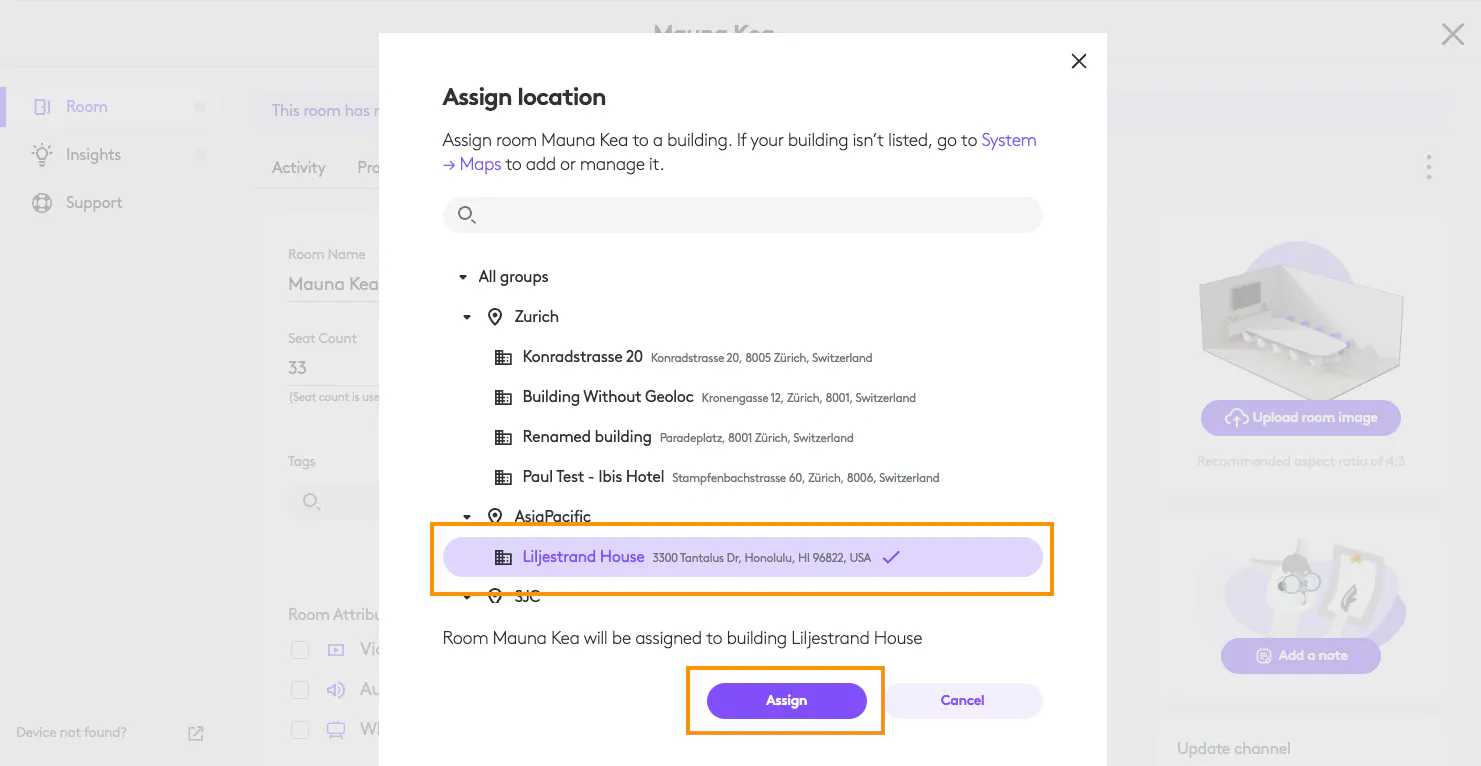
Select the location and click “Assign”.
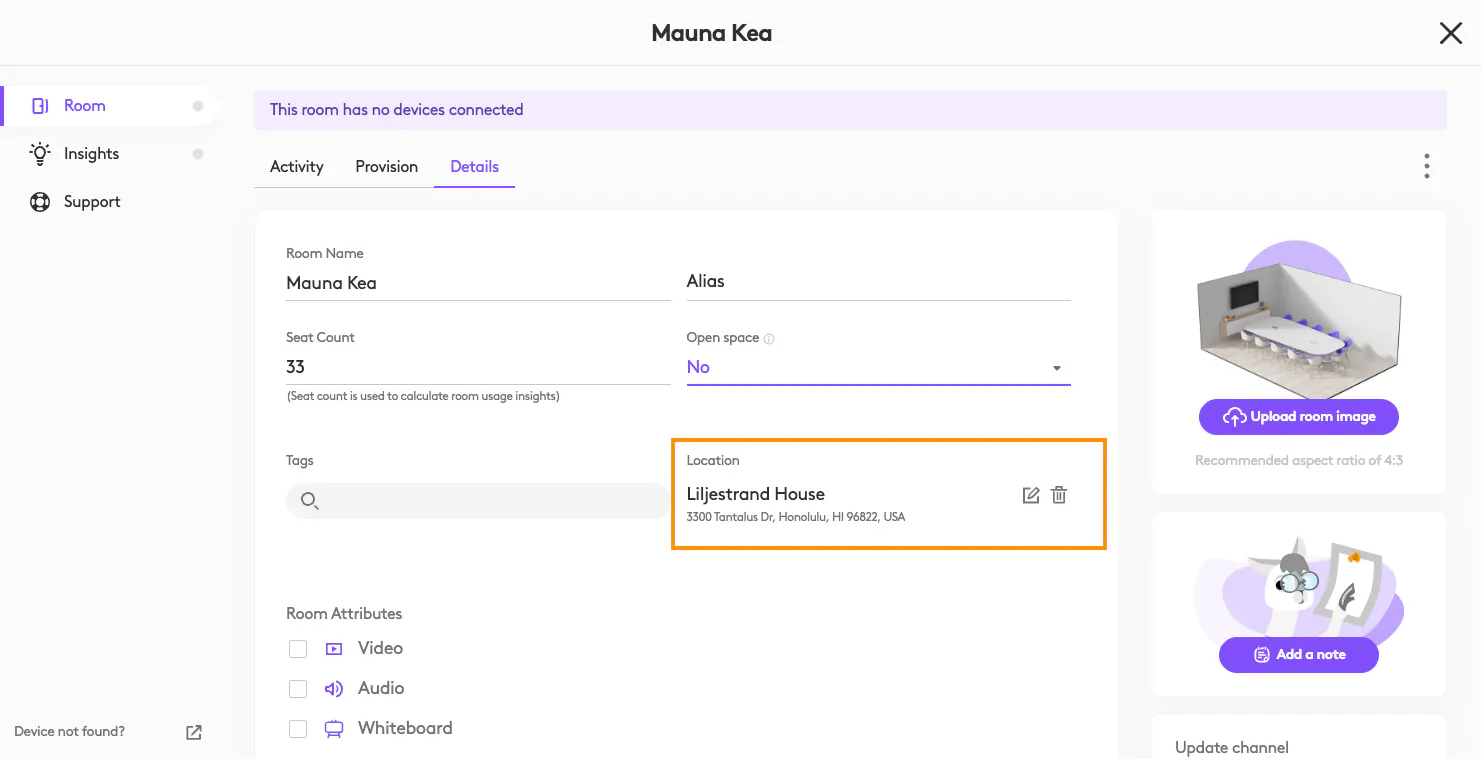
You’ll see the location is now assigned to your room.
Add a location to several rooms
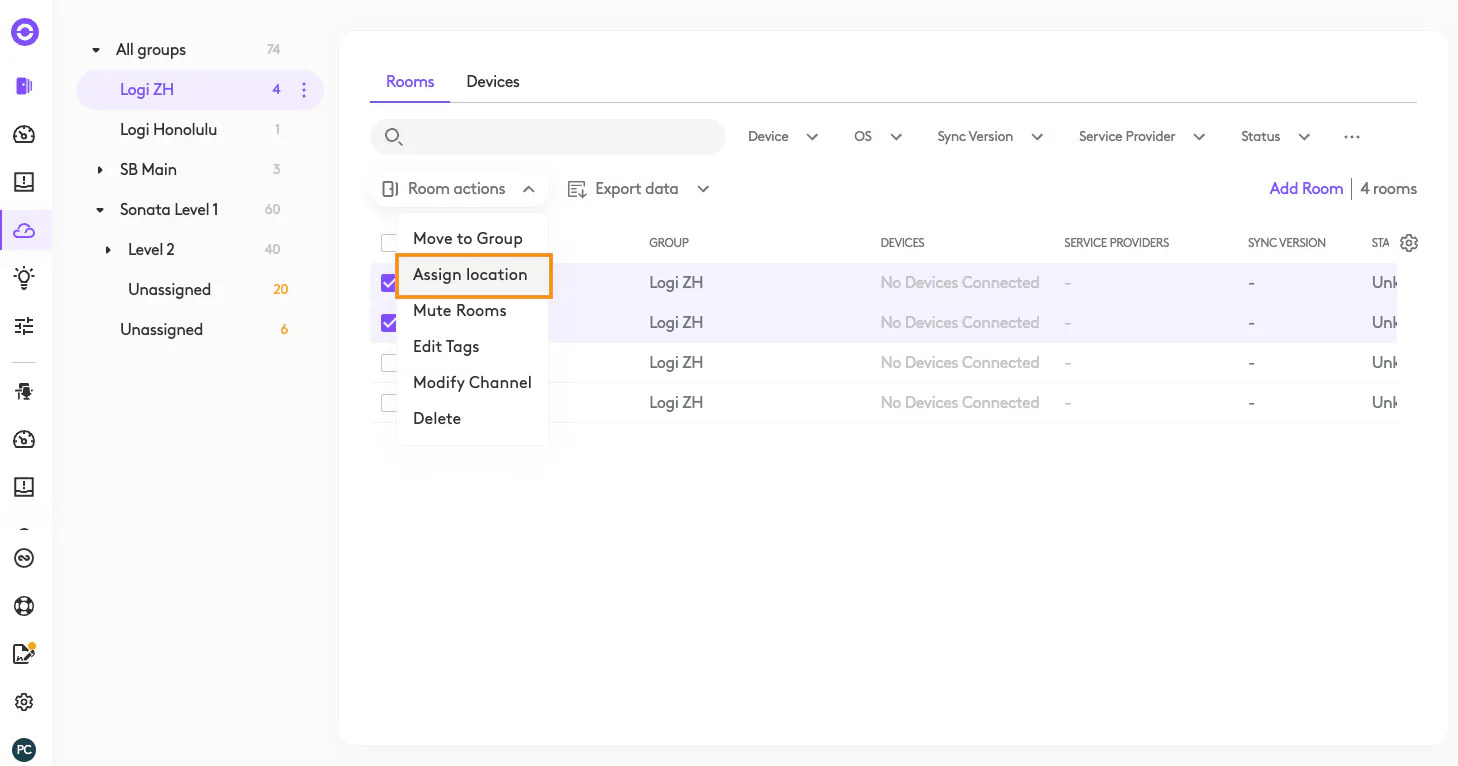
To add a location to several rooms, from the “Rooms” tab select the rooms you want to assign a location to.
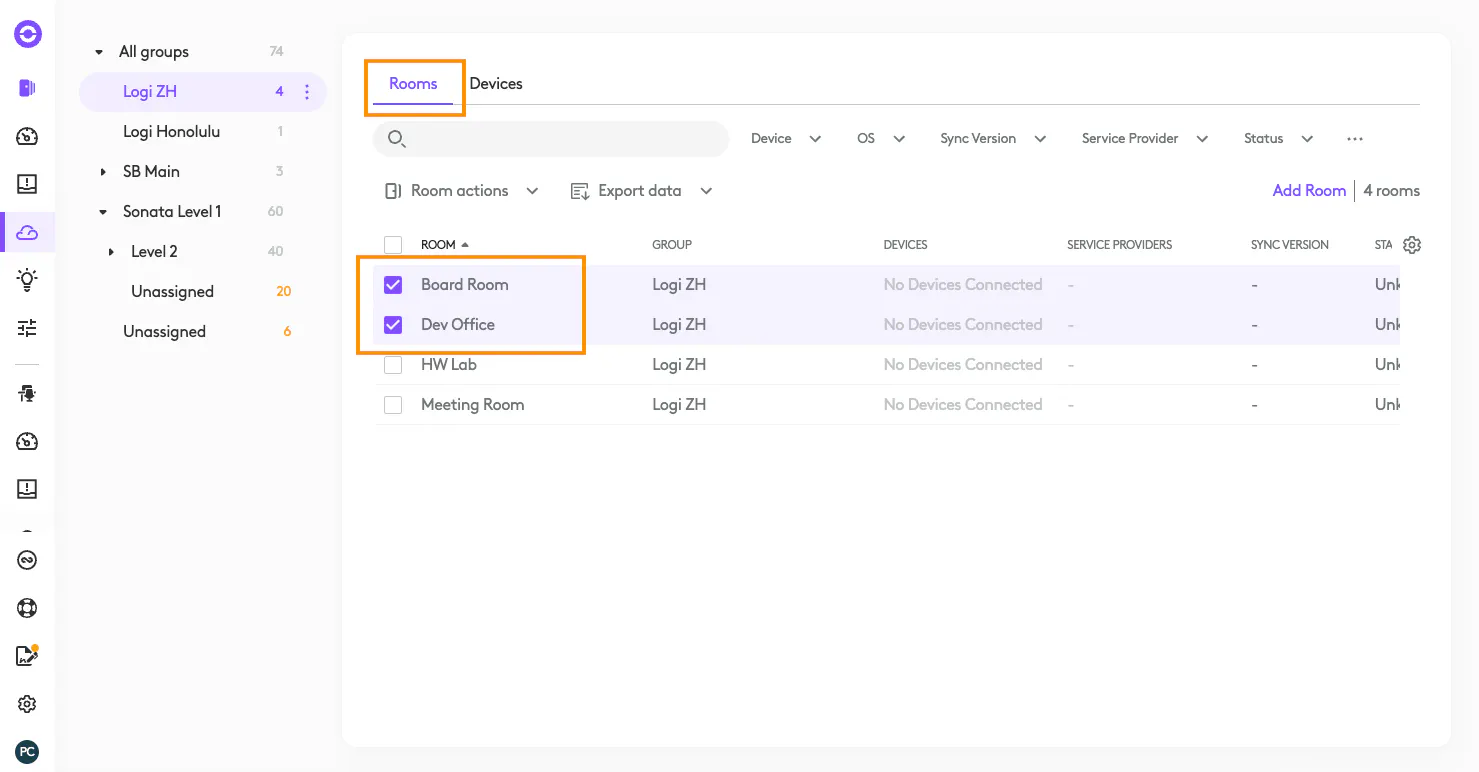
Under “Room actions” select “Assign location”.
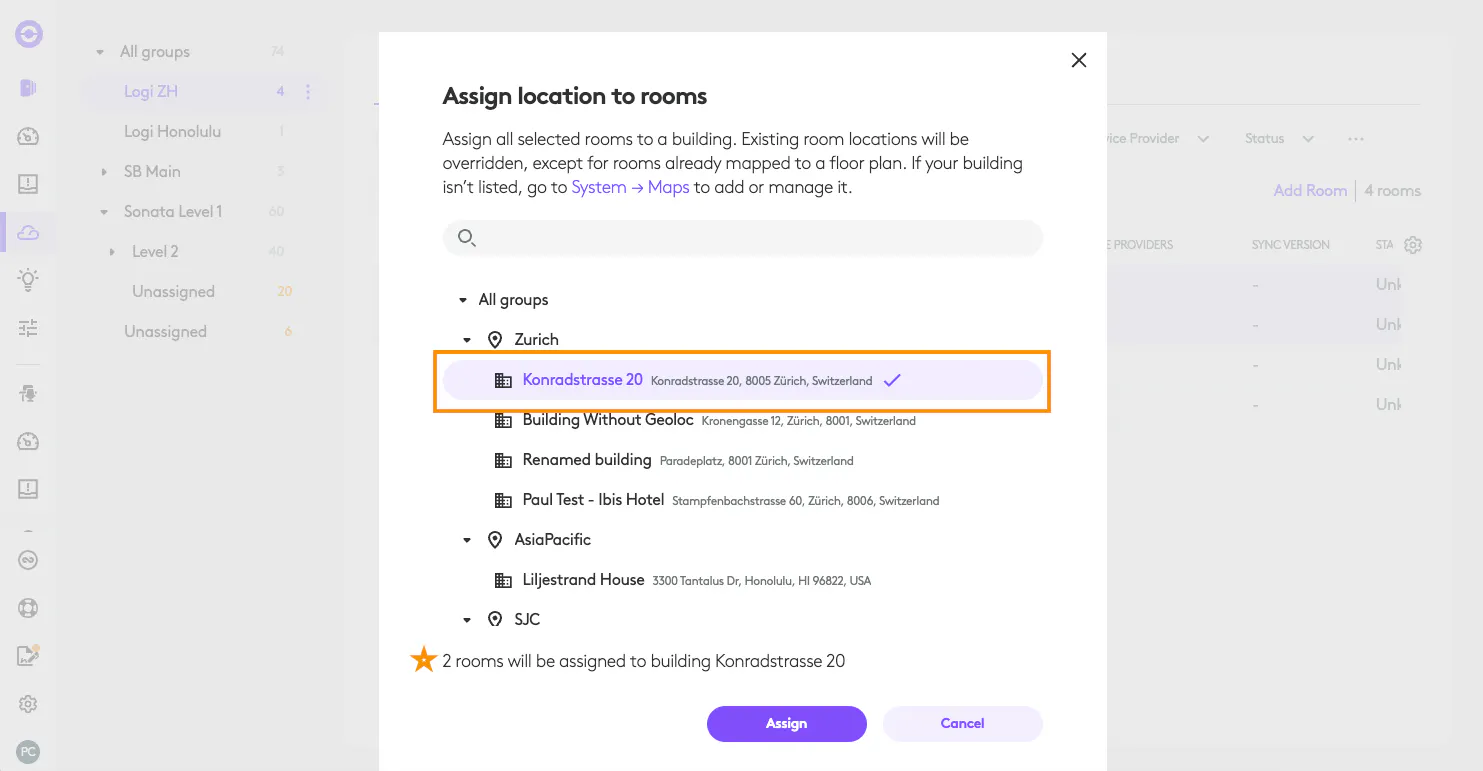
Select the location and click “Assign”. You’ll see that 2 rooms will be assigned to the building you’ve selected.
Assign a location to a building with rooms
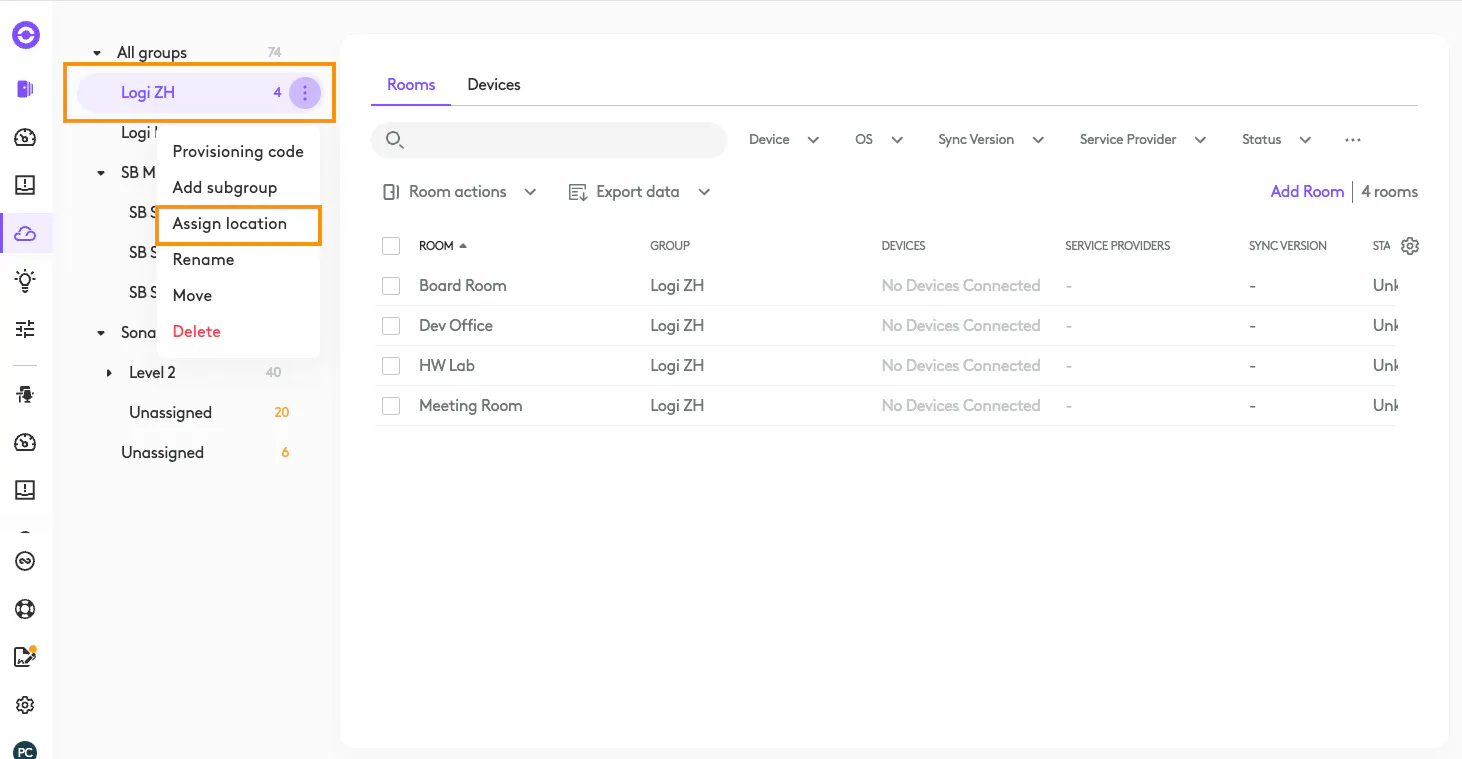
Hover over the building you want to assign a location to; select the 3 ellipses and “Assign location”. Note: you can only assign a location to a building that has rooms assigned to it.
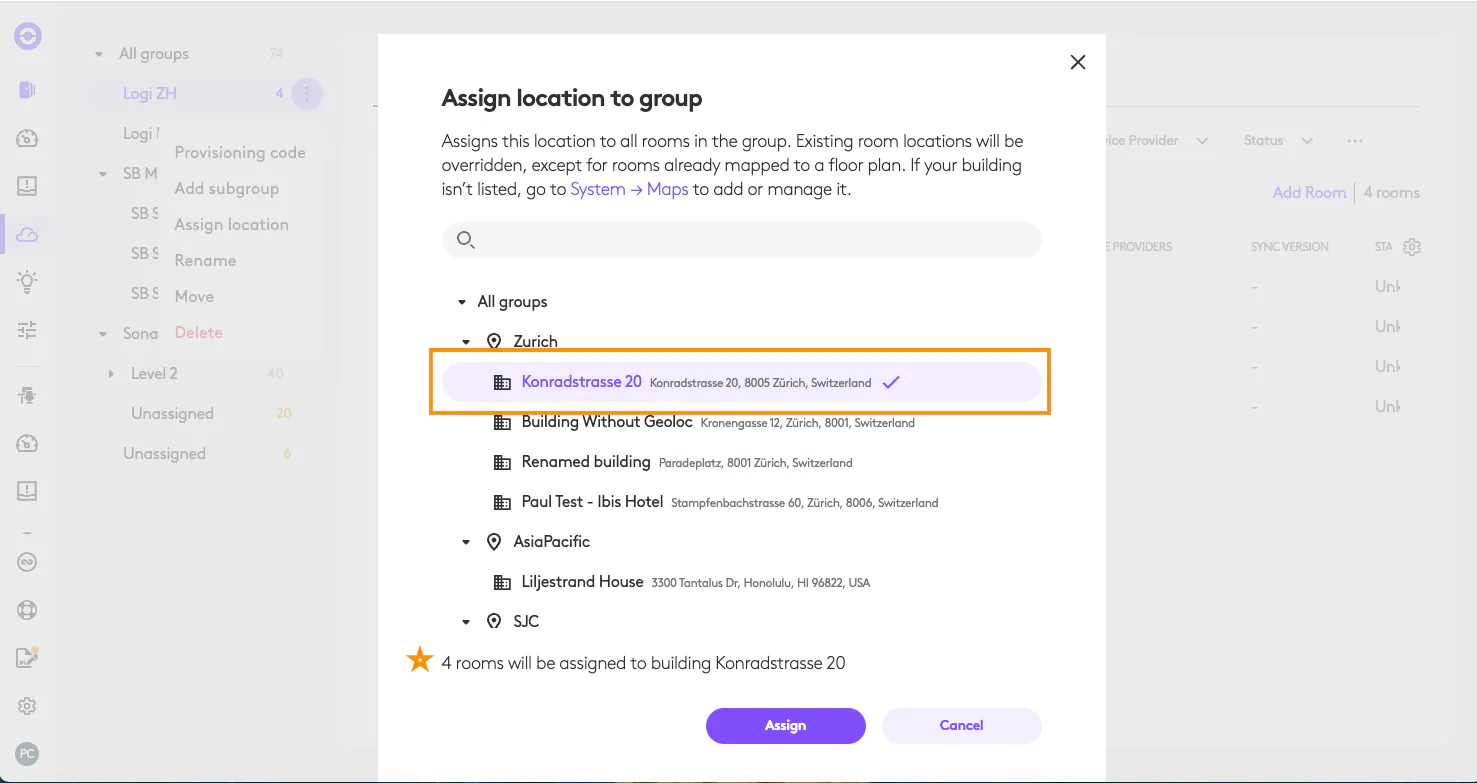
Select the location and click “Assign”. You’ll see that 4 rooms will be assigned the location you’ve selected.
Edit or delete a location from a room
From the room details page select the edit icon to change the location of the room or select the trash icon to remove a location from the room.
Adding a location from Device Settings
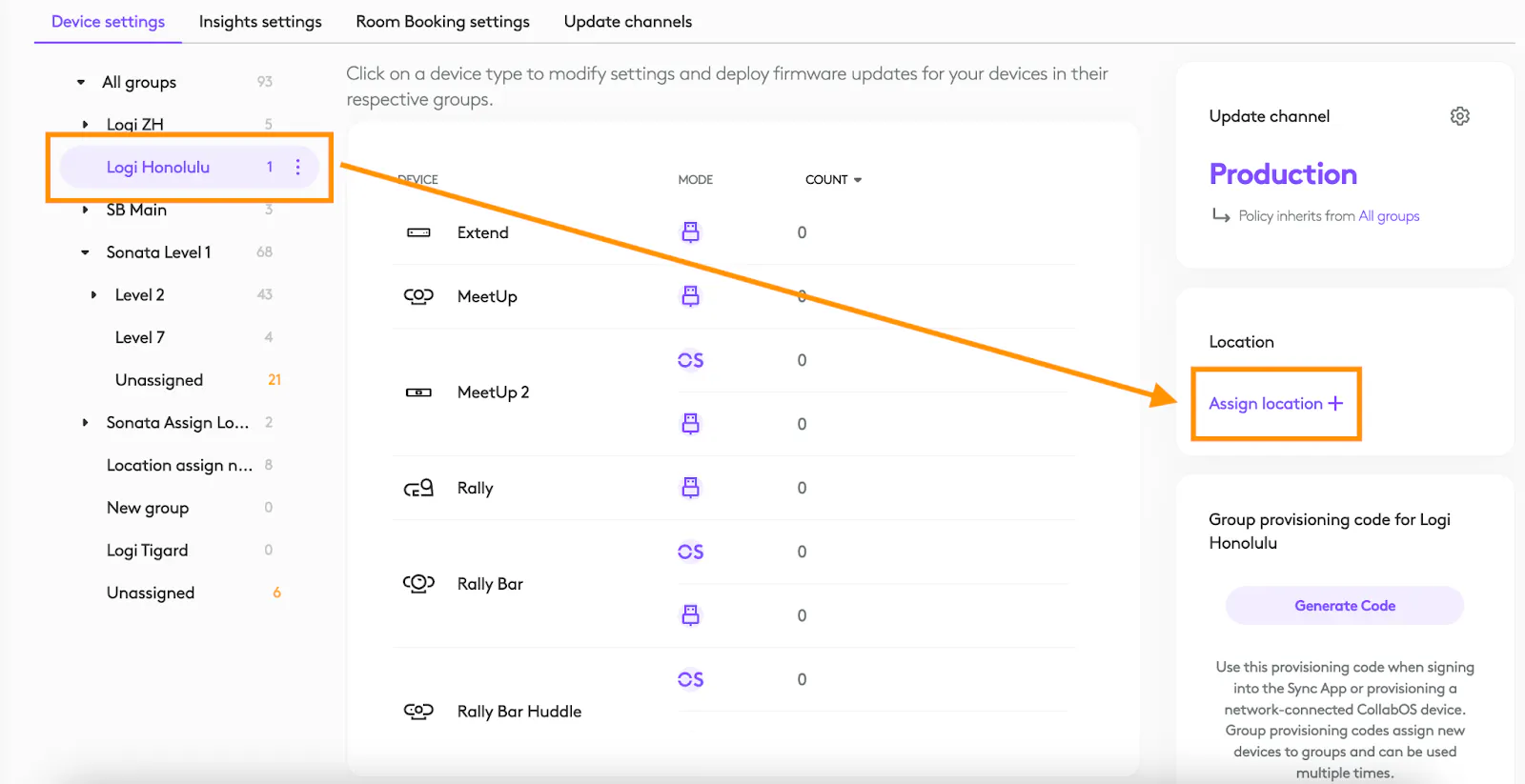
On the Device Settings page, select the building where you want to add a location, then click on "Assign Location +" in the Location card.
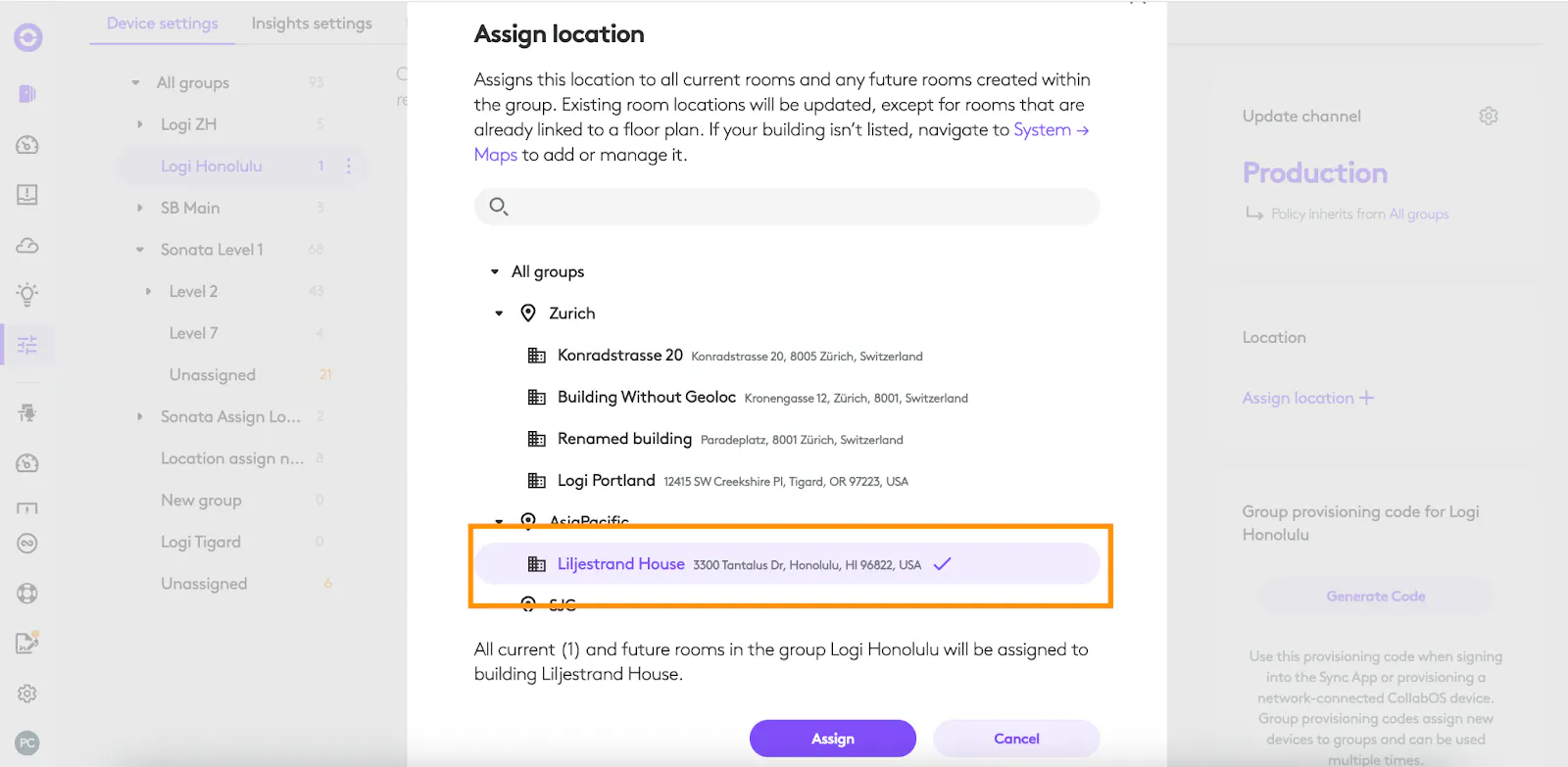
Select the location you want to assign to the building, then click the Assign button.
All current and future rooms in the group will automatically inherit this location.
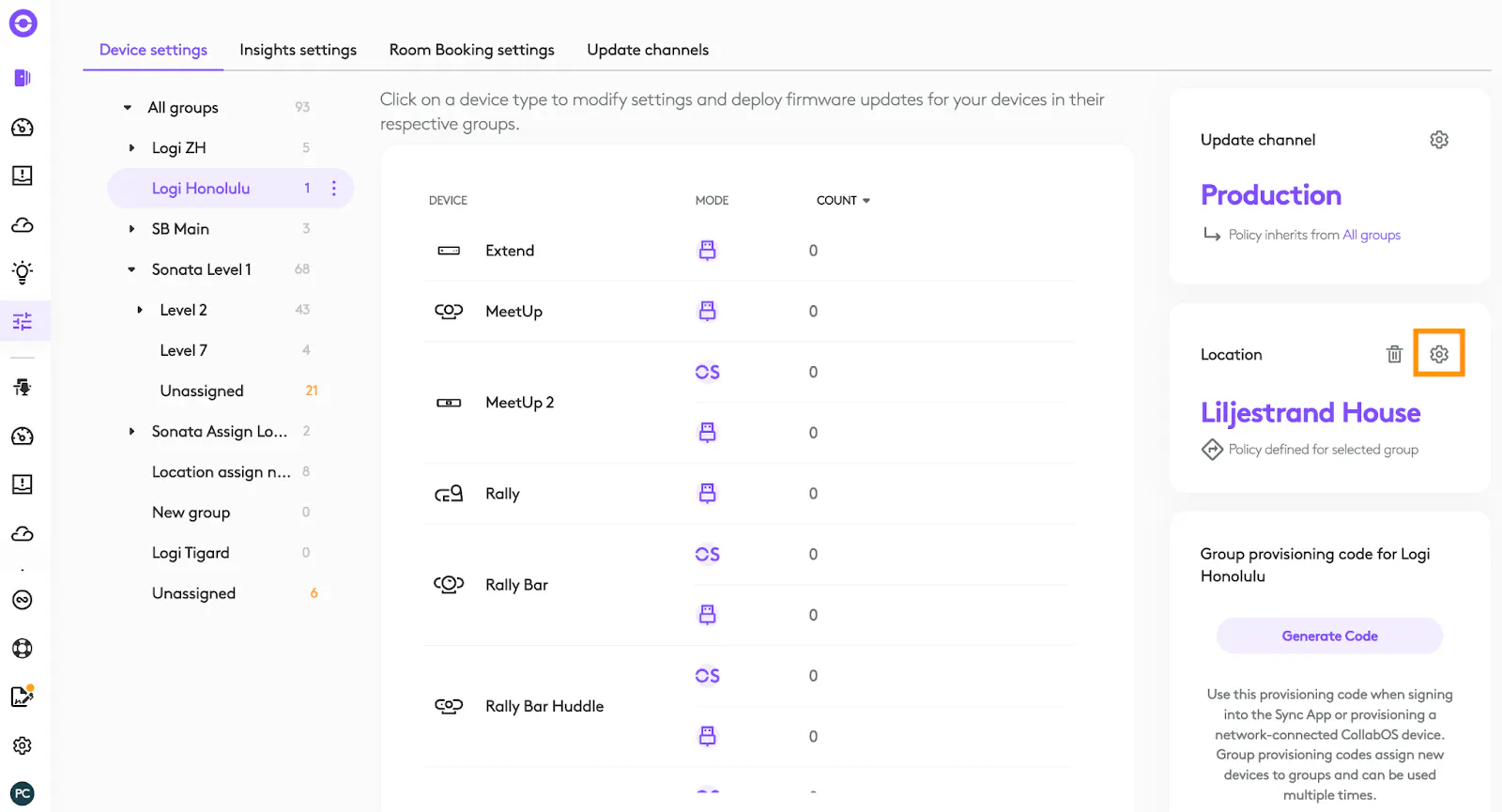
To change a location, click the gear icon, select the new location, and then click the Assign button. All current rooms in this group will automatically be assigned the new location, unless they are already mapped to a floor plan they will retain their current location.
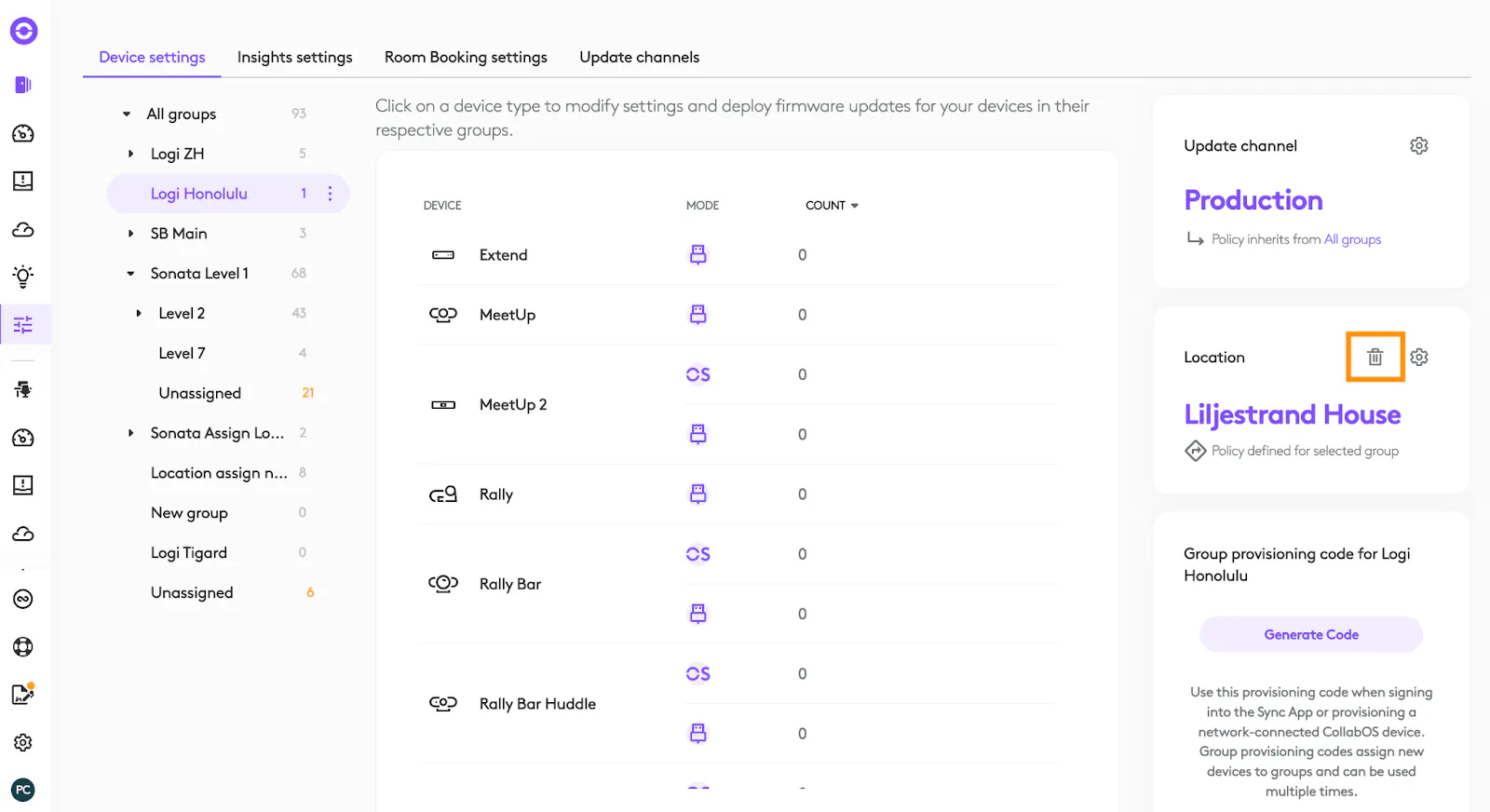
To delete a location select the garbage can icon.
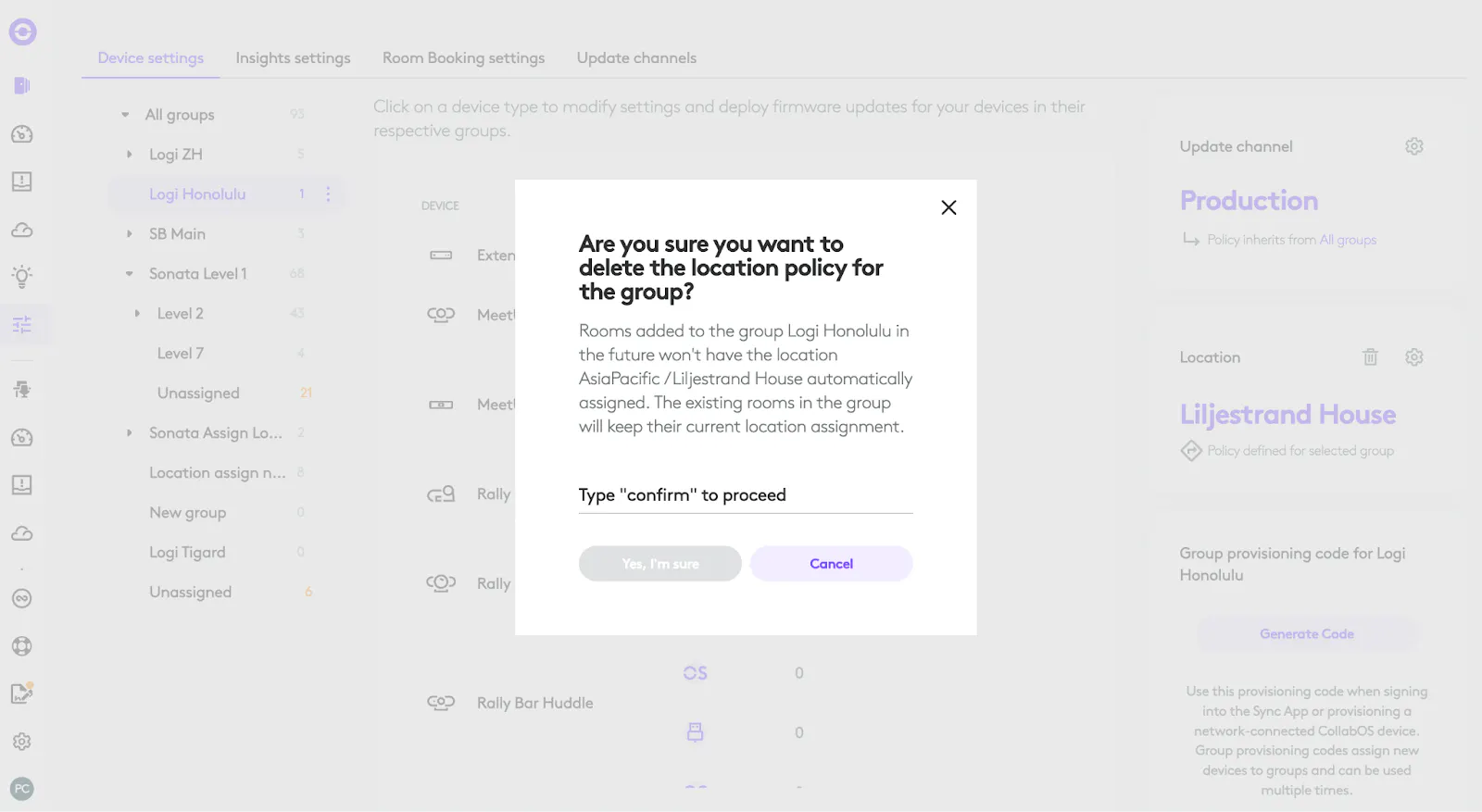
Type ‘confirm’ to remove the location from the group. This will remove the location from all rooms currently assigned to the group, except for those already mapped to a floor plan.
Create a building and location
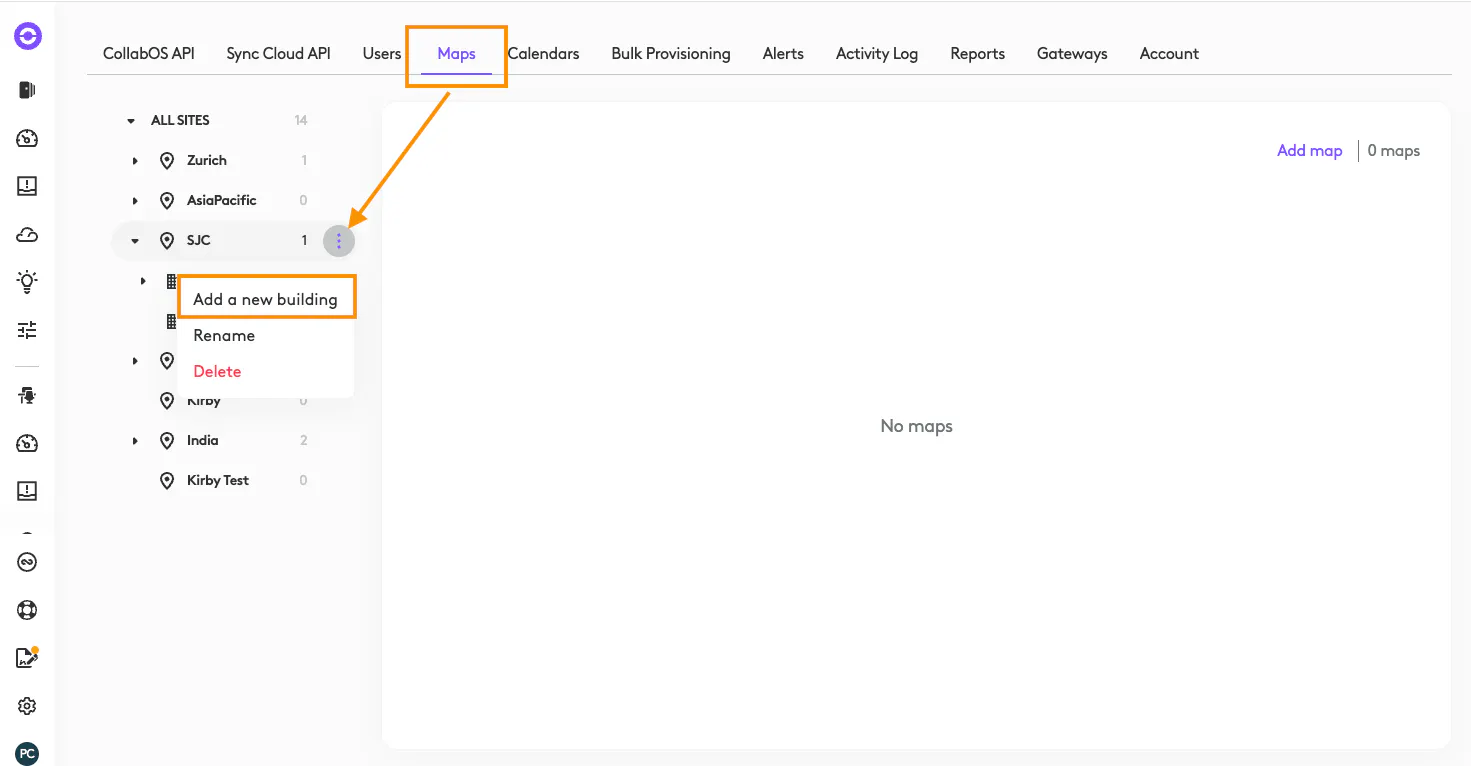
Under the “System” page select “Maps”; hover over the Site you want to add a building to and select the 3 ellipses and “Add a new building”.
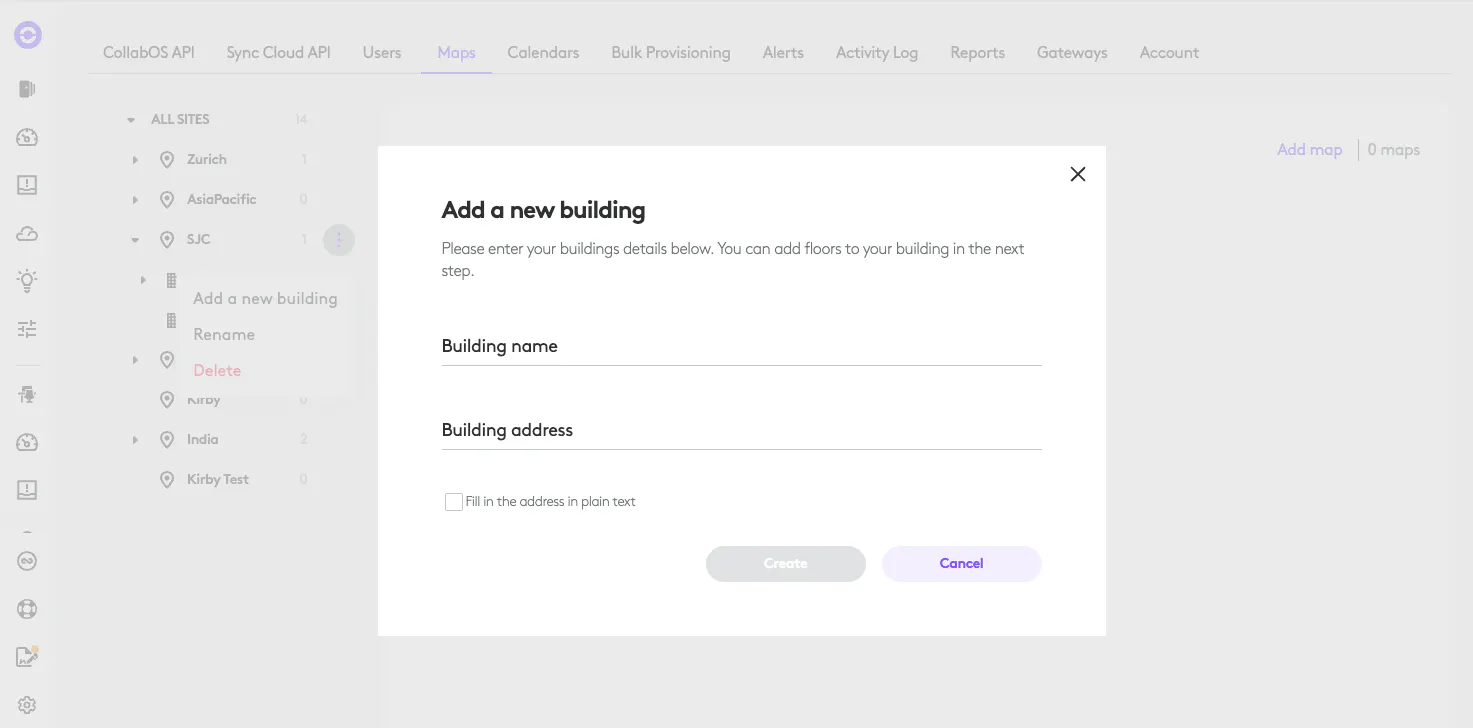
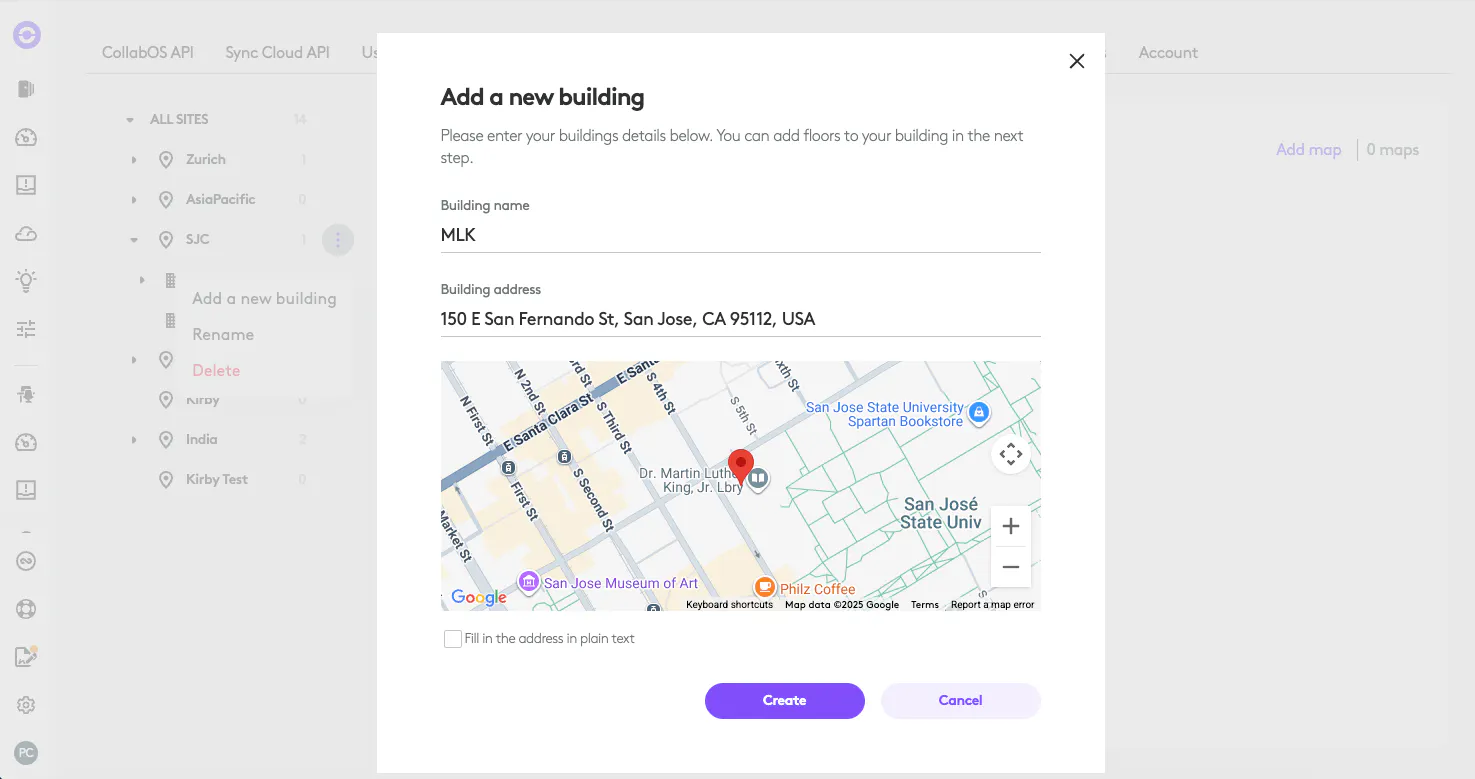
Type in the name of you want to give your building and the physical address. Select the correct address from the list.
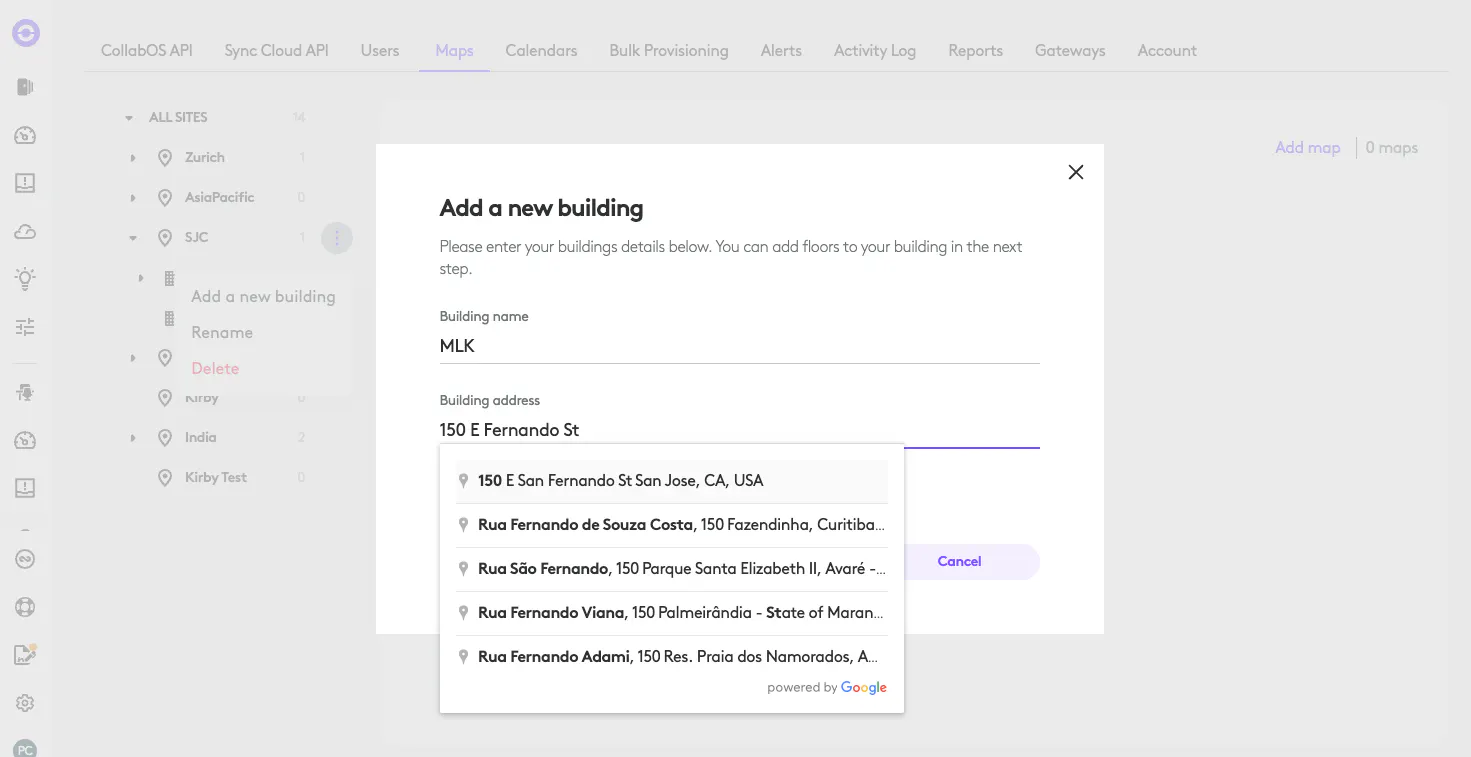
Select "Create".
Edit the address of an existing building
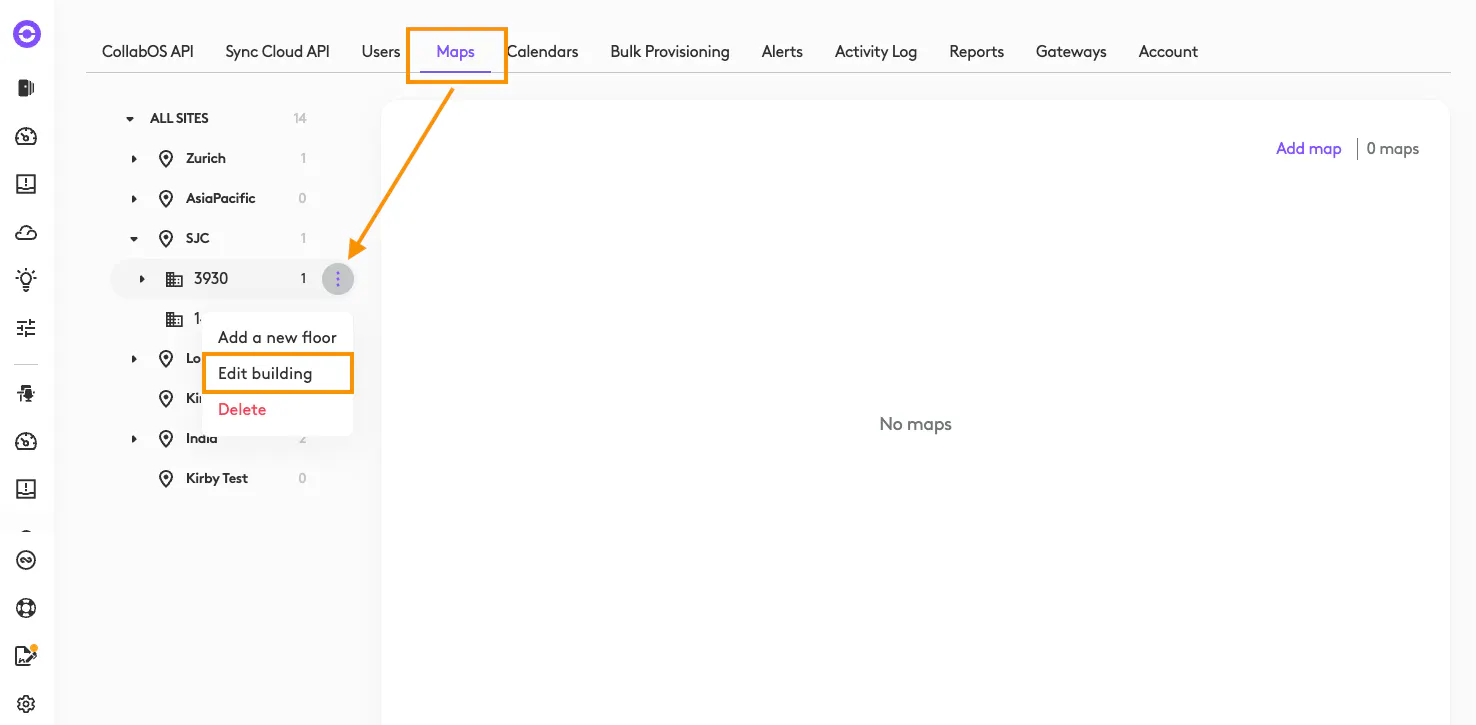
Under the “System” page select “Maps”; hover over the building you want to edit the location, select the 3 ellipses and “Edit building”.
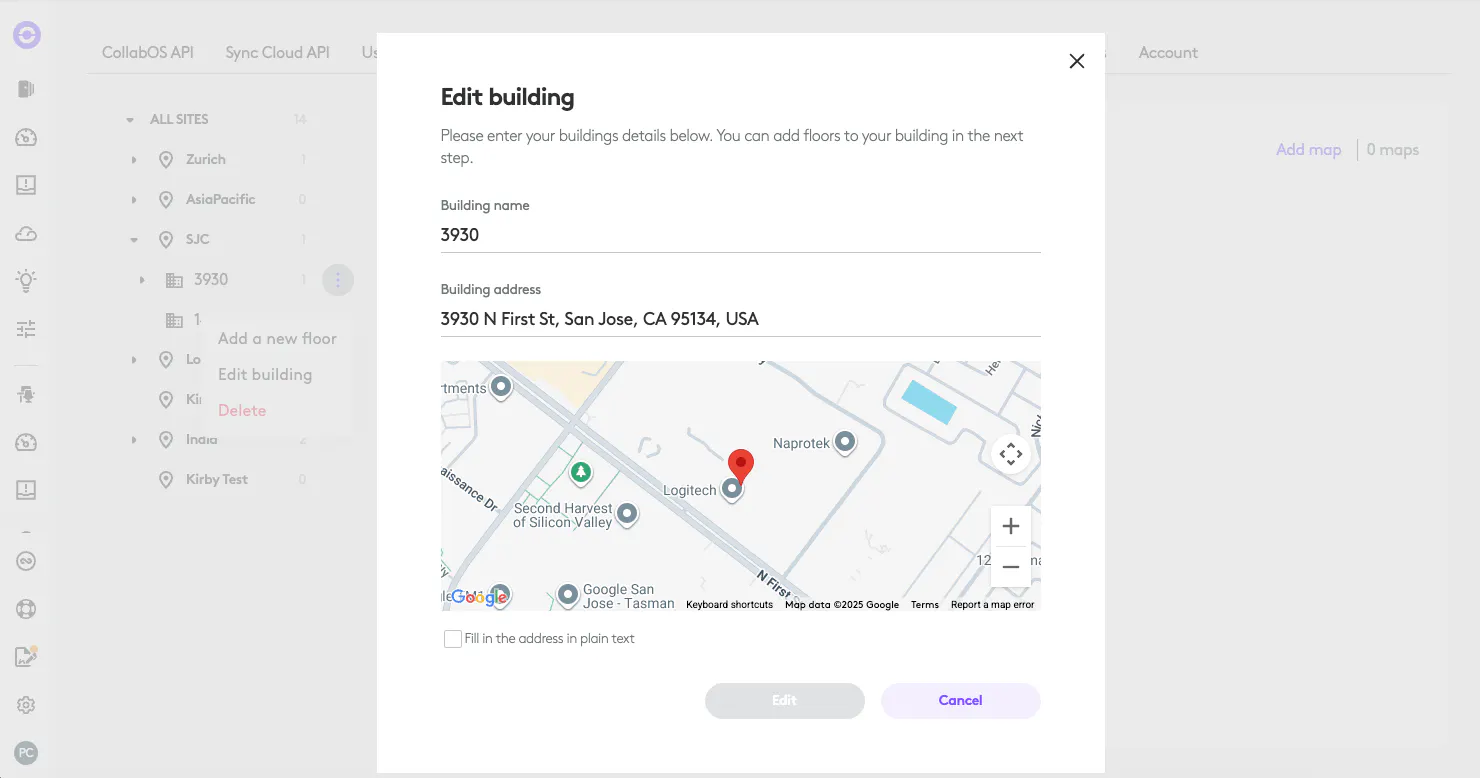
Type in the new building name and/or address and select “Edit”.
Once you’ve added buildings and locations, take it further by mapping out floors and spaces. These maps integrate seamlessly across Logitech Tap Scheduler, RoomMate, Logi Tune mobile, and desktop, helping users locate rooms, desks, and amenities with ease.
https://sync.logitech.com/hub/syncguides/post/upload-and-configure-maps-bnz9y7e57Mlv3tE