
Getting started with Logi View
Getting started with Logi View
CollabOS 2.2 introduces native web app support for Tap Scheduler 2, enabling IT administrators to use web-based room booking service provider applications securely and efficiently. By leveraging web applications, service providers get direct, instant control over their own feature rollouts, bug fixes, and user experience updates without waiting on CollabOS firmware updates.
Supported devices:
Tap Scheduler 2
Initial Configuration
Using a CollabOS device
Initiate the device setup in your CollabOS device.
Under ‘Select service provider’, choose ‘Logitech View’.
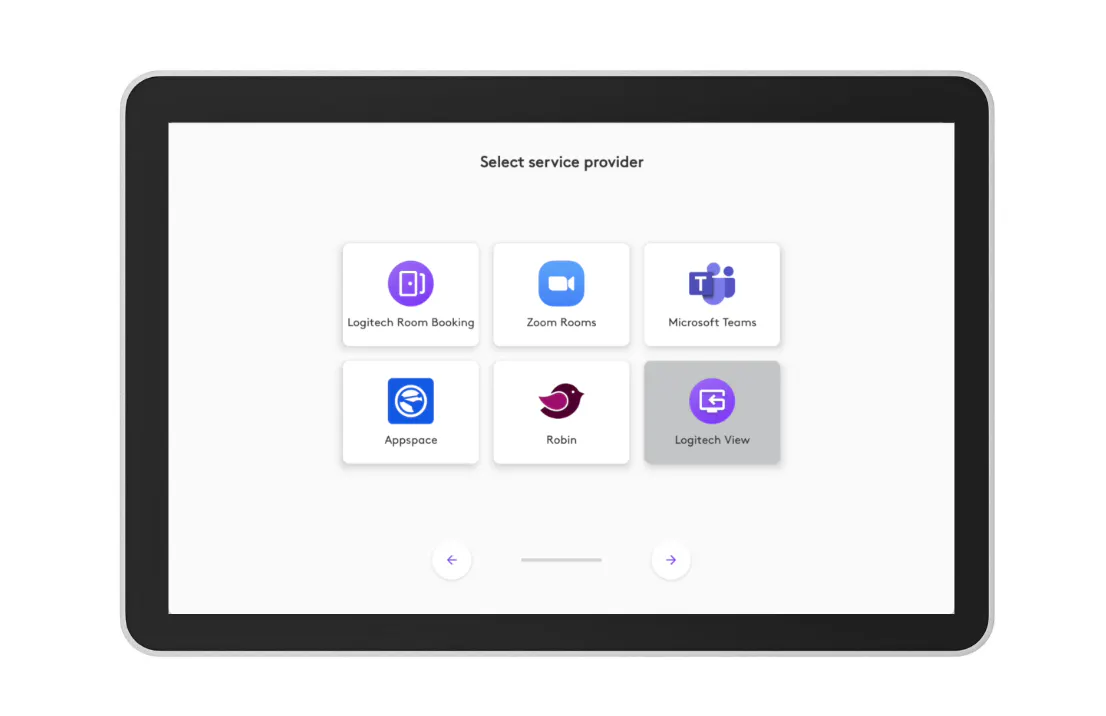
Once the onboarding is complete, login to Local Network Access (LNA).
Under System -> Service provider, choose the desired service provider web application URL.
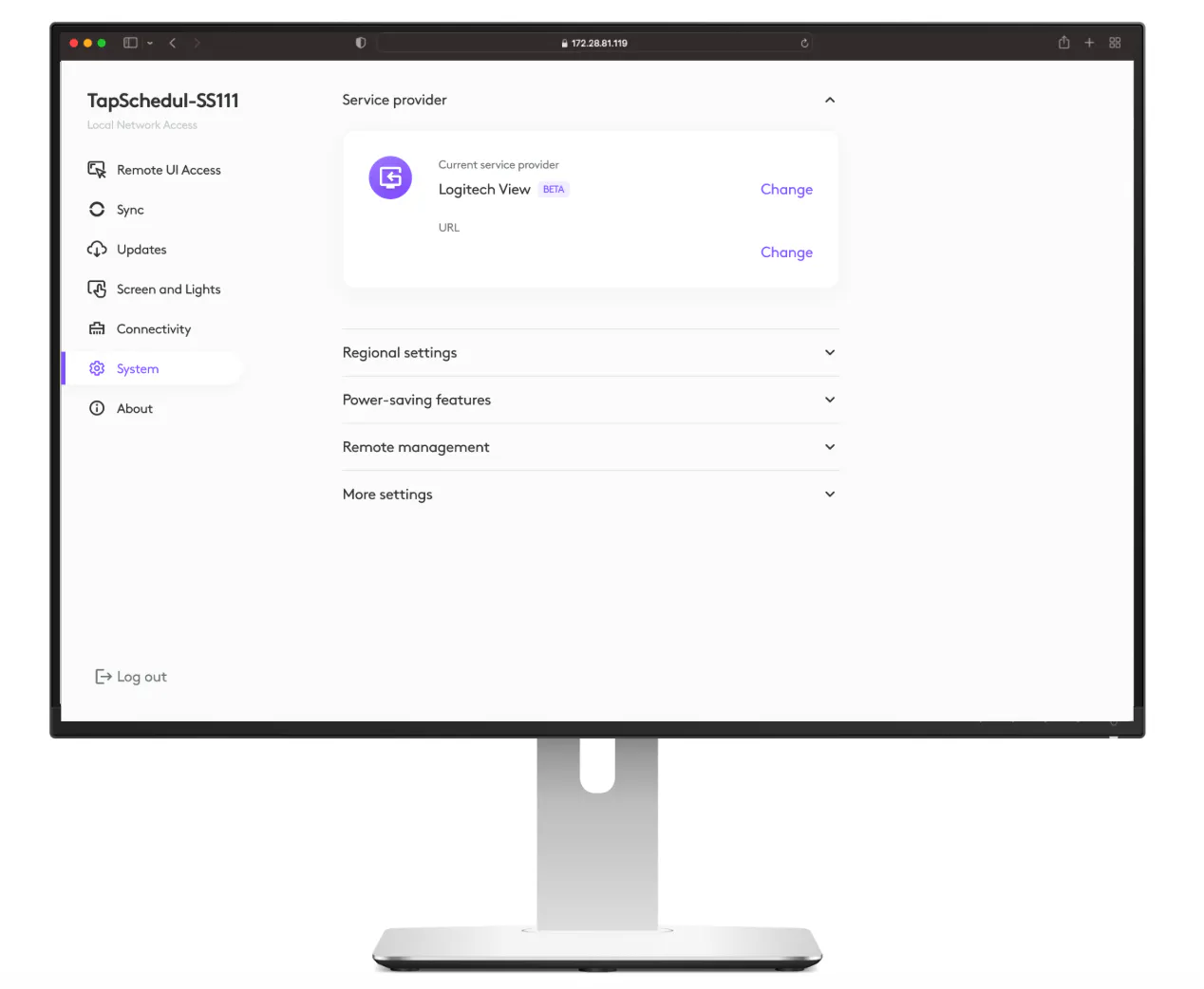
The device is now configured to work with your selected service provider web application.
Using Local Network Access
Initiate the device setup using Local Network Access.
Under ‘Select service provider’, choose ‘Logitech View’.
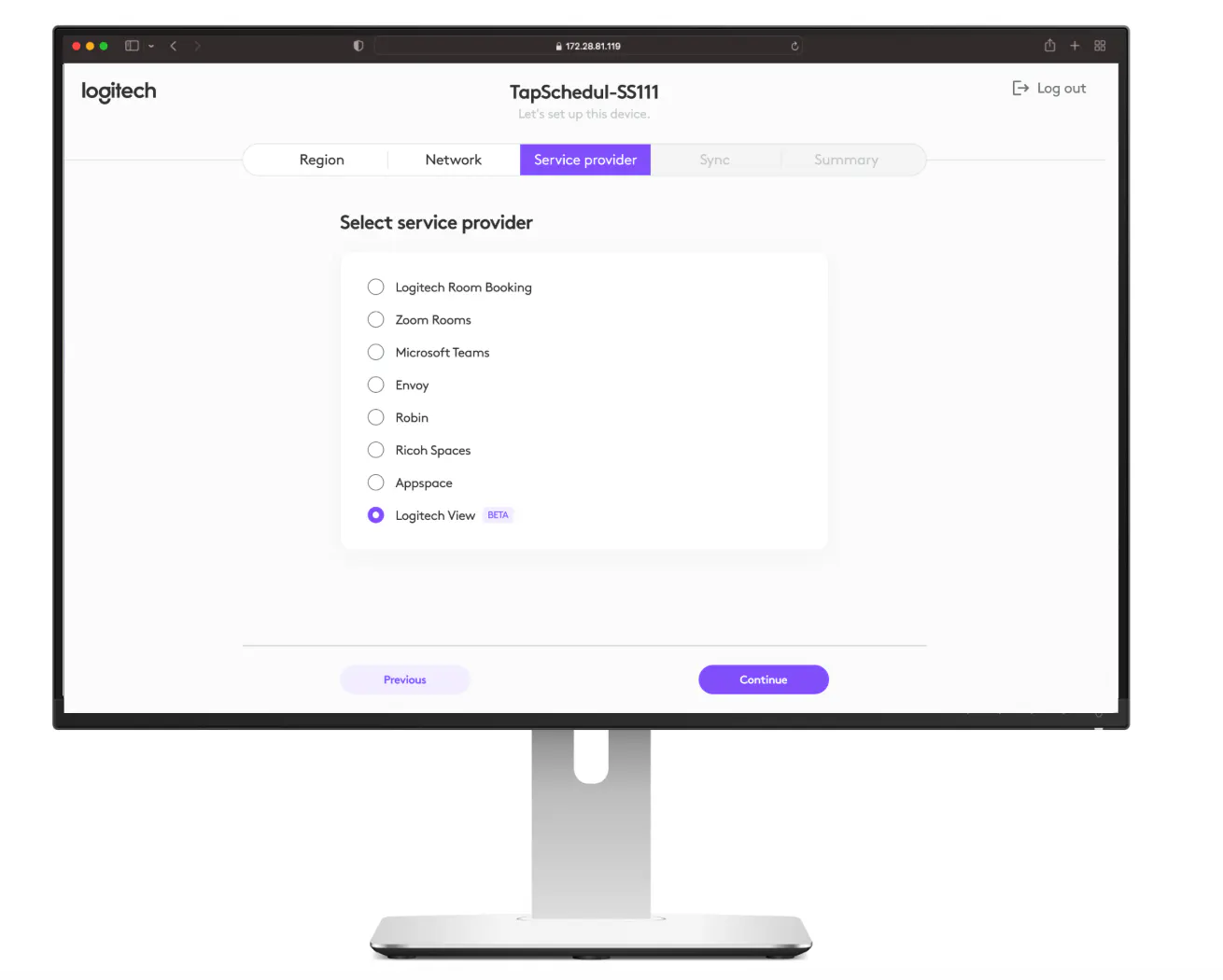
Complete the rest of the device setup in Local Network Access.
Under System -> Service provider, choose the desired service provider web application URL.
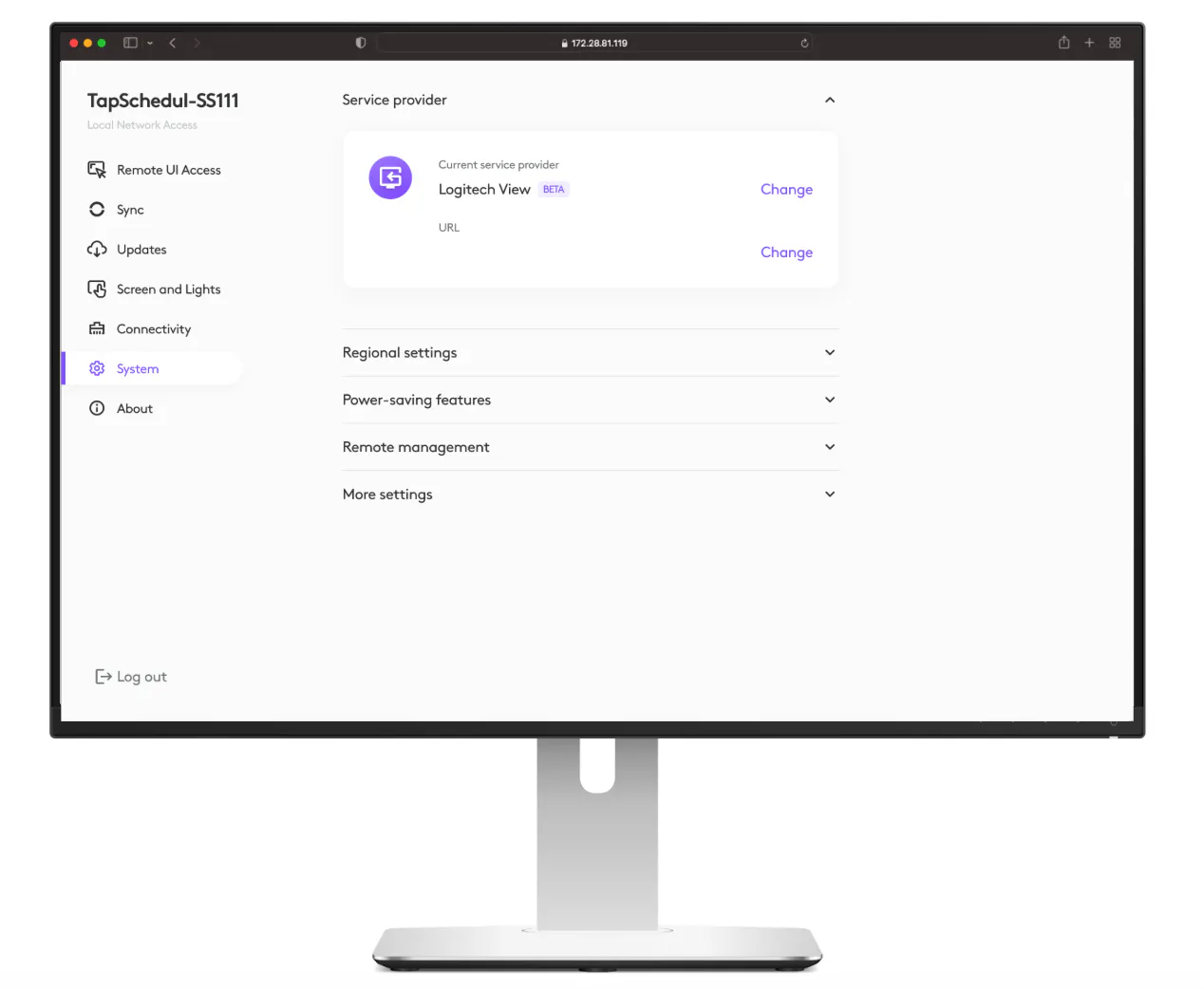
The device is now configured to work with your selected service provider web application.
In Logi Settings
Using Local Network Access
Login to Local Network Access.
Select the ‘System’ section.
Under Service provider, choose the web app URL.
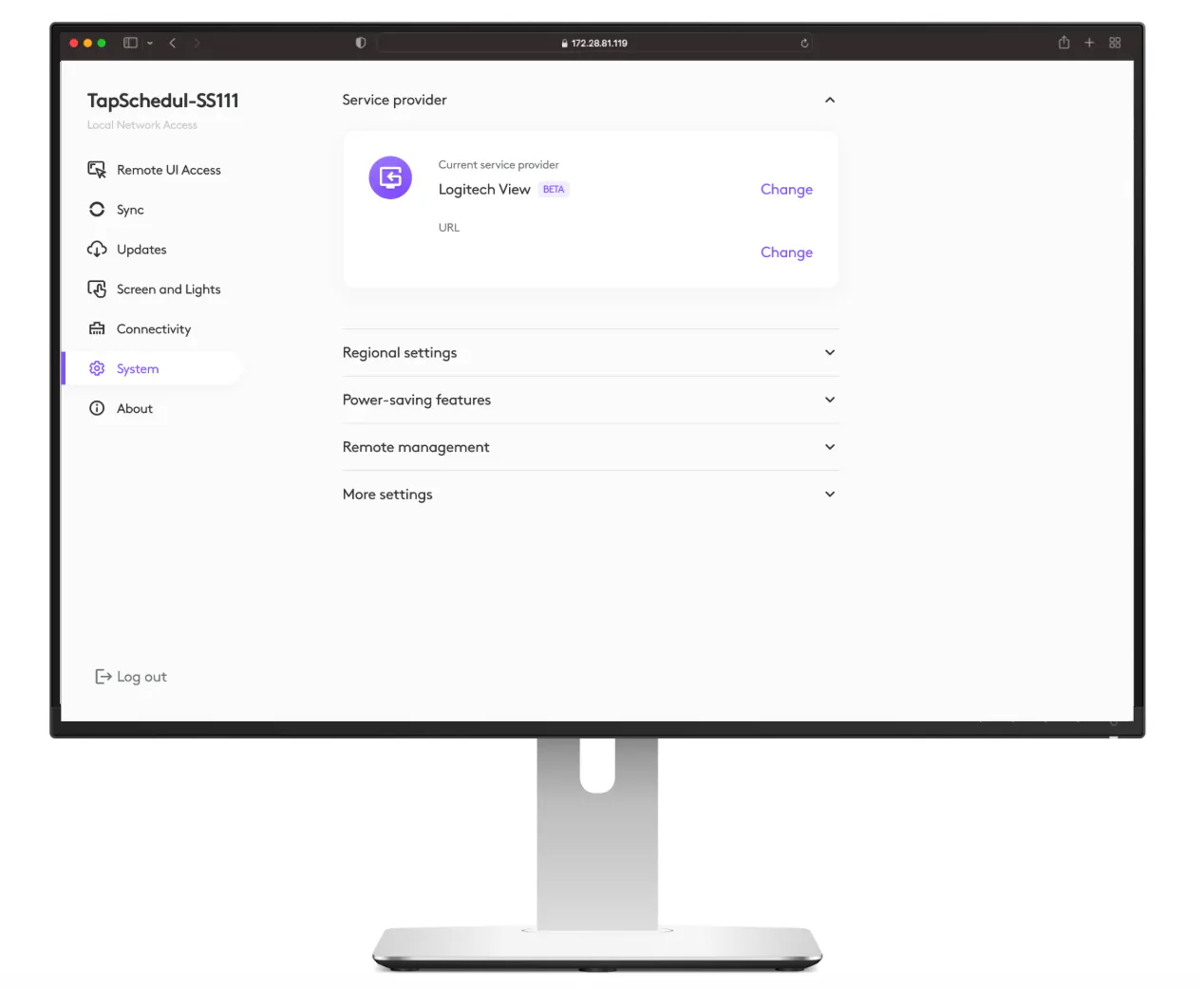
The device is now configured to work with your selected web app.