1.3 Peripherals & Bluetooth Settings
CollabOS devices can be set up in-room using on-device CollabOS Settings, or remotely using Local Network Access (LNA). This provides the flexibility to configure your devices in person or remotely.
On-Device CollabOS Settings
To view the Peripherals menu:
On Logitech Tap or Tap IP go to CollabOS Settings
This step may vary depending on your selected service provider
Touch Peripherals
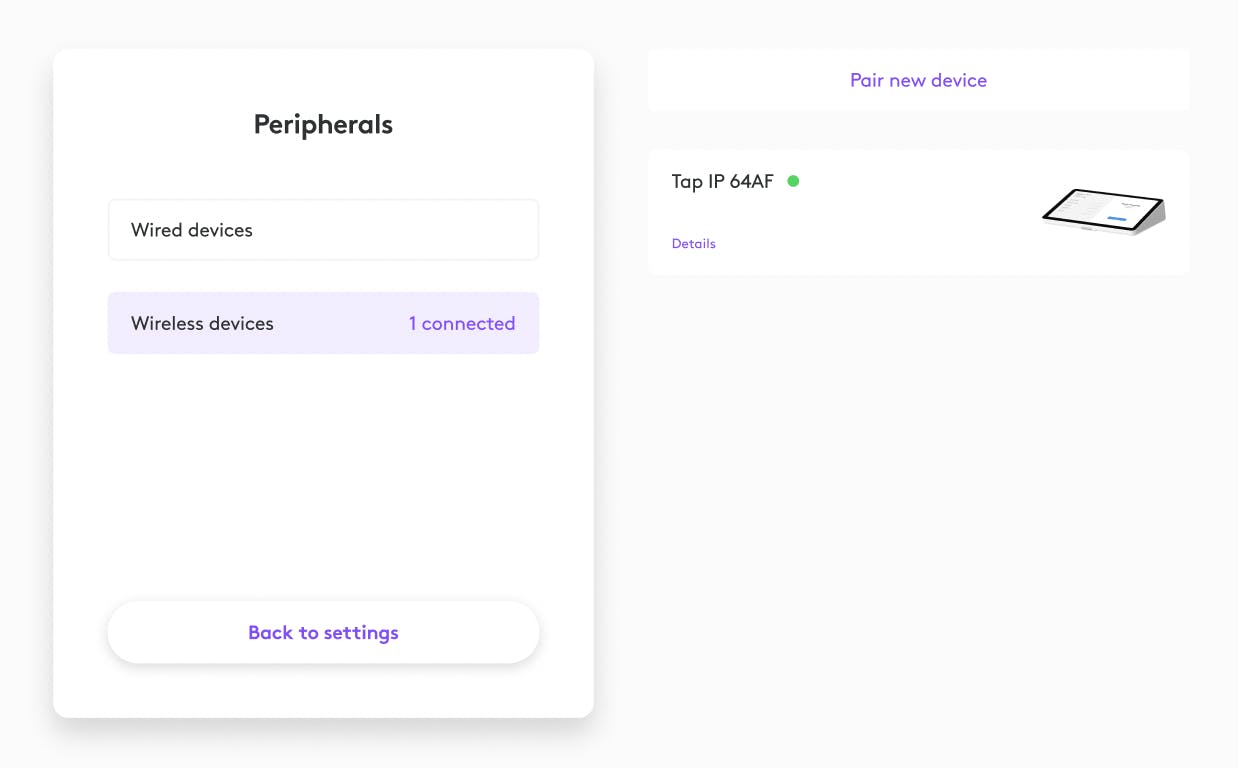
The Peripherals menu is organized into two sub-sections: Wired devices and Wireless devices. Touch one or the other to see a list of connected peripherals
The list of peripherals provides information such as the peripheral type and connection status.
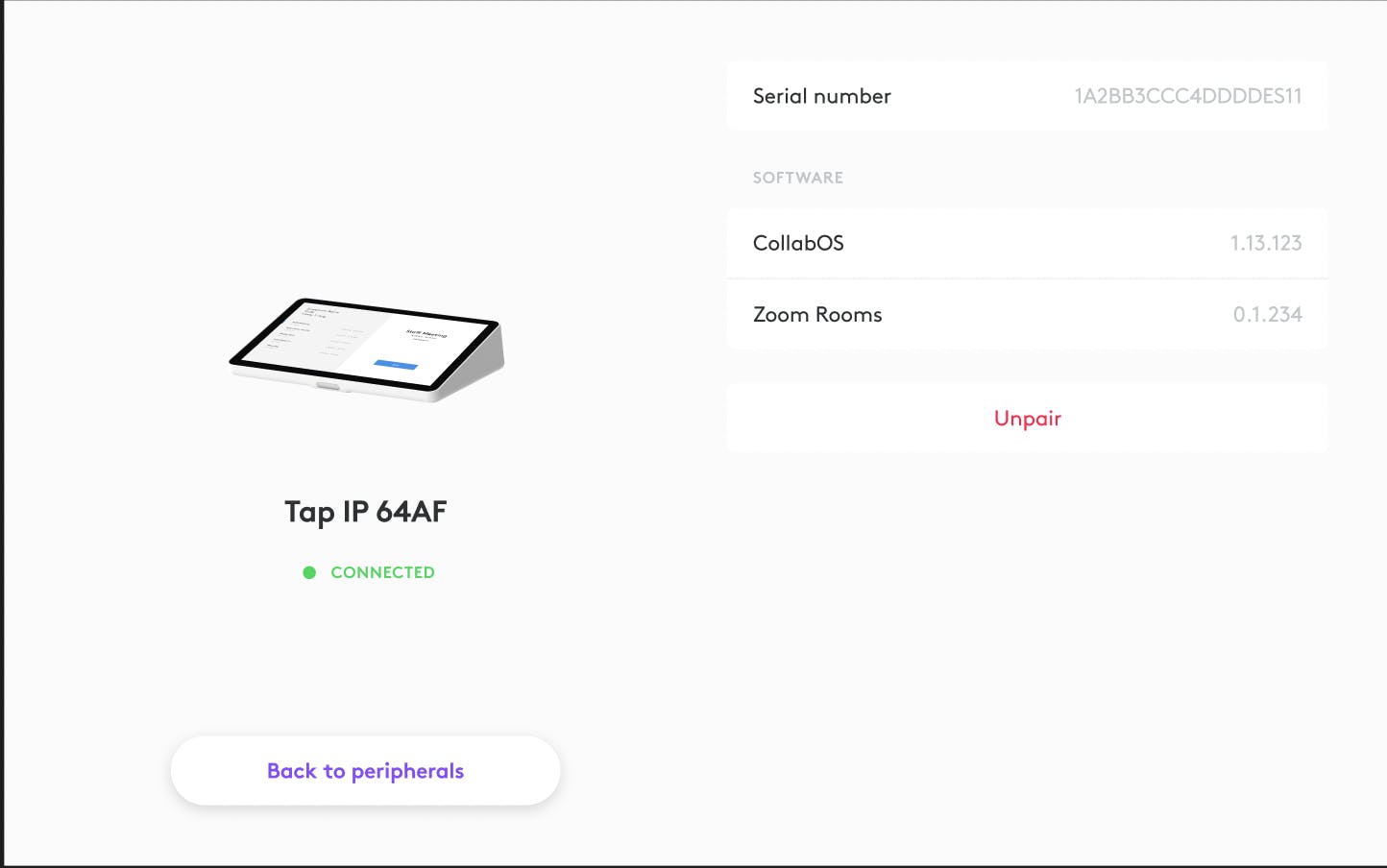
Touch a listed peripheral device for more information, such as firmware or CollabOS version, and options to unpair some wireless peripherals (e.g. a Remote Control)
Local Network Access Settings
To view the Peripherals menu:
If necessary, enable Local Network Access (LNA)
Log into Local Network Access (LNA) using your web browser
Navigate to Peripherals
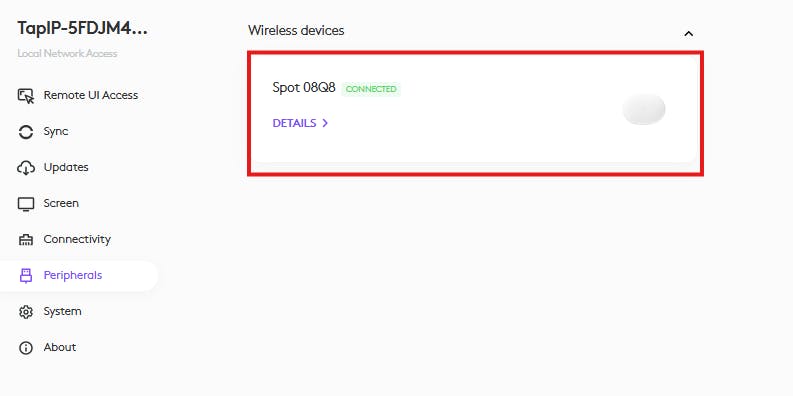
The Peripherals menu is organized into two sub-sections: Wired devices and Wireless devices. Click one or the other to expand a list of connected peripherals.
The list of peripherals provides information such as the peripheral type and connection status
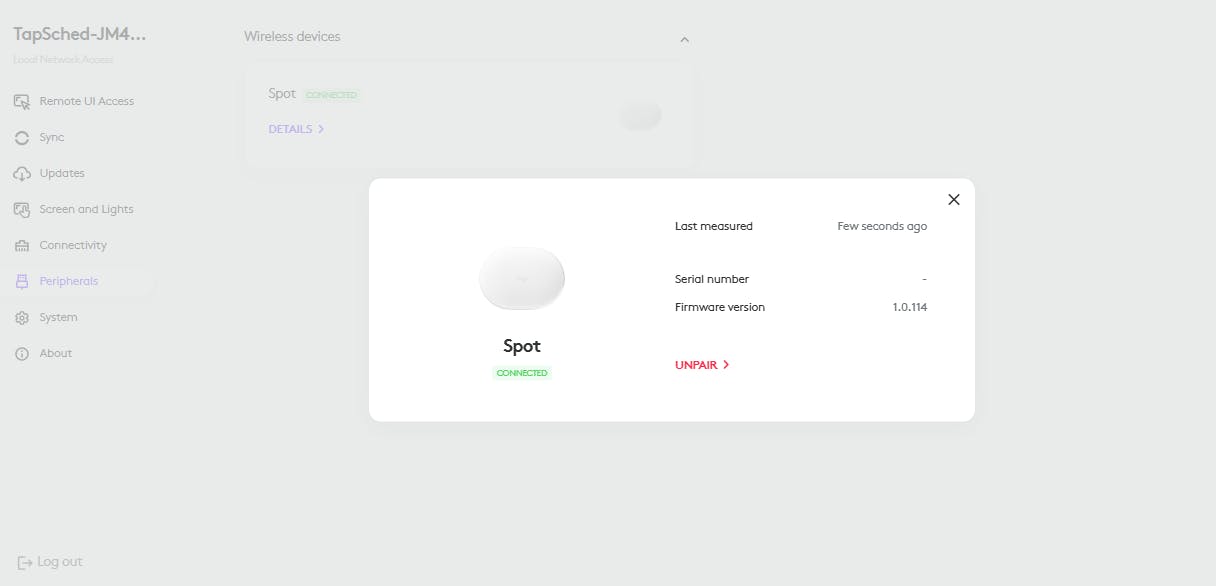
Click a listed peripheral device for more information, such as firmware or CollabOS version, and options to unpair some wireless peripherals (e.g. a Remote Control).
Bluetooth Settings
CollabOS devices that support a remote control use Bluetooth for pairing. Similarly, Logitech Spot can pair to a CollabOS device using Bluetooth. If you need to disable Bluetooth in your room setup, this will also disable remote control and Spot functions.
1. On Logitech Tap or Tap IP go to “System Settings”
2. Touch “Connectivity”

3. Touch “Bluetooth”. This will toggle Bluetooth on or off.

4. Touch “Back to settings” to return to the main settings menu.

Bluetooth is now disabled on your device.
Note: When using RoomMate, the above will disable the Bluetooth only on RoomMate. If the connected device (such as MeetUp or Rally) has Bluetooth, you will need to disable Bluetooth on that device separately.