
Rally Camera Presets Guide
Below you will find information regarding camera presets for Rally Camera and Rally Plus. For information regarding camera presets when using the Rally Camera Streamline Kit, please refer to Streamline Kit: Preset Button Support.
How do I set a camera preset?
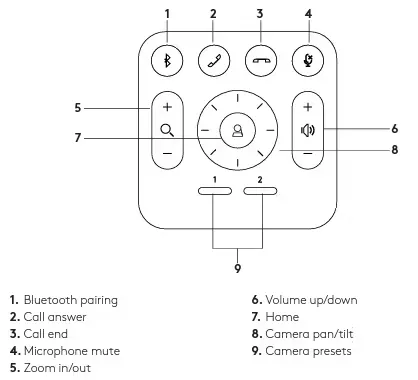
You can set up to 2 preset positions. Once in the desired position, save a preset by pressing and holding the button for 3 seconds. Return to the desired position at any time by pressing the button once.
Where Presets are Stored
Zoom Web Portal (Cloud): Administrators can define the Default Camera Control Mode in the Zoom portal under Room Management > Zoom Rooms > Devices.
If you enable "Use default preset position," Zoom will instruct the camera to move to a specific saved preset every time a meeting starts.
Zoom Room Controller (Local App): Users can create and rename up to three presets directly on the Logitech Tap or Tap IP.
These presets are stored as part of the Zoom Room's configuration. To save one, you simply use the camera controls on the Tap to position the camera, then press and hold a preset button to save it.
Logitech Hardware (On-Device): You can save two presets directly to the Rally Camera's memory using the physical Logitech remote.
Note: While these are stored on the camera, the Zoom Rooms application often overrides hardware-stored positions with its own "Home" or "Default" settings defined in the Zoom portal.
Change the default home position for Rally Camera / Rally Plus
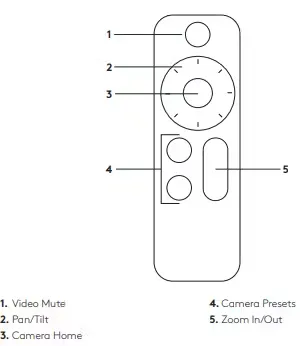
Using the included remote that came with the Rally camera, a new default home position can be set, and two presets can be saved.
Home Position - Setting a new default home position will move the camera to this position by default once the camera is powered on. If the camera is adjusted from this position, hitting the Home button on the remote will return the camera to this same position.
To set a new default home position: Pan, tilt, and zoom the camera to the preferred position using the remote.
Hold the Home button on the remote for approximately 10 seconds, or until an audible tone is heard from the speaker.
User Presets - Two preset camera positions can be saved to the remote and hitting the ‘Preset 1’ or ‘Preset 2’ buttons will move the camera accordingly.
To save a new preset: Pan, tilt, and zoom the camera to the preferred position using the remote.
Hold the button for Preset 1 or Preset 2 on the remote for approximately 3 seconds, or until an audible tone is heard from the speaker.
Rally Camera (standalone) Remote
Rally System Remote
Rally Camera zoomed-in preset
When using a preset on Rally Camera, there is a tolerance on the preset position of +/- 2°, which may be noticeable when the camera is fully zoomed in.
Rally Plus preset audio levels
The default volume level of Rally Plus is managed by the Video Conferencing Application and/or the Operating System running on the connected compute device.
Since Rally Plus is a modular peripheral, it follows the volume commands sent by the host device. Here is how to set a default volume based on your setup:
Microsoft Teams Rooms (MTR) on Windows
MTR typically resets the volume to a default level (usually 50%) at the start of every meeting or after a reboot.
You can modify the SkypeSettings.xml file on the MTR compute to define a custom default volume.
Key Setting: <DefaultAudioInVolume>50</DefaultAudioInVolume> and <DefaultAudioOutVolume>50</DefaultAudioOutVolume>. Changing these values allows the room to always start at your preferred level.
Zoom Rooms
Zoom Rooms allow for a "Default Speaker Volume" to be set via the web portal.
Log in to the Zoom Web Portal, navigate to Room Management > Zoom Rooms.
Select the room, go to the Edit tab, then Audio.
Look for "Default Speaker Volume" and set it to your desired percentage (e.g., 60%).
Rally Plus will snap to this level at the start of every session.
Logitech Sync (CollabOS / RoomMate)
If your Rally Plus is connected to a Logitech RoomMate, you can manage the volume through the Logitech Sync Portal.
Note: While Sync doesn't currently have a "Default Startup Volume" toggle, you can use Remote UI in Sync to manually set the volume levels across your fleet without being physically in the room.
Windows System Volume (USB Mode/BYOD)
If Rally Plus is connected to a standard PC for general use:
Windows remembers the last used volume for specific USB devices. If you set Rally Plus to 60%, it should remain there until manually changed. However, third-party "deep freeze" software or group policies may reset this on reboot.