Adding a Custom Logo to Logitech View
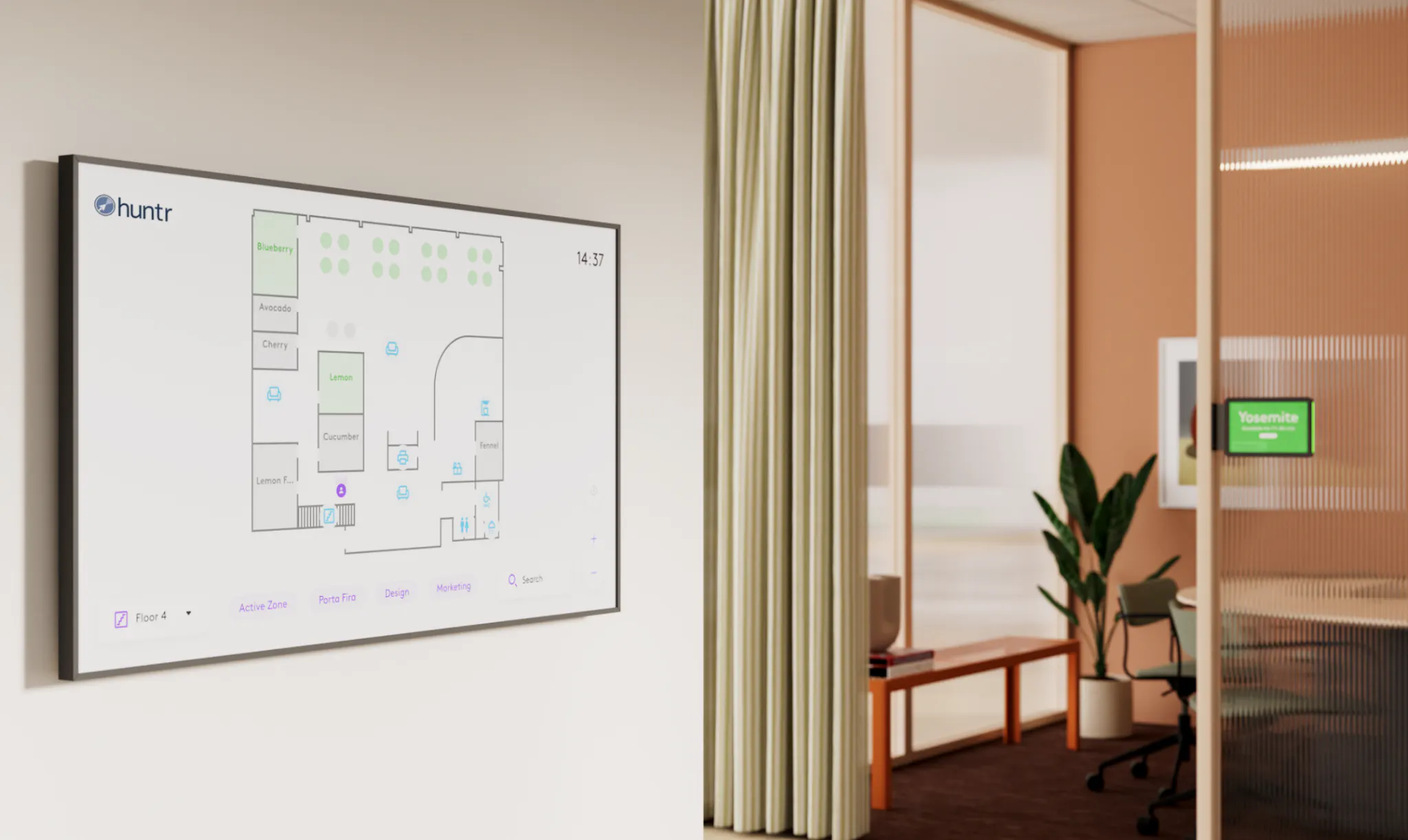
This article explains how to add and manage custom logos that are displayed on maps through Logitech View.
Prerequisites
To follow this guide, you'll need at least one room set up in Sync and be logged in as an administrator with Admin privileges. For more information, see the Sync Admin Guide.
You'll also need Logitech View enabled and set up on the RoomMate where you want to add a custom logo. For details on setting up Logitech View, see Getting started with Logitech View.
Adding a Custom Logo
You can add custom logos to be displayed on maps through Logitech View from your Logitech Sync account at either the group level or for each map individually.
Group Level
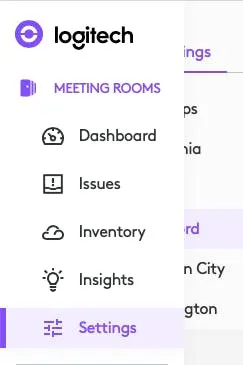
Log in to Sync with your admin account and navigate to Meeting rooms > Settings from the left side menu.
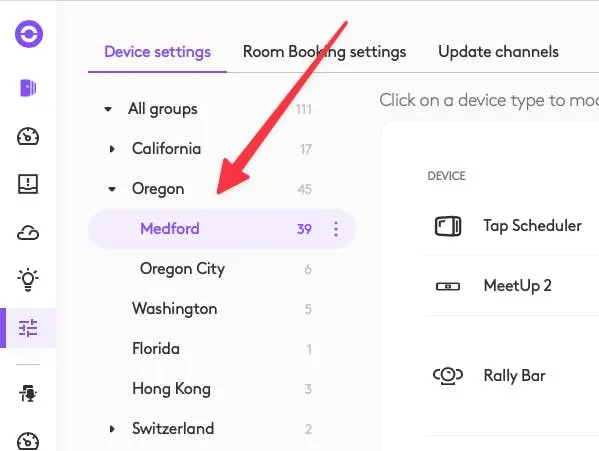
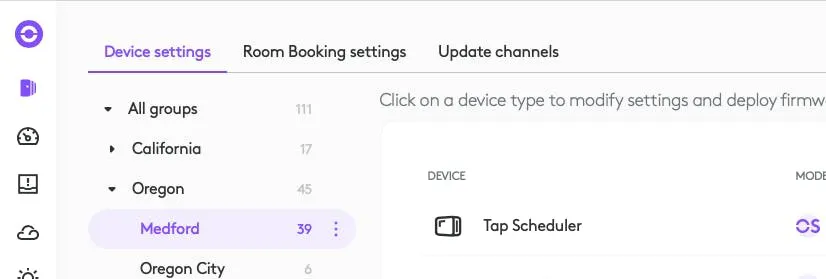
In Settings, select the group that has your RoomMates running Logitech View you wish to display a custom logo on from the left side hierarchy.
With your group selected, click "Room Booking settings" at the top of the page.
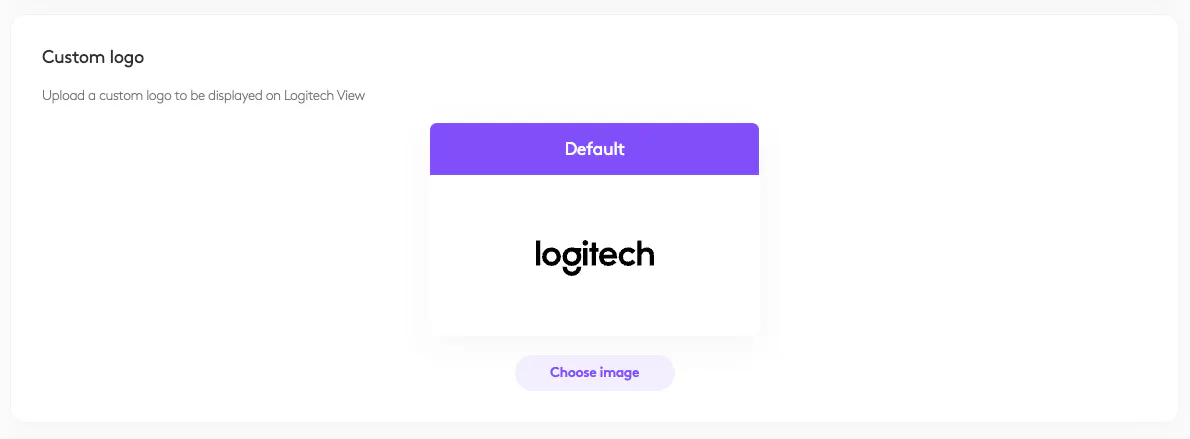
In "Room Booking settings," scroll to the bottom to find the custom logo settings section. Click "Choose image."
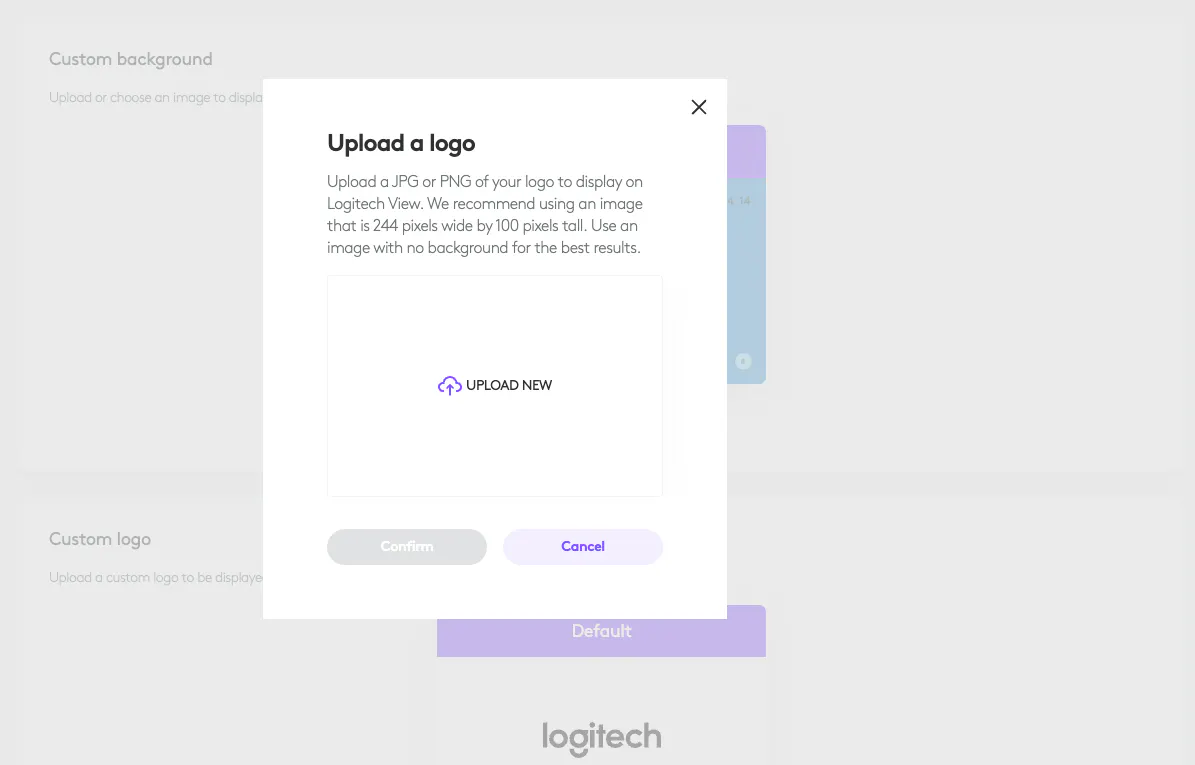
A pop-up window will appear, allowing you to upload an image for a custom logo. Select an image from your computer that you would like to use as a Logo on your maps.
Note: If your organization has previously uploaded custom logos you will be able to choose one from this pop up.
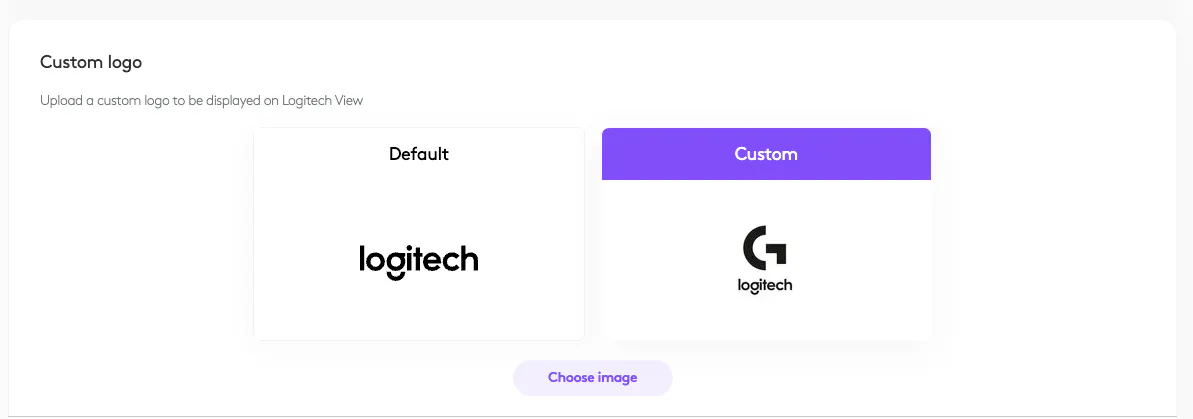
After uploading your custom logo you will see that you can now select between the default and custom options.
Now the selected custom logo will be shown on all RoomMates displaying maps through Logitech View in this group.
Room Level
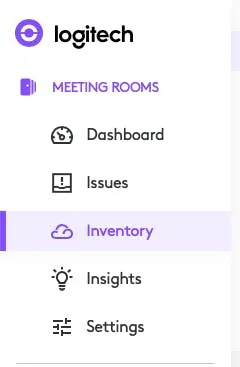
To apply a custom logo to individual maps, log into Sync as an admin and navigate to Meeting rooms > Inventory.
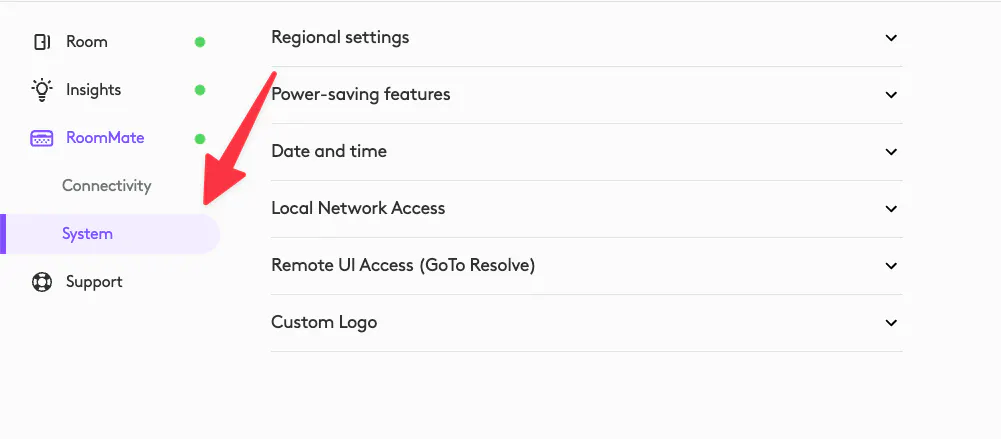
Select the room that has the RoomMate running Logitech View where you want to add a custom logo to the map. In the room settings, click "System" under the RoomMate assigned to the room.
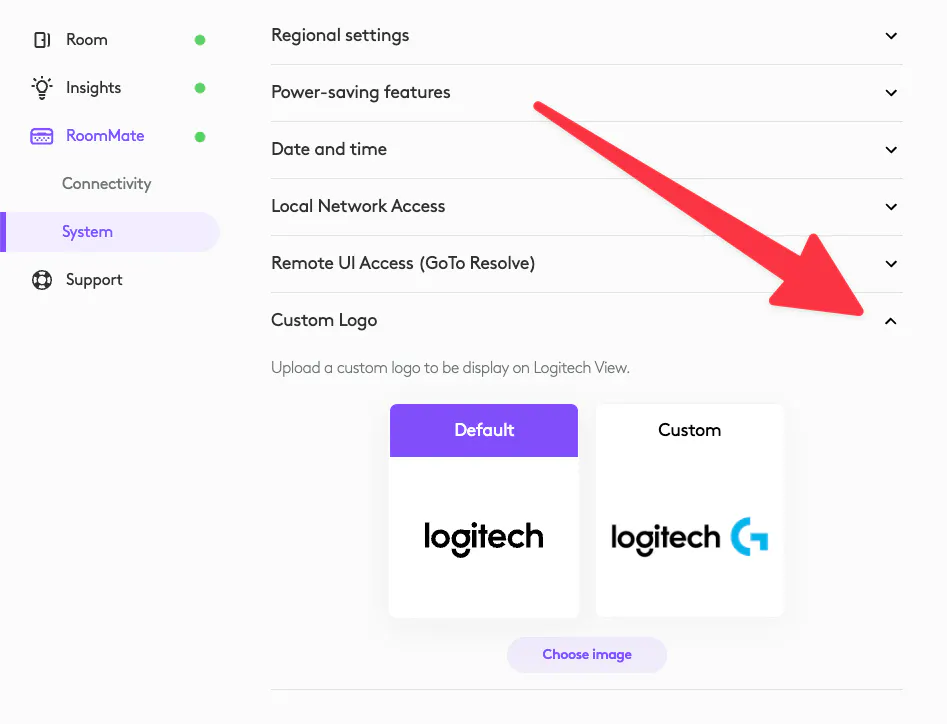
Expand the custom logo dropdown to the right.
Note: If you don't see this dropdown, ensure that your Tap Scheduler has Logitech Room Booking set as the provider.From the "Custom Logo" dropdown, click "Choose image."
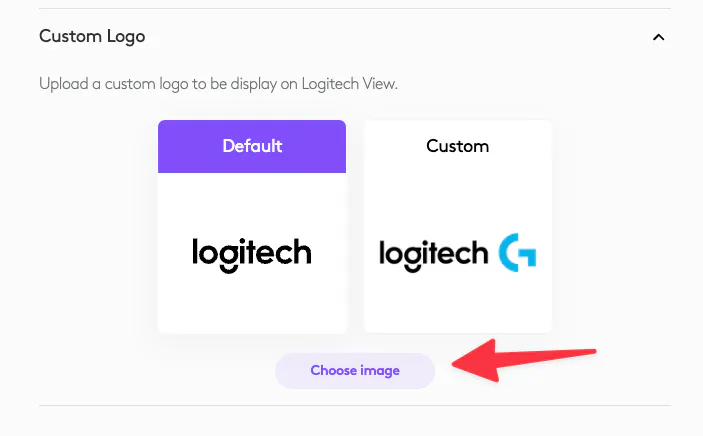
A pop-up window will appear, allowing you to upload a custom log. If you've already uploaded images, you can select from those in the pop up too.
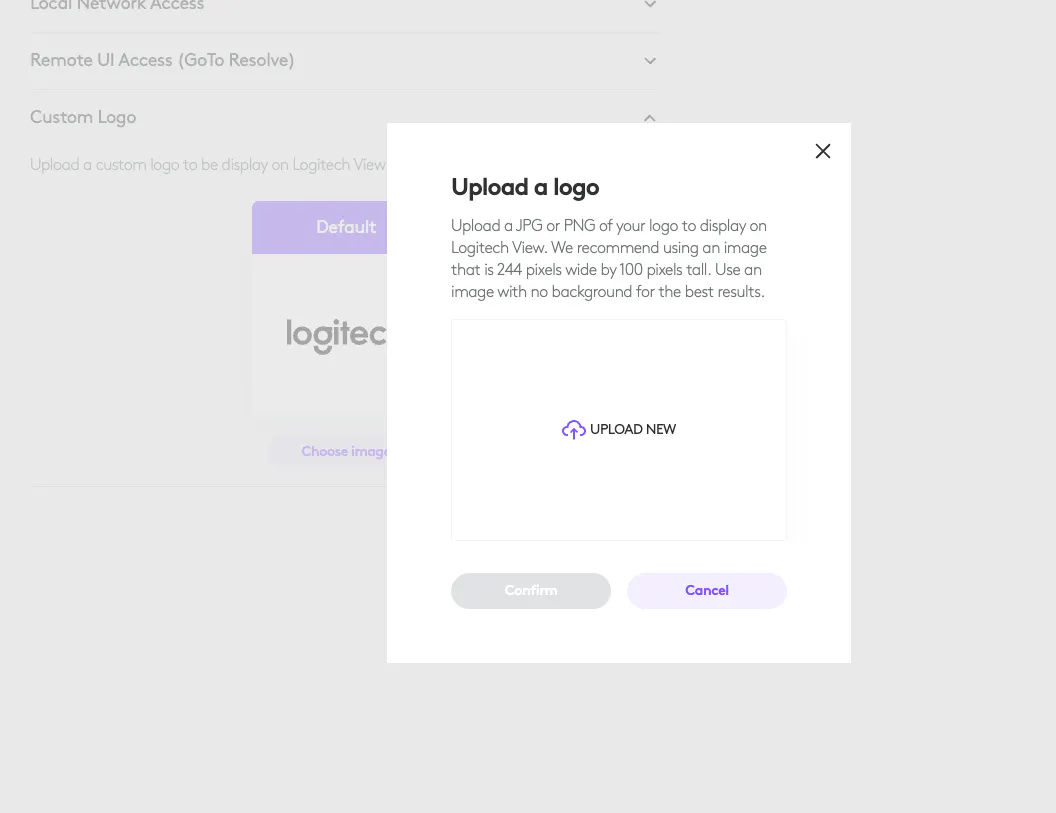
After uploading your custom logo you will see that you can now select between the default and custom options.
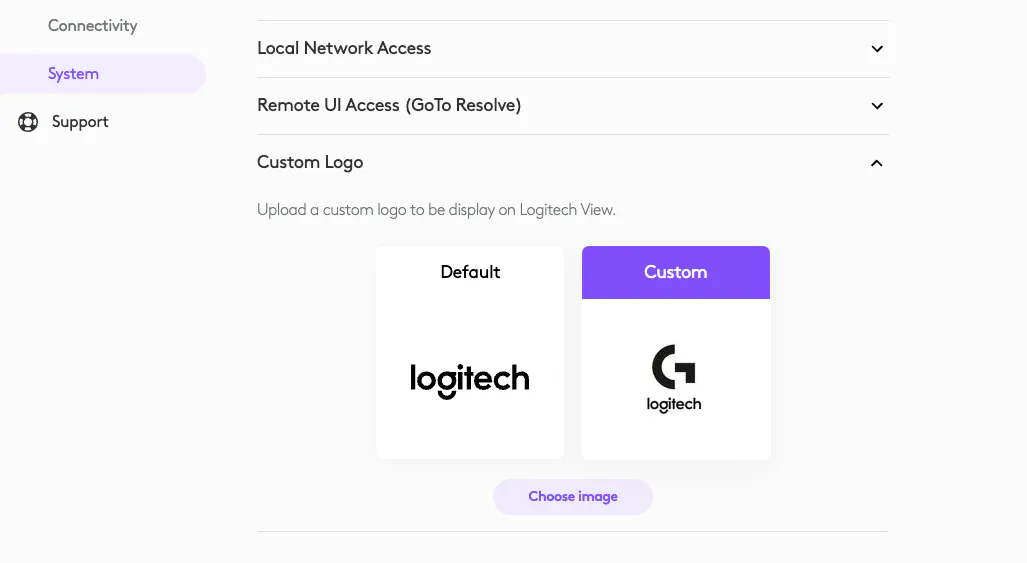
Now the selected custom logo will be shown the RoomMates displaying maps through Logitech View in this room.