
How to update a Windows driver
If you are experiencing any of the following issues:
I can only hear audio output in call mode.
I can only hear audio output in music mode.
Bluetooth pairing and connection time takes too long.
Bluetooth pairing fails every time.
Bluetooth connection randomly drops.
Please follow all steps listed below to update your Windows driver:
ISST Driver Installation
Press Win + X and open Device Manager.
Expand the System devices category.
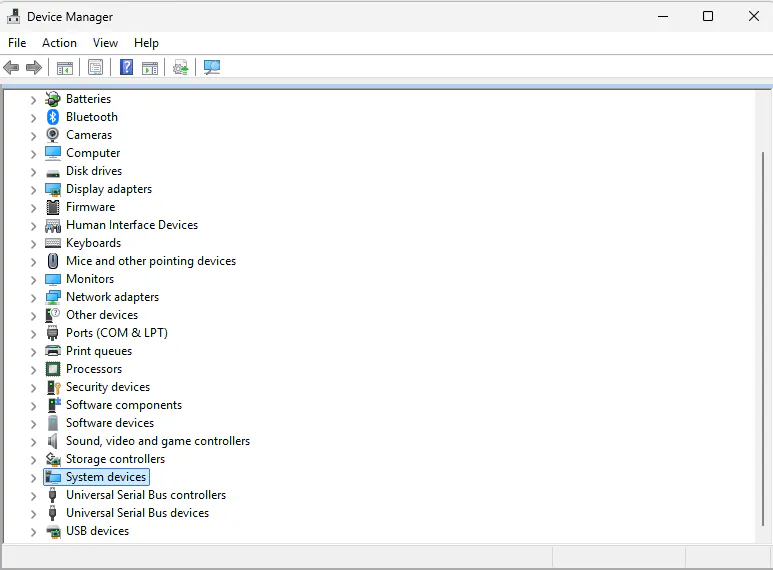
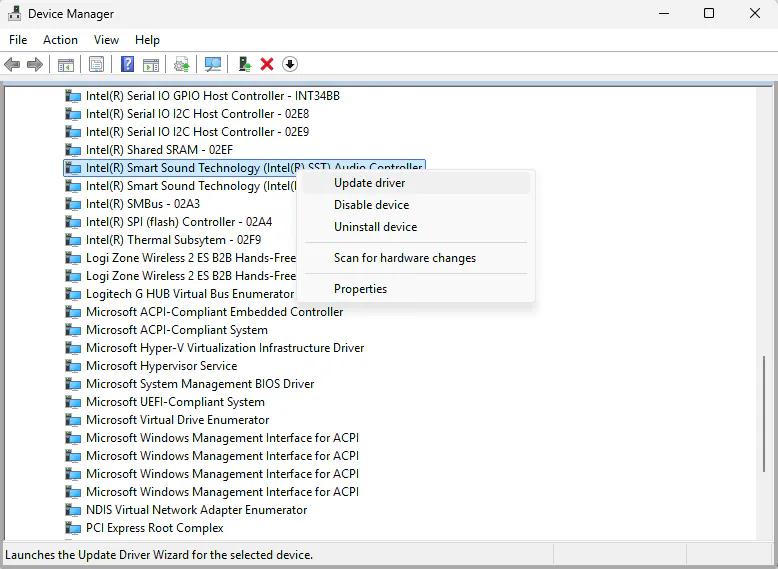
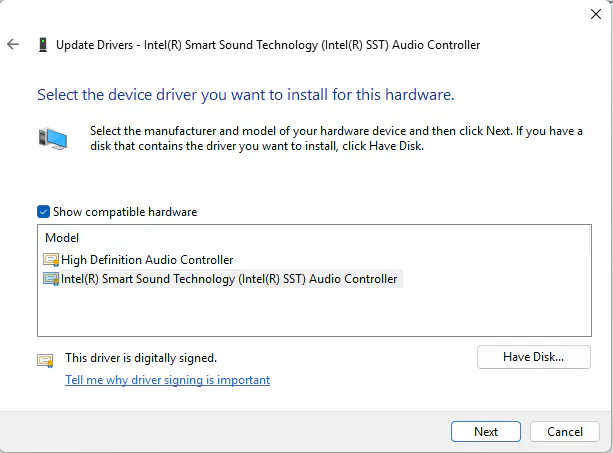
Look for Intel(R) Smart Sound Technology (Intel(R) SST) Audio Controller.
Look for Intel(R) Smart Sound Technology (Intel(R) SST) OED” or BUS.
Right-click each one, select Update driver.
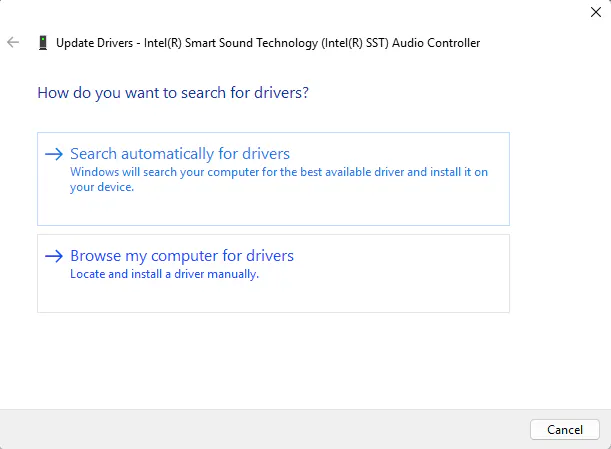
Select Browse my computer for drivers.
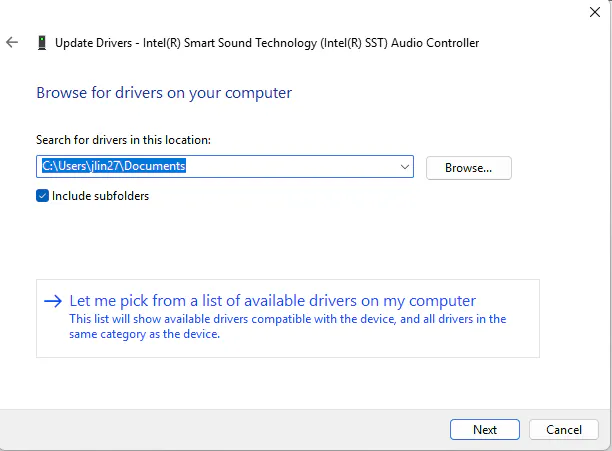
Select Let me pick from a list of available drivers on my computer.
Choose older one name contained:

Bluetooth Driver Reinstall
Press Win + X and open Device Manager.
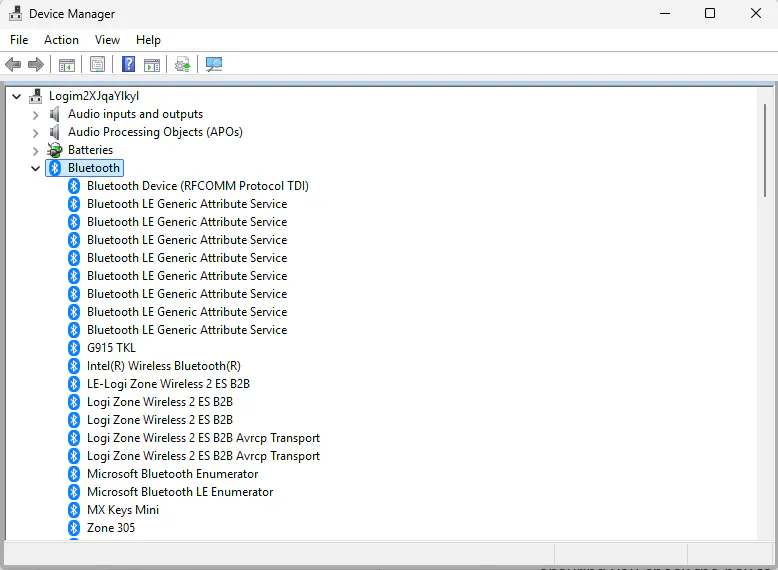
Expand the Bluetooth category.
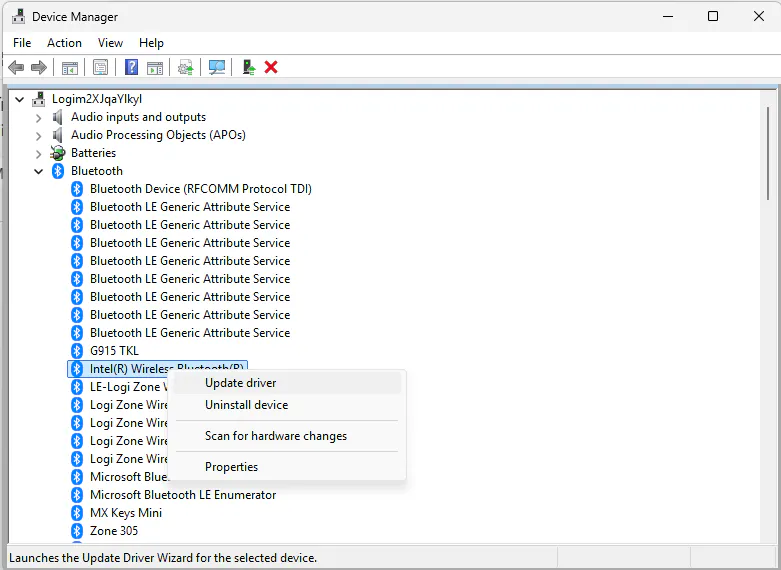
Selecting Intel(R) Wireless Bluetooth(R).

Right-click each one, select Update driver.
Select Browse my computer for drivers.
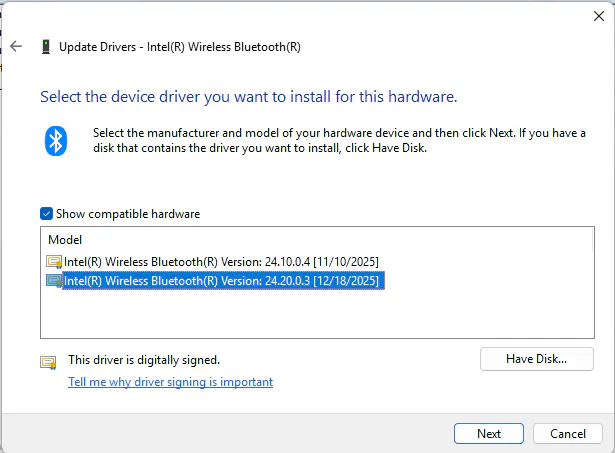
Select“Let me pick from a list of available drivers on my computer.
Choose older one name contained:

Audio Device Driver Uninstall
Go to the Bluetooth page.
Uninstall both Logi Zone Wireless 2 ES B2B and Logi Zone Wireless 2 ES B2B Avrcp Transport.

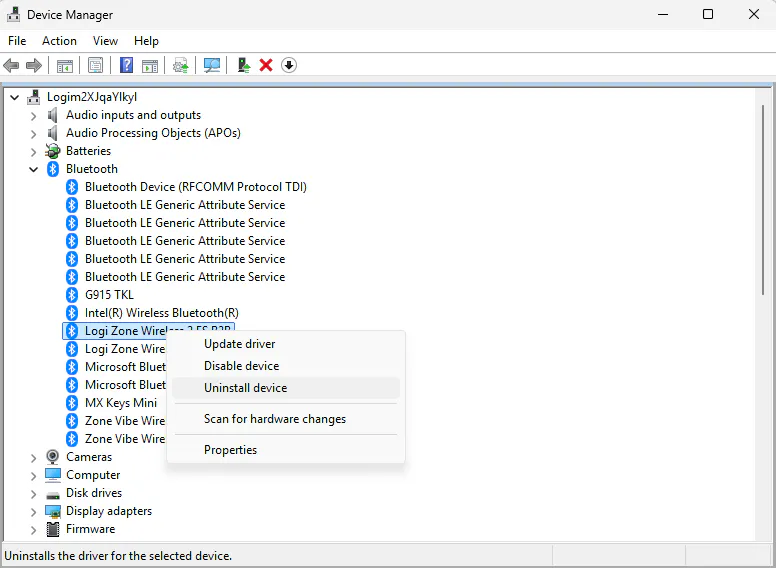
Go to the System Devices page:

Uninstall Logi Zone Wireless 2 ES B2B Hands-Free AG.
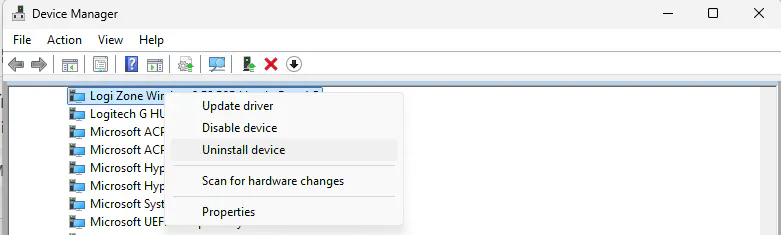
Final steps
Perform a factory reset on the headset by long-pressing the Volume Up button while sliding the Power button to the pairing position for 5 seconds. The reset is successful when the light indicator flashes red and white three times and then turns off.
Reboot the computer, pair and use again.