3.11 Assisted Listening Device Support on CollabOS
CollabOS 1.4 and later support Assisted Listening Devices (ALD) on Rally Bar and Rally Bar Mini in USB mode. Devices will output audio from both the built-in speakers and an USB audio device connected to a USB-A port simultaneously, allowing an ALD to be connected without disabling internal speakers.
CollabOS 2.0 expands ALD support to Appliance mode for Rally Bar, Rally Bar Mini, and Rally Board 65.
Prerequisites
USB Mode
Rally Bar or Rally Bar Mini running CollabOS 1.4 or later
In USB mode, CollabOS will output audio to most 3rd-party USB audio devices. However, Logitech recommends using a safelisted USB-A to 3.5 mm audio adapter (Listed here).
Android Mode
Rally Bar or Rally Bar Mini running CollabOS 2.0 or later
Safelisted USB-A to 3.5mm audio adapter (Listed here)
Rally Board 65 running CollabOS 2.0 or later
Connecting an Assisted Listening Device
Rally Bar / Rally Bar Mini (Appliance Mode/USB mode)
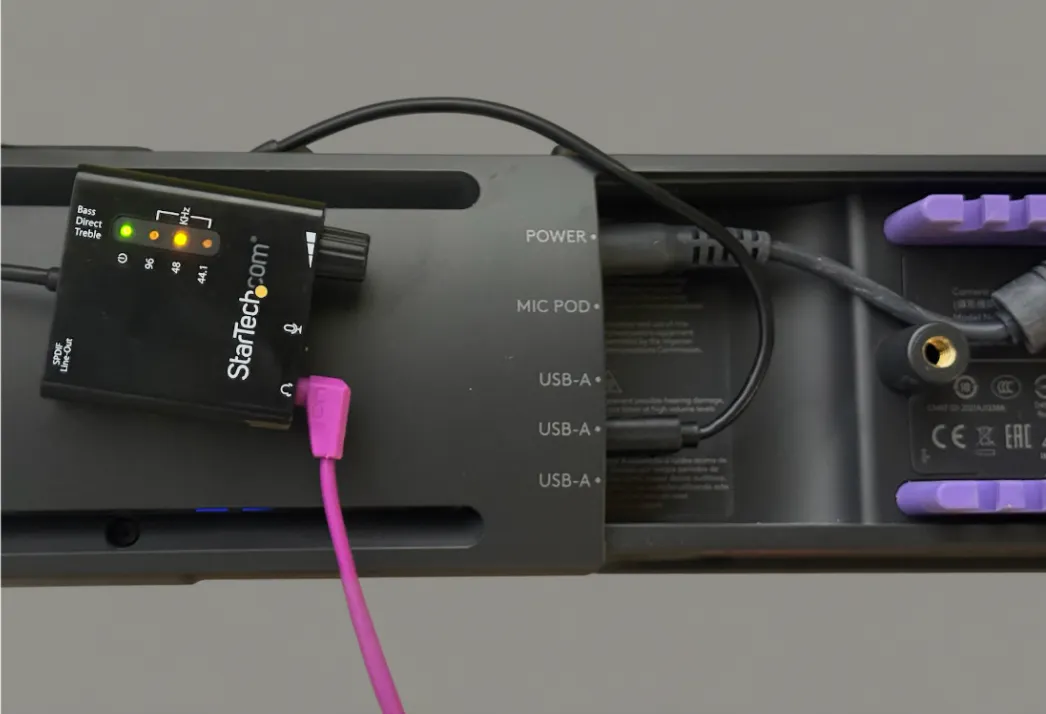
Connect a safelisted USB-A to 3.5mm audio adapter to an available USB-A port on the Rally Bar / Rally Bar Mini.
Attach a 3.5mm-compatible assisted listening device receiver to the adapter.
Once connected, audio is output through both built-in speakers and the USB-A to 3.5mm audio adapter. No software configuration is required.
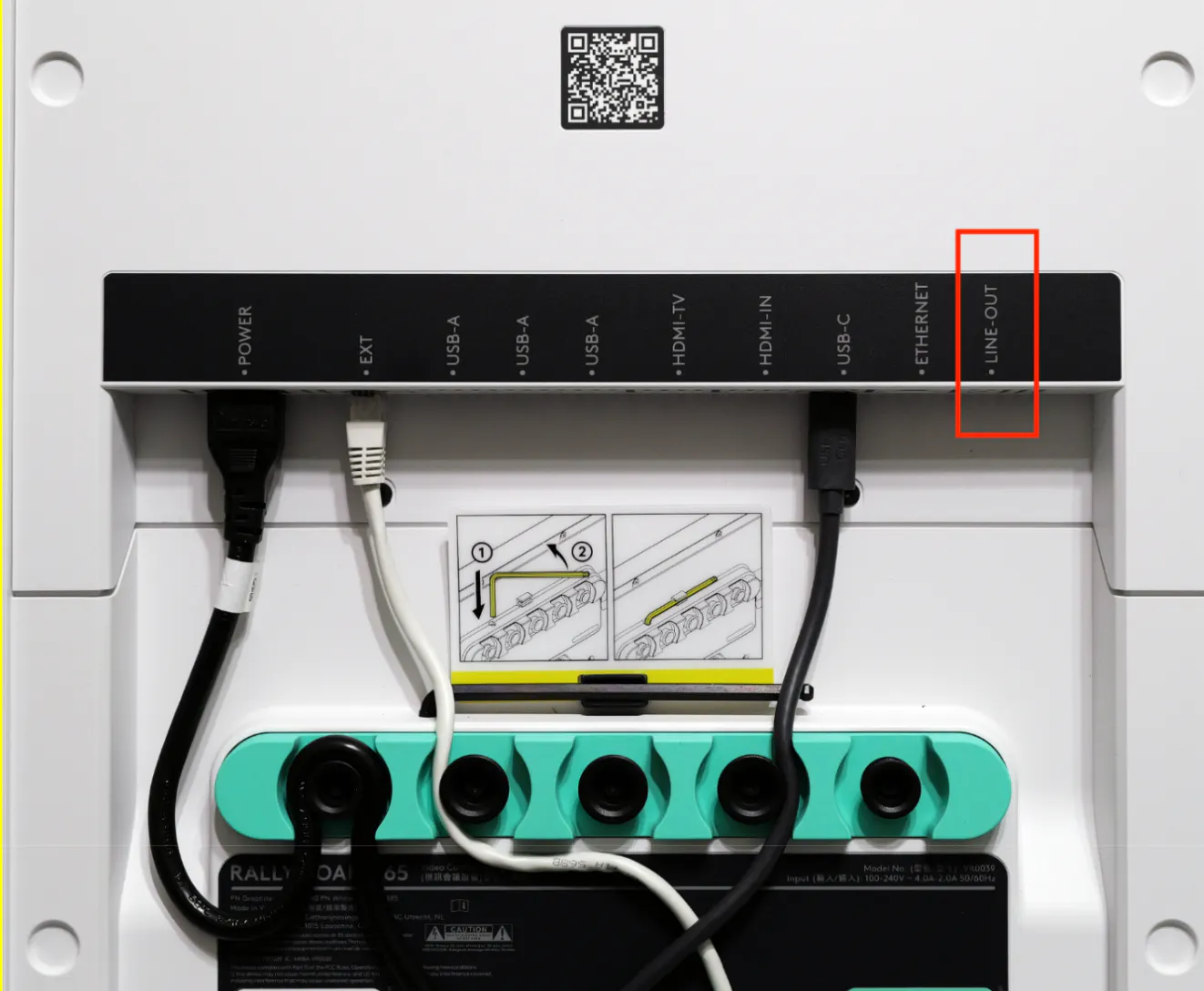
Rally Board 65
Attach the 3.5 mm-compatible assisted listening device receiver to the device. No software configuration or adapters required.
Additional Notes
Audio accessibility is currently unavailable when a Tap Cat5e is connected. Support for these features is planned in a future CollabOS release.
Audio accessibility is not supported during a BYOD session in a Zoom Room or Teams Room, or if the device is configured to BYOD as a service provider.
In-room mic path routing is not supported.
The USB-A-to-3.5 mm adapter outputs line-level audio; adjusting the device’s volume does not affect the audio level from the adapter.
Safelisted USB-A to 3.5mm Audio Adapters
Manufacturer
Model/Description
StarTech
USB Stereo Audio Adapter External Sound Card with SPDIF Digital Audio and Stereo Mic, model ICUSBAUDIO2D
Creative Labs
LINDY
To request a device be added to the safelist, please reach out to our support team to submit your request. Please include the device manufacturer, device model name or identifier, device USB Vendor ID (VID), and the device USB Product ID (PID).
To find PID & VID on Windows:
Go to Control Panel > Device Manager and find your USB device.
Double click the device or right click and select Properties.
Go to the Details tab and select Hardware ID to view its PID and VID.
To find PID & VID on Mac:
Go to About this Mac > Overview > System Report.
Under Hardware, select USB.
Find your USB device and select it to view its PID and VID.