
LoRaWAN Gateway Set Up
Overview
This indoor Kerlink gateway hub is configured to facilitate connectivity for hundreds of Logitech Spot sensors across an office or workspace.
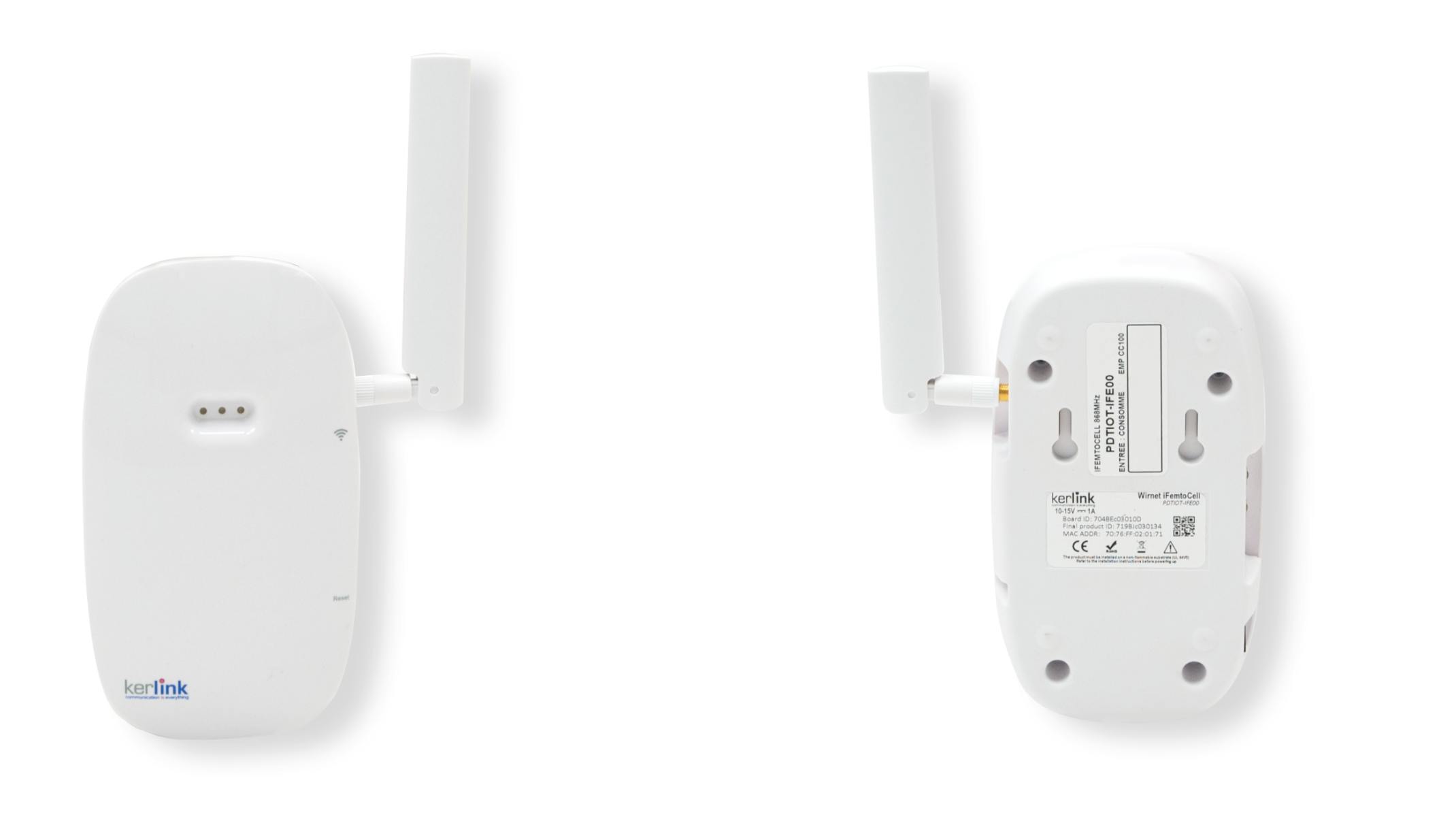
Utilizing the long-range LoRaWAN protocol, this single gateway can cover a vast distance, enabling seamless connection for numerous sensors in spaces without existing Logitech devices, thus providing comprehensive insights across your entire site.
Note:
Only LoRaWAN gateways supplied by logitech is compatible with Spot.
Firmware updates for Spots connected to a gateway can be carried out using the Sync Installer mobile app.
LoRaWAN Spots must not be moved after they have successfully joined the network (indicated by a solid green LED). At the time of pairing, the devices optimize their range and battery efficiency for that specific location. Moving them afterward may cause disconnection. If relocation is necessary, press the reset button again in the new position to rejoin the network.
The Logitech LoRaWAN gateway is officially supported on Spot firmware version 1.9.117 and higher.
Gateway Placement Guidance
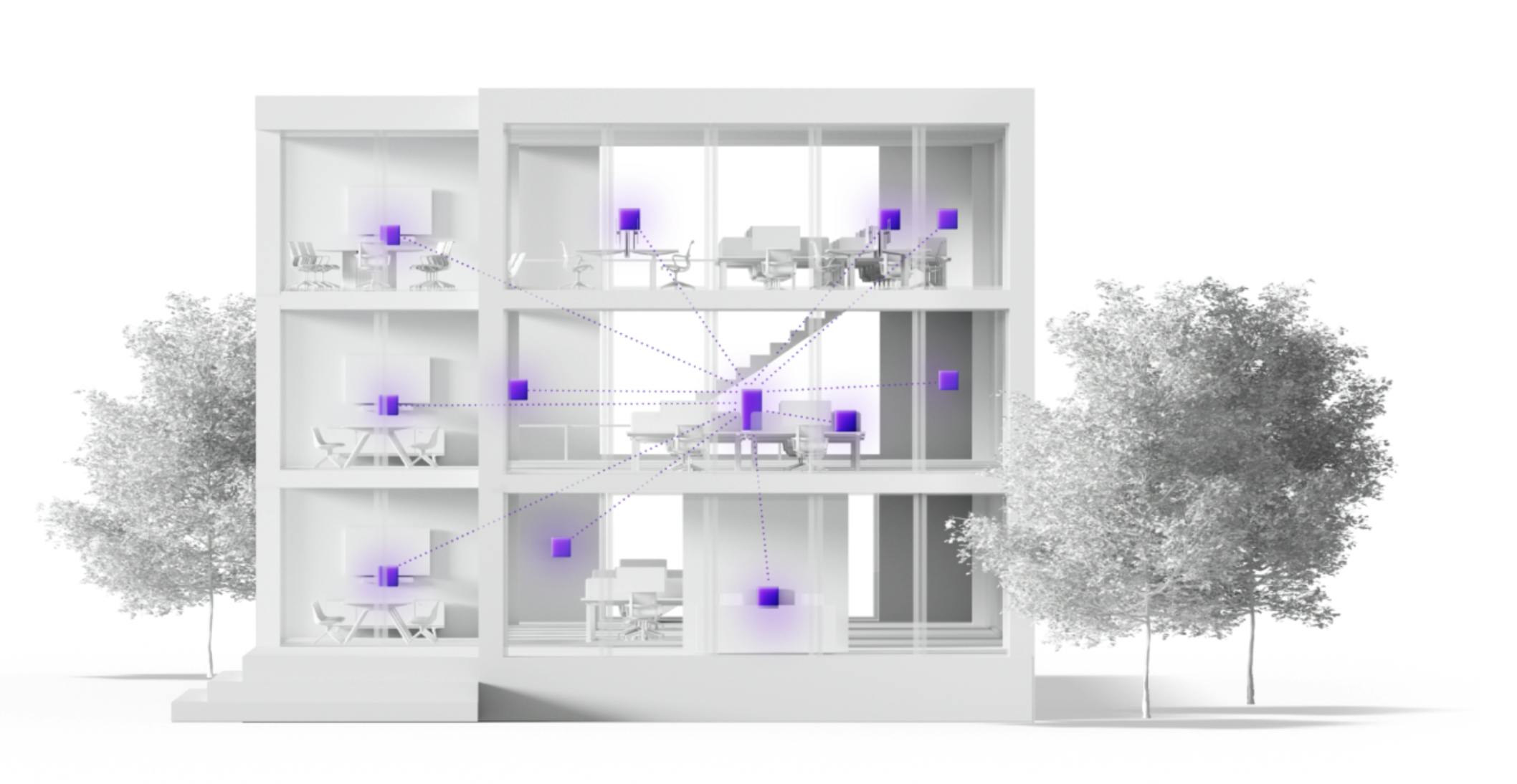
For optimal coverage and connectivity for all deployed sensors, pay attention to these placement guidelines for the gateway:
Central Location(Ideally): Place the gateway in the most central part of the building or floor to provide uniform coverage for all sensors.
Elevated Mounting: Install the gateway as high as possible, ideally near the ceiling. Higher placement reduces obstacles and improves the radius.
Avoid Obstructions: Keep the device away from metal objects, large machinery, heating/ventilation ducts, and concrete walls, as these can significantly obstruct radio frequency (RF) signals.
Antenna Orientation: Always angle the antenna straight up towards the ceiling, even if the gateway is placed sideways like within a shelf or on top of a server rack.
Multi-story Coverage: Concrete floors cause heavy signal degradation when traveling vertically. For multi-story buildings, expect to install one gateway per floor to ensure reliable connectivity across levels.
Note
Ensure the network firewall is configured to allow the gateway. Learn more here
Setting up the LoRaWAN Gateway
Physical Setup
Connect the gateway to your network using an Ethernet (LAN) cable.
Plug in the power cable to the gateway
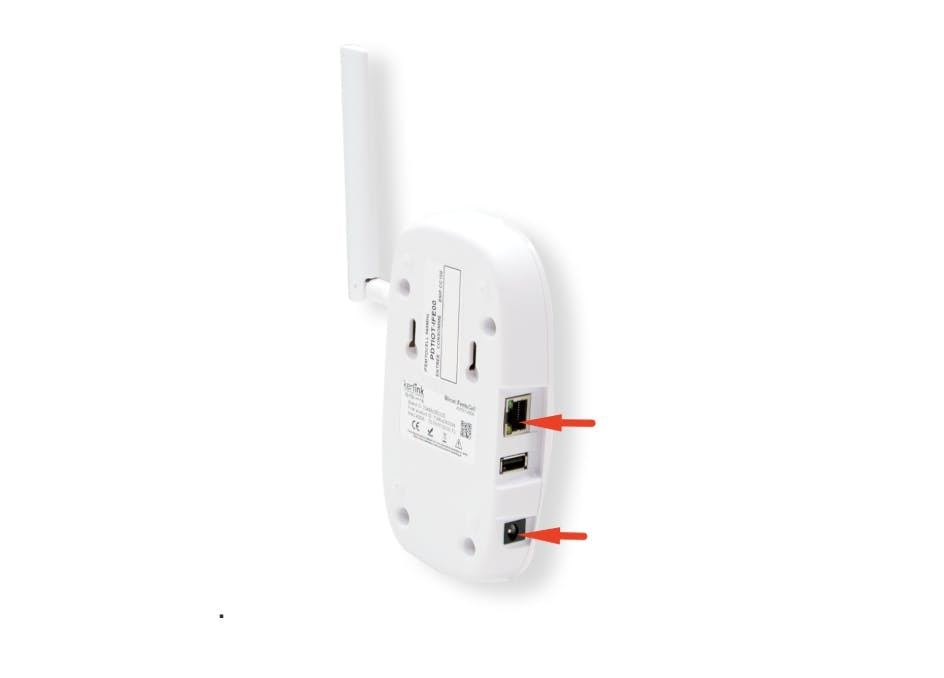
LoRaWAN Gateway LAN and Power connection
.
Power and Status Indicators
The gateway will power on automatically.
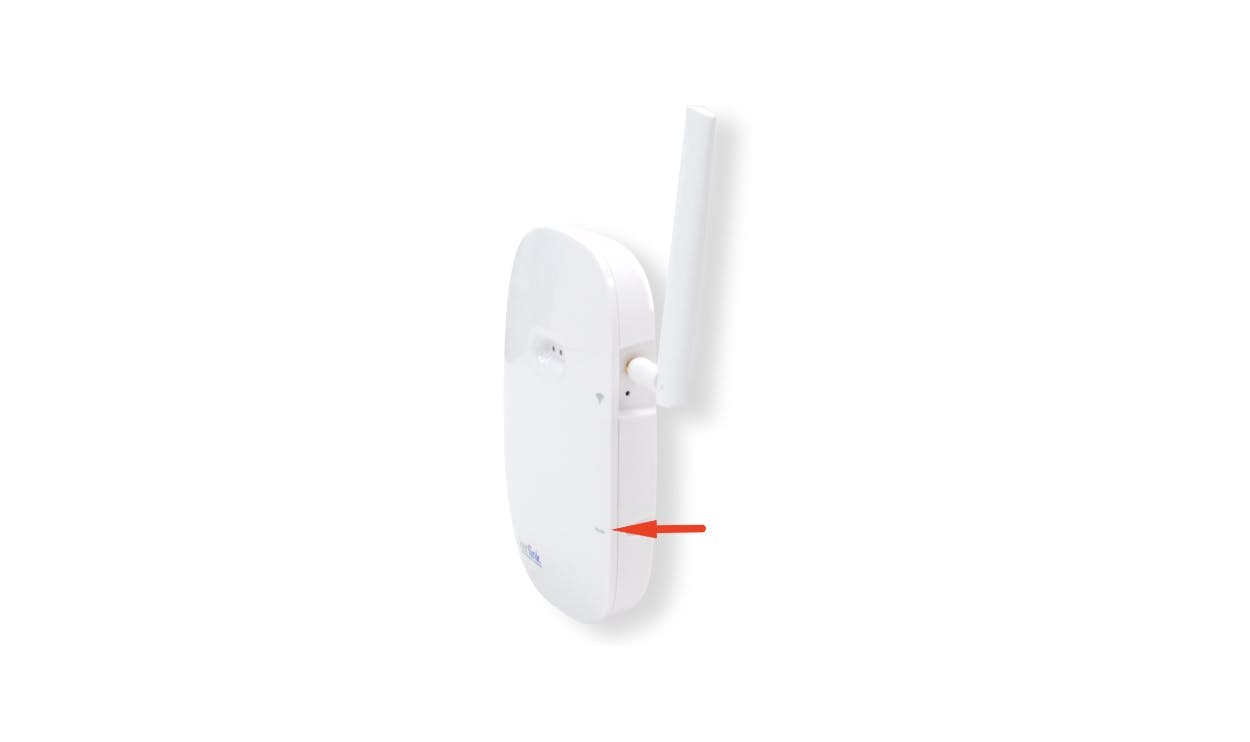
LED 1 (Power): Solid green indicates the device is powered and the boot process is complete.
LED 2 (Network): Blinking green indicates the gateway is connecting to the backhaul network.
Register the Gateway in Logitech Sync
Log in to Logitech: sync.logitech.com
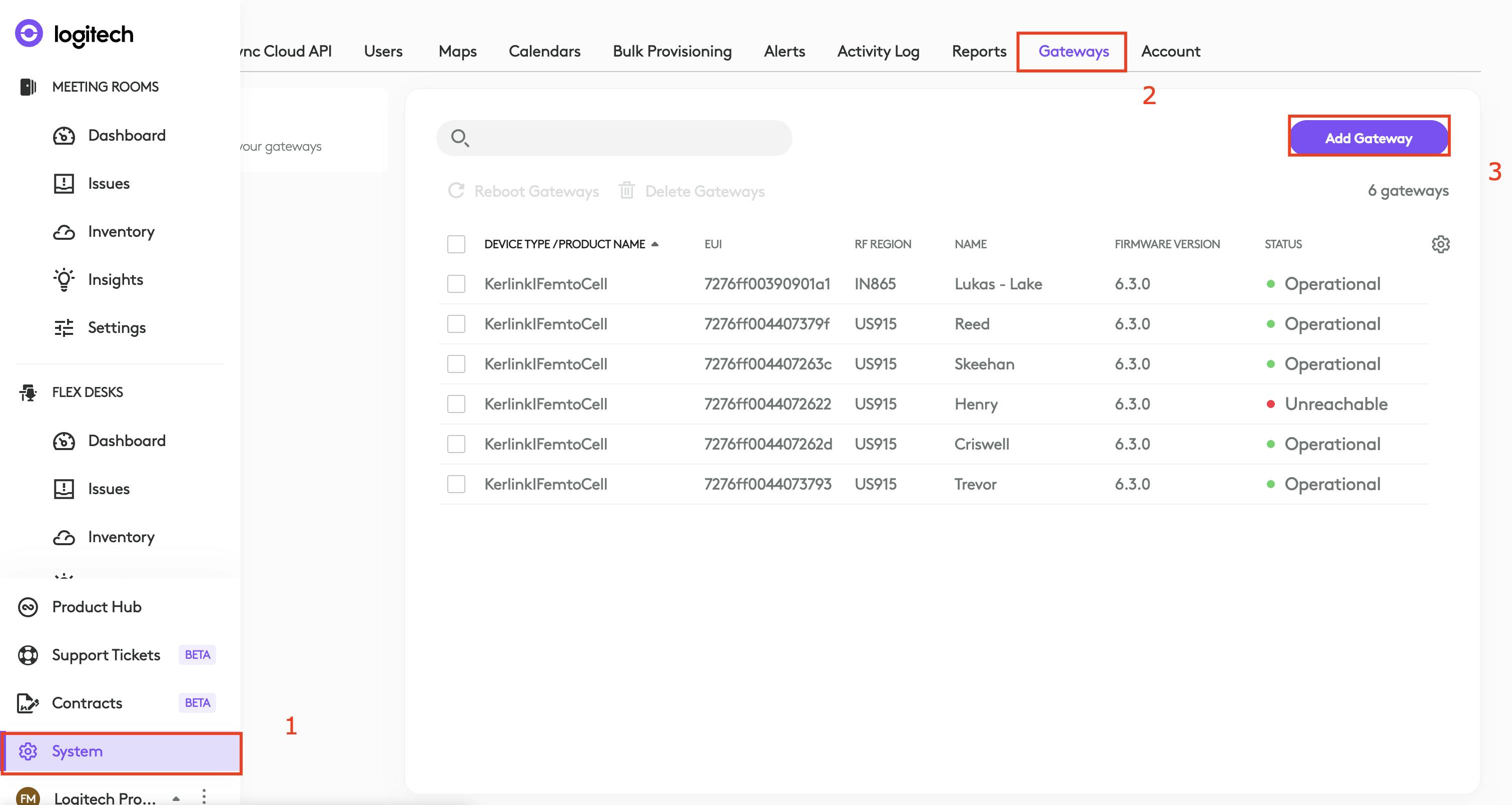
Navigate to: System > Gateways and click “Add Gateway.”
Logitech Sync: Adding LoRaWAN Gateway
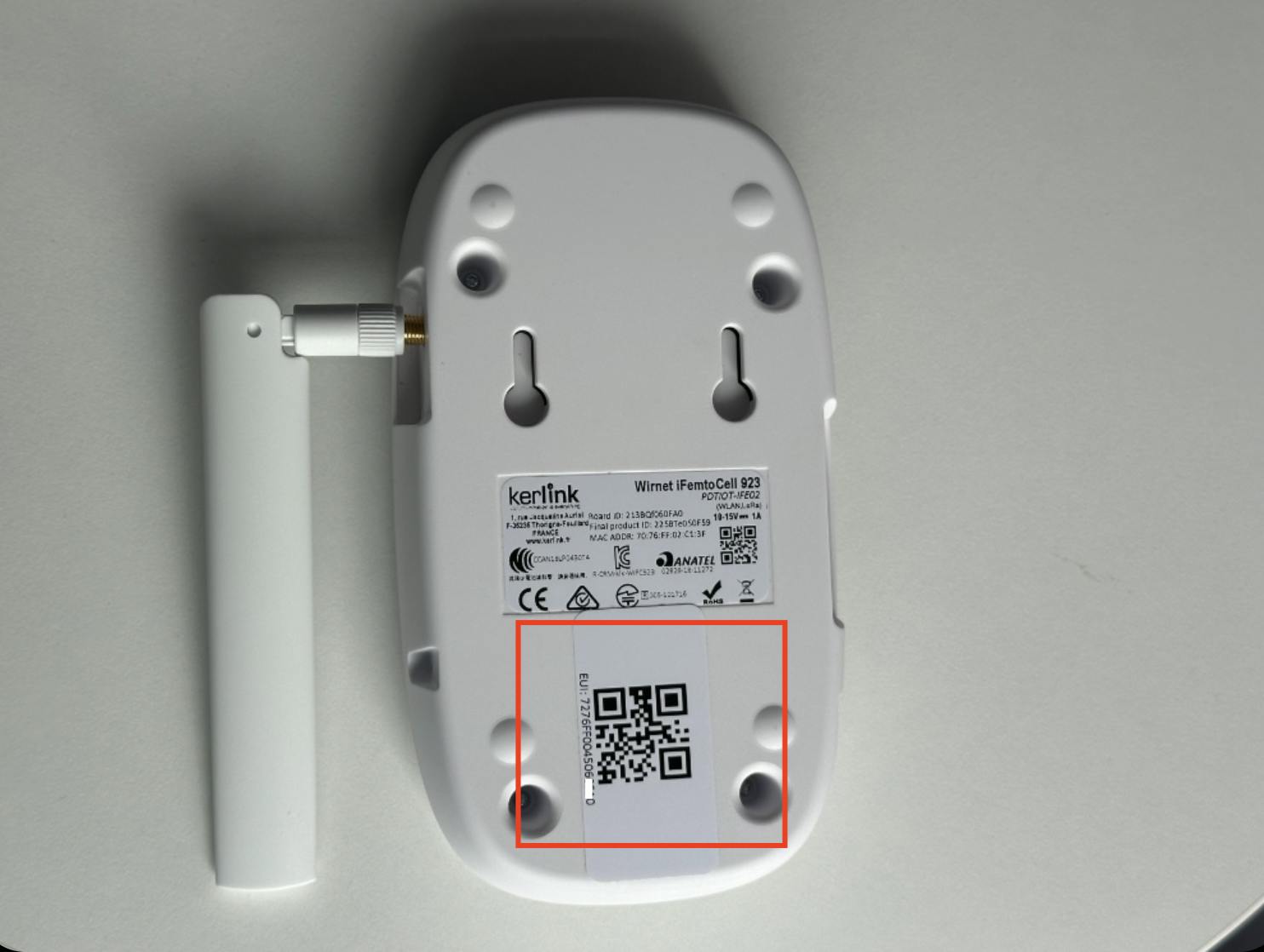
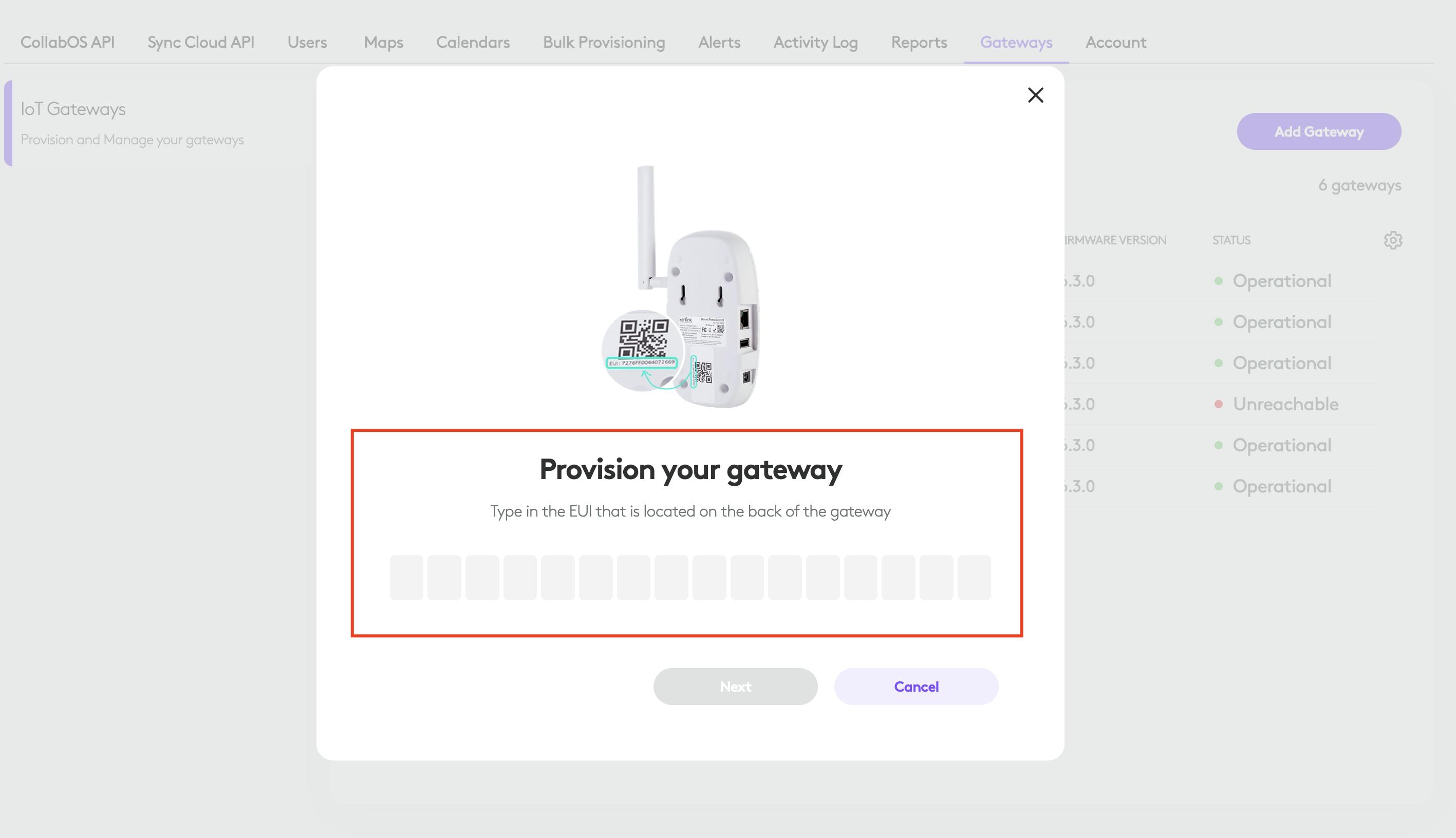
Enter the Gateway EUI (found on the label at the back of the device).
Gateway EU
Assign a descriptive name for the gateway.
Gateway Provisioning
Once added, the gateway begins configuring itself on the LoRa network.
This process may take up to 1 hour.
When complete:
LED 3 turns solid green.
The gateway status in Sync changes to “Operational.”
Troubleshooting
If the gateway does not appear as Operational in Sync after 1 hour, consult the LoRaWAN Gateway Troubleshooting Guide.
Provisioning Spot Over LoRaWAN on Desktop
Before You Begin:
Ensure Spot is powered on.
If this is the first-time setup, remove the battery isolation tab (breaker).
Wait for the boot process to complete. The LED will cycle through red, blue, and green, then blink white twice.
Ensure the Spot is not paired with a CollabOS device or provisioned to another room via LoRaWAN
Ensure the Gateway is Online and marked as operational in Sync
Register a Spot Device to a Room in Logitech Sync
Log in to Logitech Sync on your desktop device.
Navigate to the desired room:
Inventory > Rooms > [Select Room] > Provision > Add Spot.
Follow the on-screen prompts and select “Connect Spot to IoT Gateway.”
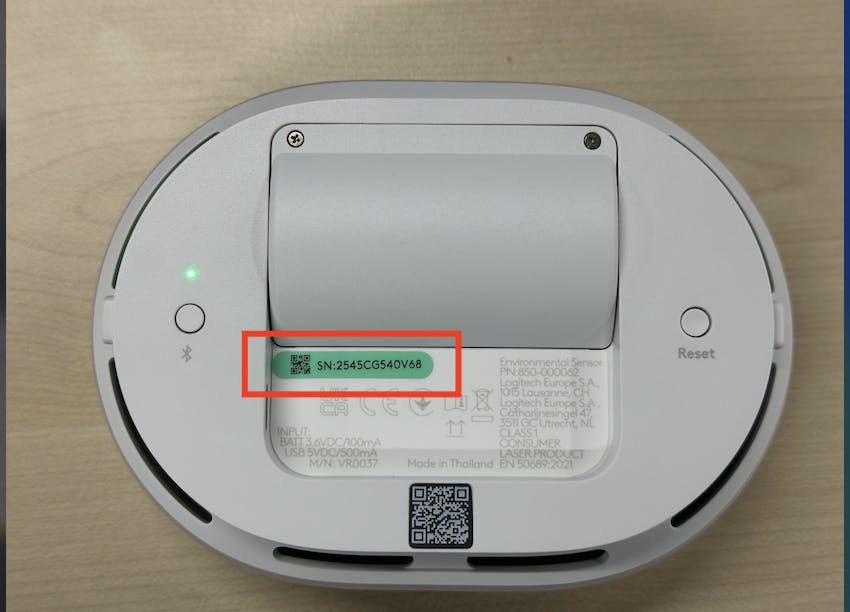
Enter the Spot’s serial number to complete the provisioning process.
Enable LoRa Mode on Spot
Press and hold the reset button for 5 seconds, until the LED begins blinking green.
Wait for the device to join the LoRa network.
Once connected, the LED will turn solid green for 5 seconds.
The Spot will appear online in Logitech Sync (this may take up to 10 minutes).
Provisioning Spot Over LoRaWAN using Sync Mobile App
Before You Begin:
Ensure Spot is powered on.
If this is the first-time setup, remove the battery isolation tab (breaker).
Wait for the boot process to complete. The LED will cycle through red, blue, and green, then blink white twice.
Ensure the Spot is not paired with a CollabOS device or provisioned to another room via LoRaWAN
Ensure the Gateway is Online and marked as operational in Sync
Register Spot in Sync to a room:
Open the Camera app on your mobile device and Scan the QR code at the back of Spot.
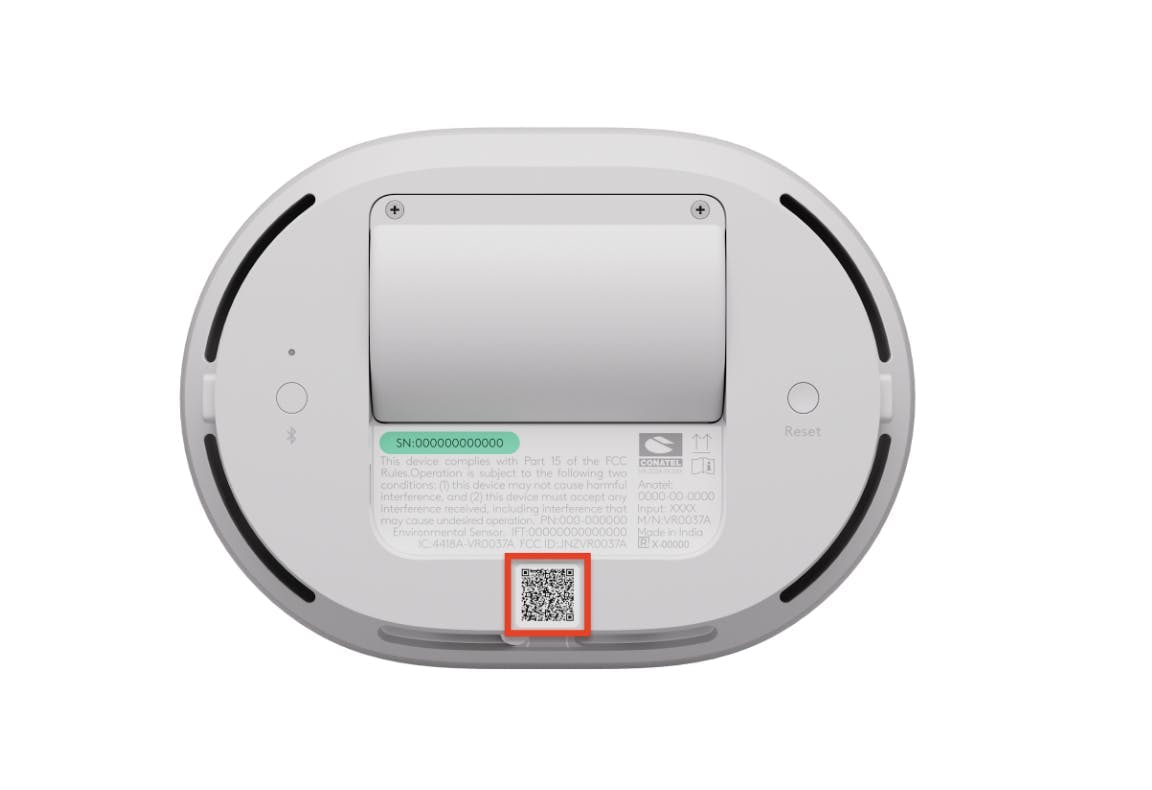
Log in to the Sync Mobile App with your Sync account and follow the on-screen instructions.
Configure Gateway Network Connection (Optional)
This step is only necessary to establish a network connection in cases where DHCP is not available or manual configuration of the ethernet network is wanted.
After power up, the gateway will advertise a Wi-Fi network name with the name "klk-wifc-XXXXX"
On your computer or smartphone:
Open the Wi-Fi settings.
Scan for available Wi-Fi networks.
Locate the default SSID you identified in the previous step.
Select it and click "Connect."
As the passphrase use the Ethernet MAC address (MAC ADDR) printed on the gateway label in uppercase without spaces between the digits
Once connected to the router's Wi-Fi network, open a web browser (e.g., Chrome, Firefox, Safari, Edge) on your device.
In the address bar, type the router's address:
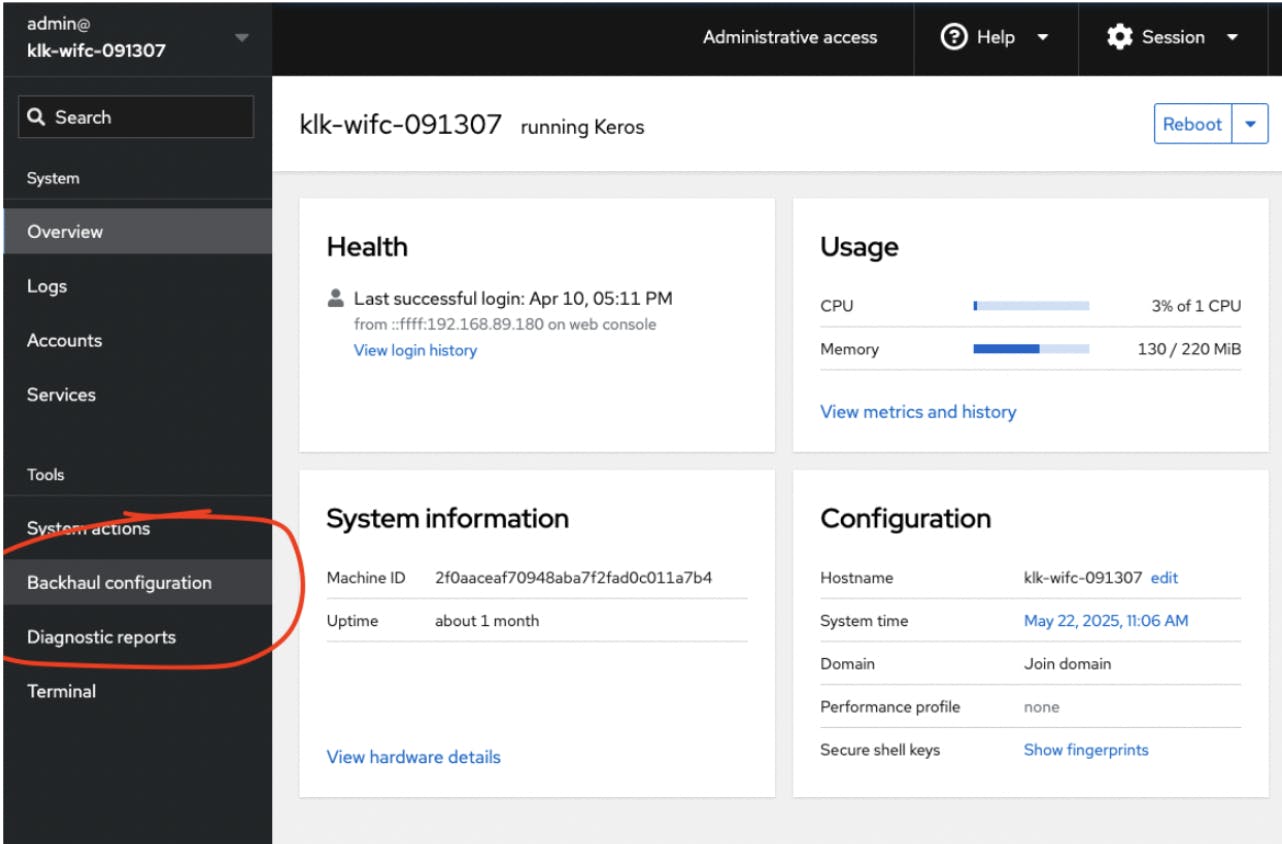
https://klk-wifc-XXXXXX.local replace XXXXXX with the last 6 characters of the board IDYou must use the admin user and set your password. By default the password of the admin user is empty.
Once logged in, navigate to "Backhaul configuration"
Switch from "DHCP" to "Static" to enter a customer ethernet configuration
Country Availability
A continuously updated country availability list can be found here.
LoRaWAN Security
LoRaWAN technology provides robust end-to-end security with dual layers of AES-128 encryption, ensuring data remains protected as it travels from the sensors to the application server. The gateway plays a critical role as a secure pass-through device transmitting encrypted packets without storing or accessing decryption keys. This design minimizes security risks, maintaining the privacy and integrity of your data throughout the communication process.
Gateway Troubleshooting Guide
Gateway LED
LED 1 (Power/Status): This LED indicates the power and overall system status.
Solid Green: The device is powered on and the boot process is complete.
Blinking Green: The system is booting up.
Red (or Blinking Red): Can indicate a power issue or a problem during the boot process.
LED 2 (Backhaul): This LED indicates the status of the internet connection (backhaul).
Solid Green: The gateway is successfully connected to the internet via Ethernet, Wi-Fi, or cellular.
Blinking Green: The device is in the process of connecting to the backhaul network.
Red: There is an issue with the backhaul connection. This could be due to a disconnected cable, an issue with the Wi-Fi or cellular network, or a configuration problem.
LED 3 (LoRaWAN/RF Activity): This LED indicates the status of the LoRaWAN™ service and RF activity.
Solid Green: The gateway is connected to a LoRaWAN Network Server (LNS) and is operational.
Blinking Green: The gateway is receiving an uplink packet from a LoRaWAN device.
Blinking Red: The gateway is sending a downlink packet to a LoRaWAN device.
Red: The gateway is unable to connect to the LoRaWAN Network Server.
Reeboot Gateway
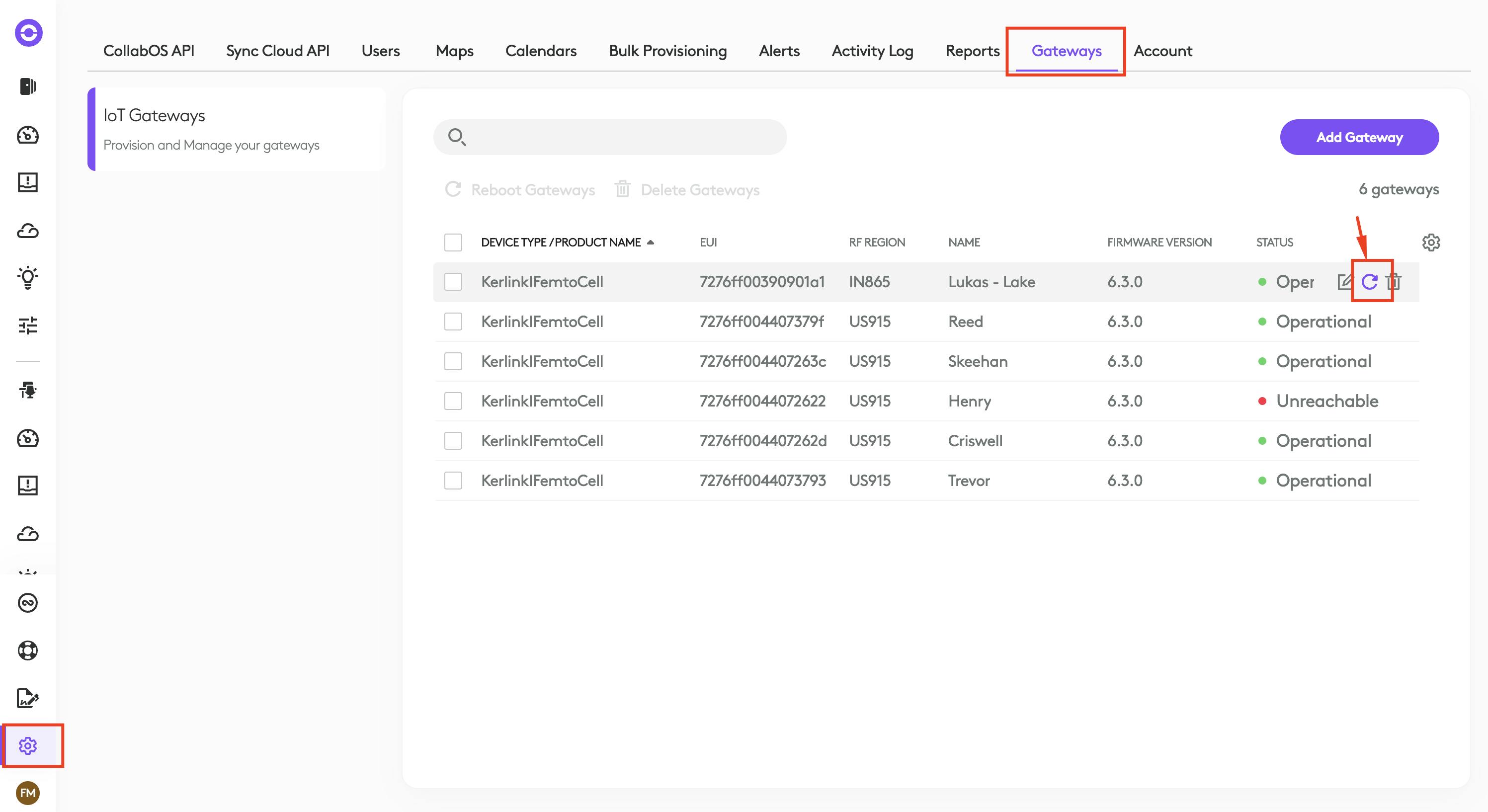
Log in to Logitech: sync.logitech.com
Navigate to: System > Gateways and click Reboot Icon.
Reboot LoRaWAN Gateway
Firewall Requirements
Below you will find all the information needed to set up your firewall to allow the LoRaWAN gateway on your firewall-secured network.
Protocol
Ports
Destination/FQDN
Usage of Endpoint
Is it needed for
device functionality
WSS
443
Logitech Sync LoRaWAN network server access
DHCP
67 UDP
DHCP server in local network
Gateway
Not mandatory if a static IP is used in the network
DHCP
68 UDP
Gateway’s local in network IP
DHCP server in local network
Not mandatory if a static IP is used in the network
DNS
53 UDP
DNS server in local network
Gateway
Not mandatory if name resolution is hard-coded in gateway configuration files
NTP
123 UDP
Gateway
Mandatory
Default destination used from KerOS 5.x. For firmware < KerOS 5.x, destinations will be x.pool.ntp.org (with x = 0 to 3).
HTTP
80 TCP
-
Local laptop
Mandatory
For local web access if needed
HTTPS
443 TCP
Gateway
Mandatory
For automatic gateway SW update, configuration, and monitoring (Magic Link, ZTP, ....etc), for KerOS >=4.3.3
HTTPS
443 TCP
Gateway
Mandatory
To collect log files via Wanesy Cockpit, for KerOS >=4.3.3
SSH
22 TCP
Gateway’s local in network IP
Local laptop
Not Mandatory
Required only for SSH access to the gateway
ICMP
-
8.8.8.8
Gateway
Factory default flow configured for network monitoring
HTTP
80 TCP
Gateway
Useful only when 2 different backhauls are used on the gateway (for example, a cellular backhaul and Ethernet backhaul)
Click here for CollabOS firewall setup: 2.4 Firewall Settings: CollabOS.
Click here for Sync firewall setup: Firewall and Proxy Setup Information for Sync.
For additional support, visit the Logitech Spot Product Support page or refer to the official documentation portal for firmware and accessory compatibility details.