
Getting Started with Spot
Logitech Spot can be deployed using one of the following methods:
Pairing with a CollabOS Device
Supported on Rally Bar, Rally Mini, Rally Huddle, RoomMate, Tap Scheduler, Tap Scheduler 2, Tap IP or Tap IP 2 running CollabOS 2.0 or higher. Up to three (3) Spots can be paired to a single CollabOS device.Connecting to the LoRaWAN Gateway
In spaces without another Logitech device – you need to use the LoRaWAN gateway specialty configured for Logitech Spot to connect many sensors across an extended distance.
Pairing Spot with a CollabOS Device
Before You Begin:
Ensure Spot is powered on.
If this is the first-time setup, remove the battery isolation tab (breaker).
Wait for the boot process to complete. The LED will cycle through red, blue, and green, then blink white twice.
For the optimal environmental measurements, mount Spot at a height of 3-6 feet (~1-1.8m)
Spot can take up to 48 hours to calibrate environmental readings. During this period, reported values may be higher than expected. However, presence detection will work immediately and does not require calibration.
Up to three (3) Spots can be paired with a single CollabOS device.
Enable Pairing Mode on Spot:
Press and hold the Bluetooth button for 7 seconds, then release.
The blue LED will begin blinking, indicating Bluetooth pairing mode is active.
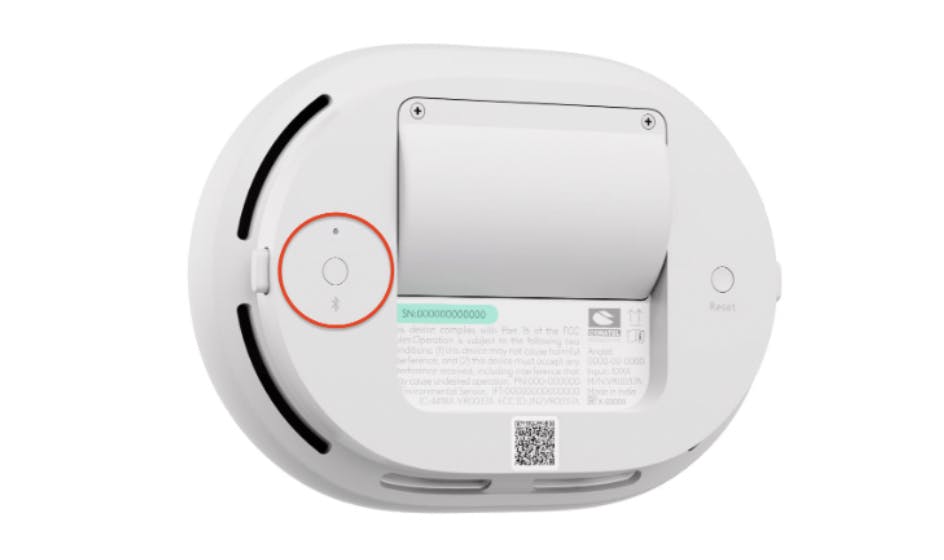
Complete Pairing on Your CollabOS Device
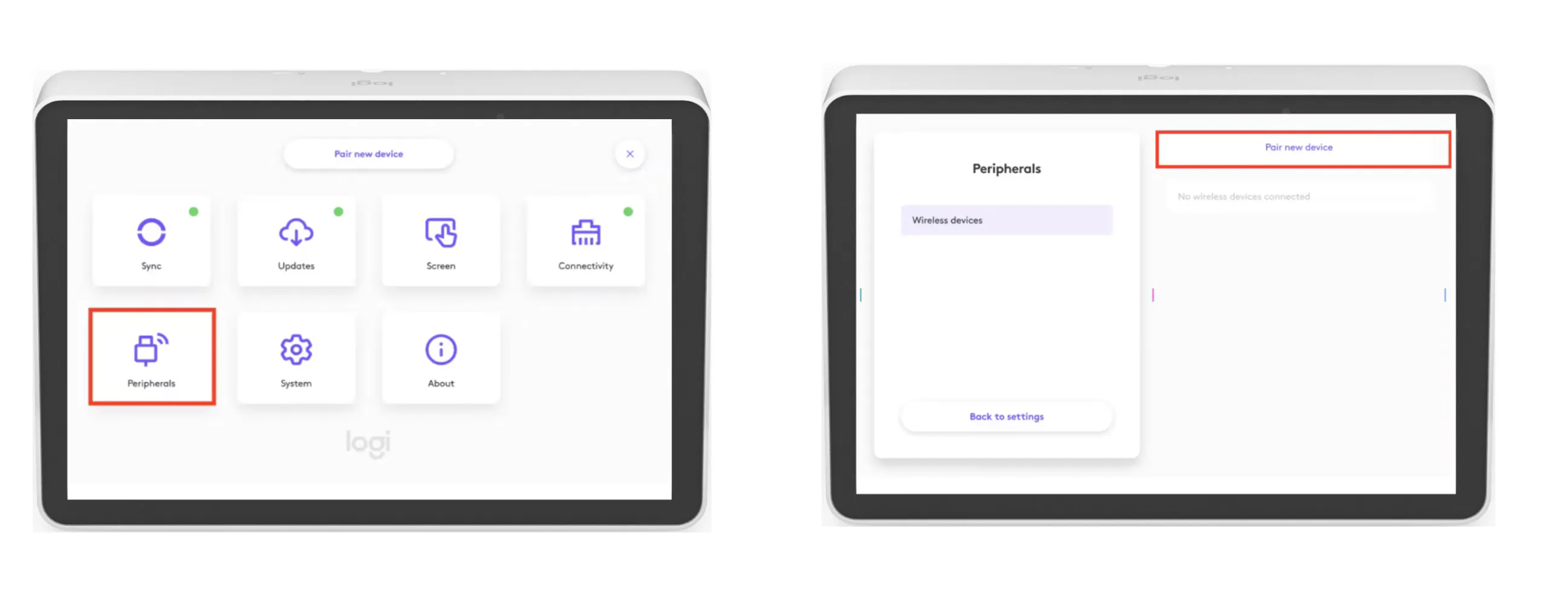
On a supported CollabOS device, go to:
Settings > Peripherals > Wireless Devices > Pair New DevicePair New Device with a CollabOS device
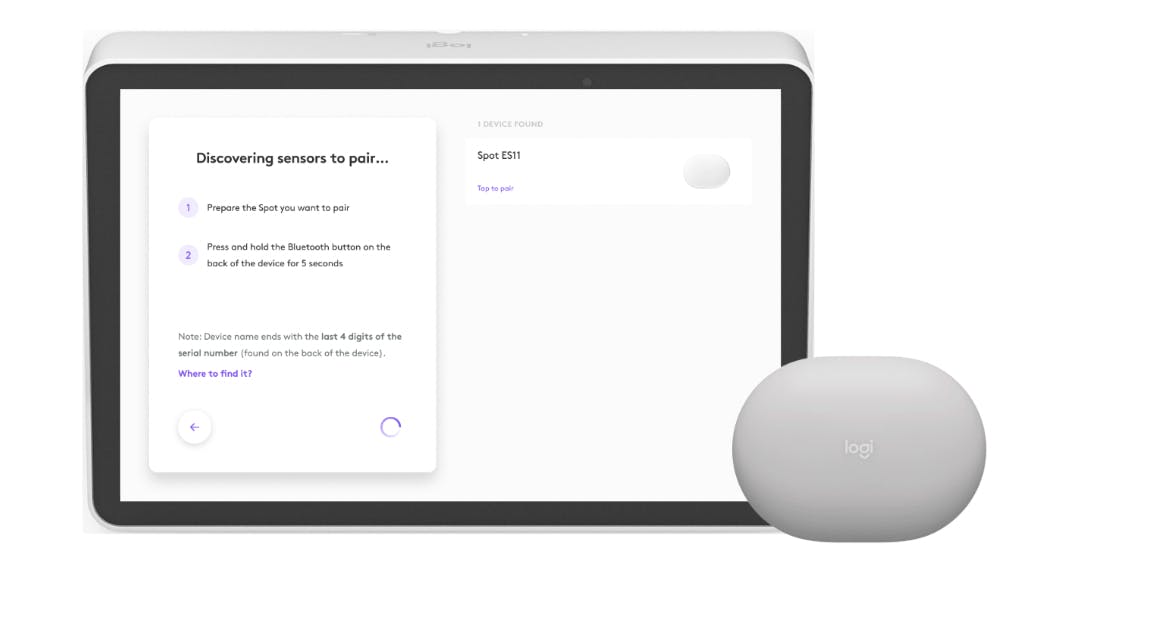
Select Your Spot
Choose your Spot from the list using the last 4 characters of its serial number.Choose your Spot from the list using the last 4 digits of its serial number.
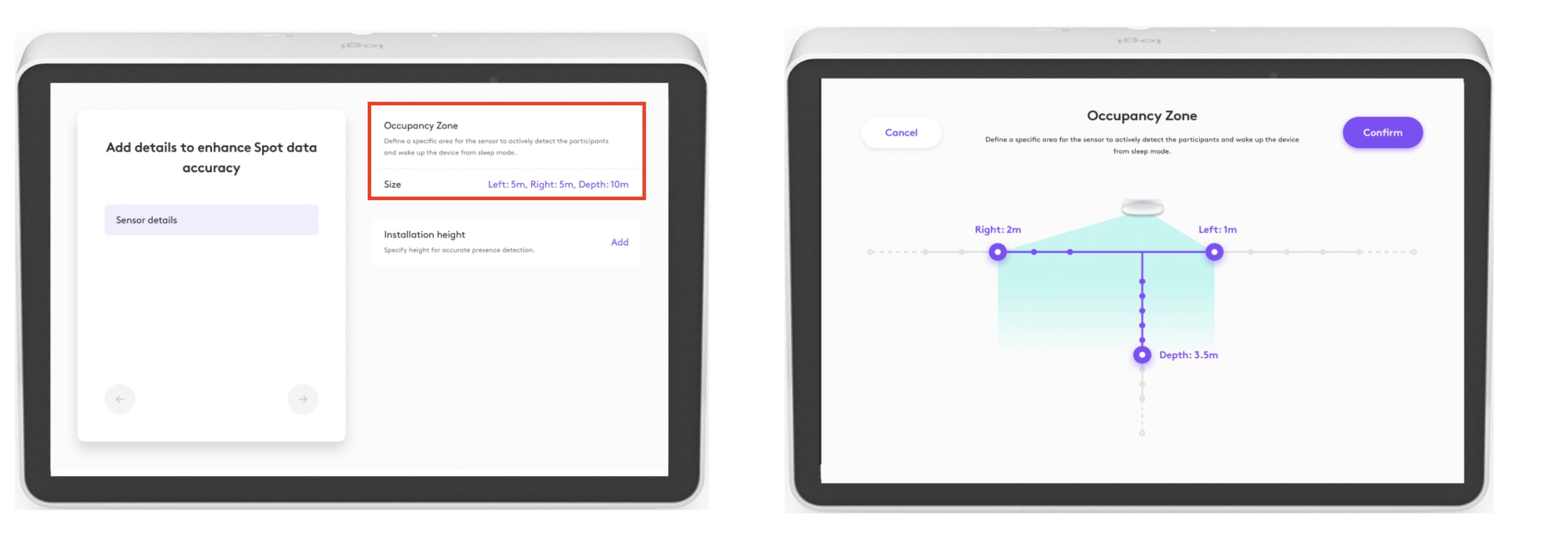
Configure Occupancy Zone
Set the Occupancy Zone to enable precise occupancy sensing.
Set the Occupancy Zone to enable precise occupancy sensing
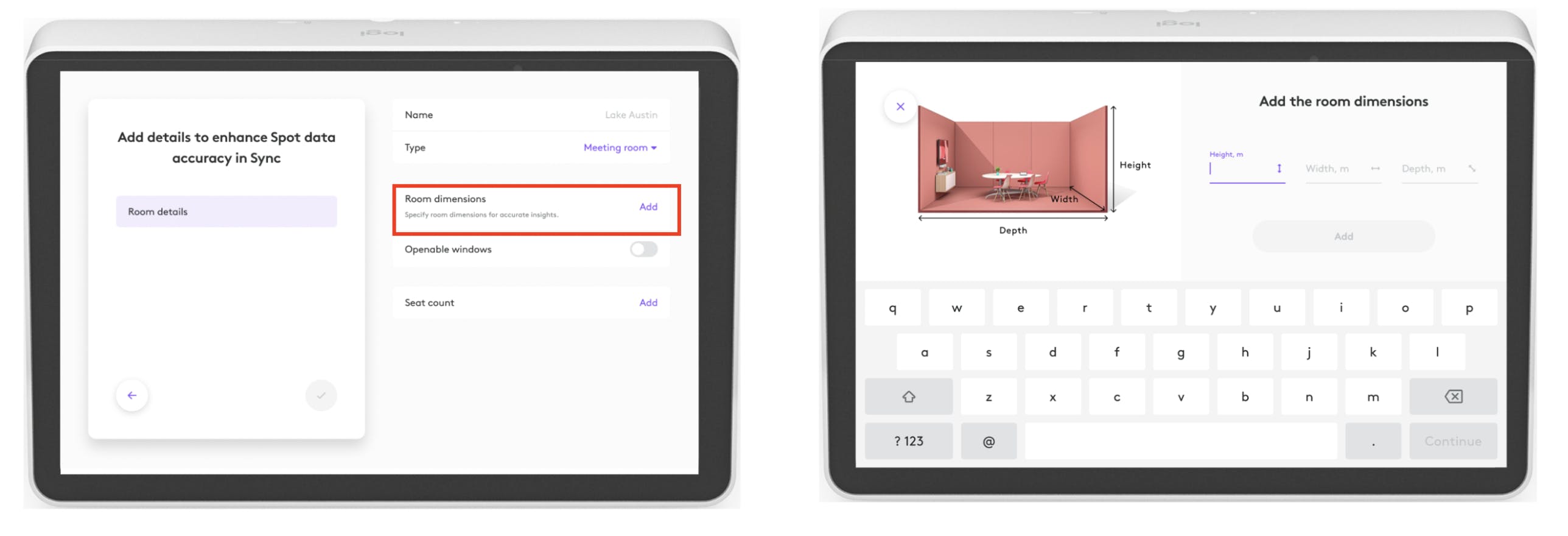
Enter Room Dimensions
Provide the below details to improve insight accuracy:Room height
Room width
Room depth
Enter Room Dimensions to improve insight accuracy
Window Configuration
Indicate whether the room has openable windows: Yes / NoVerify and Test Sensor Status
Ensure the sensor status is showing as connected.
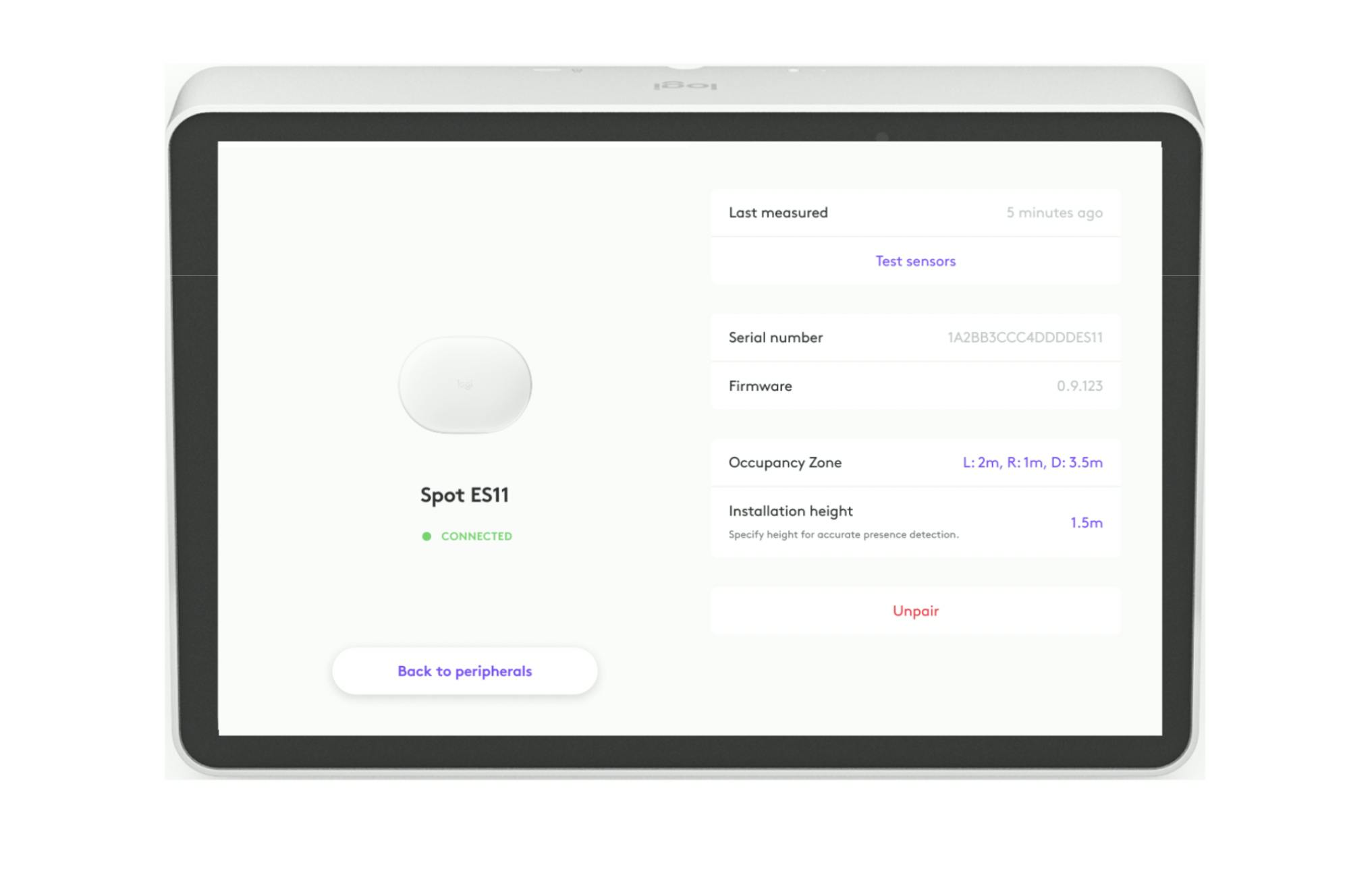
Verify and Test Spot on CollabOS
Your Spot is now successfully set up and connected to your room in Sync.
Connecting Spot via LoRaWAN Gateway
In spaces without another Logitech device – you can use a long-range LoRaWAN gateway to cover an extended distance, to connect many sensors and see insights across your site.
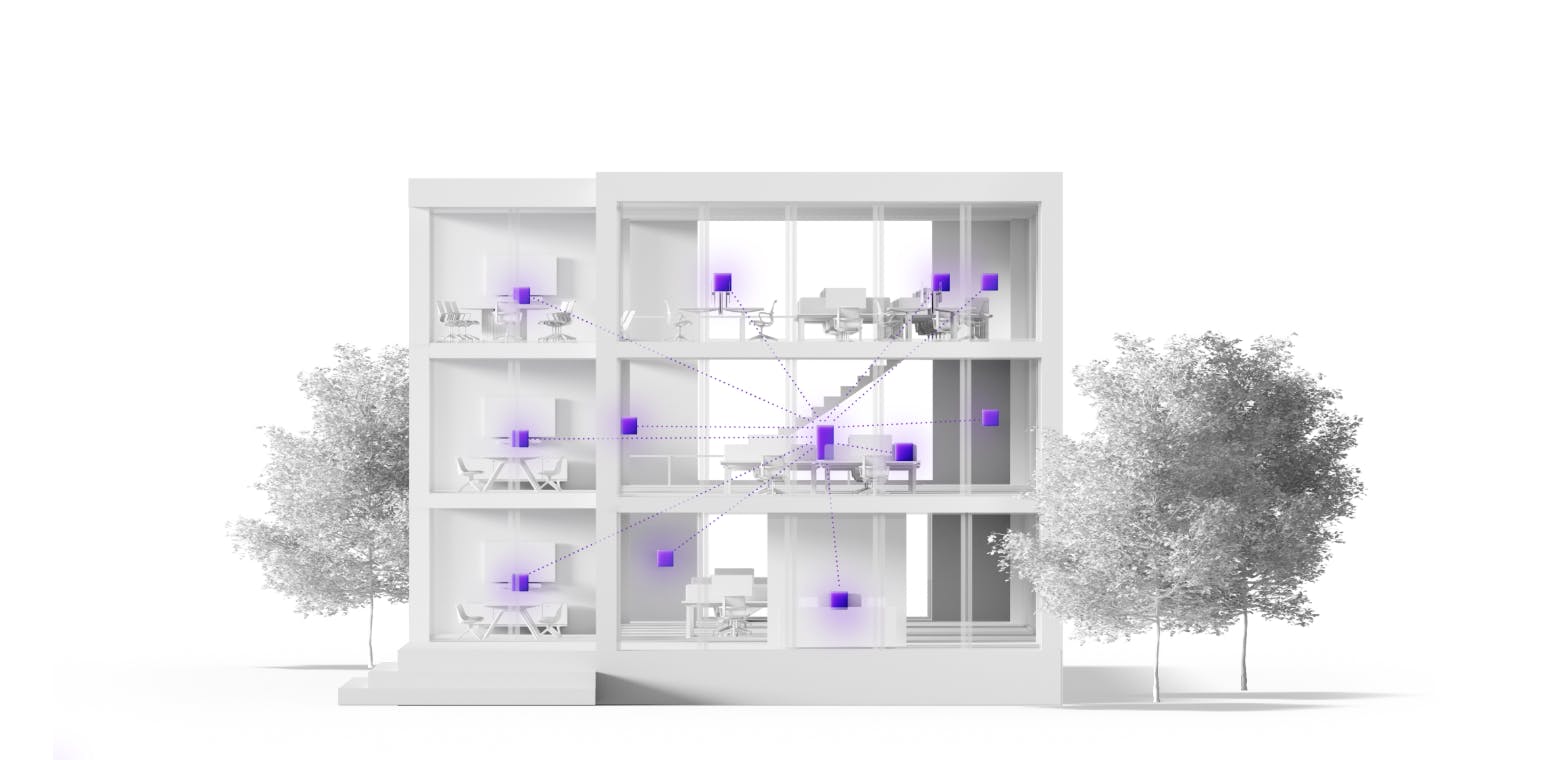
Use one long-range LoRaWAN gateways to cover a vast distance, to be able to connect many Spots
To use Spot with the specially configured LoRaWAN Gateway, you must first install and configure the gateway.
Note:
Ensure the network firewall is configured to allow the gateway. Learn more here.
Only gateways supplied by logitech is compatible with Spot.
Firmware updates for Spots connected to a gateway can be carried out using the Sync Installer mobile app.
Setting up the LoRaWAN Gateway
Physical Setup
Connect the gateway to your network using an Ethernet (LAN) cable.
Plug in the power cable to the gateway
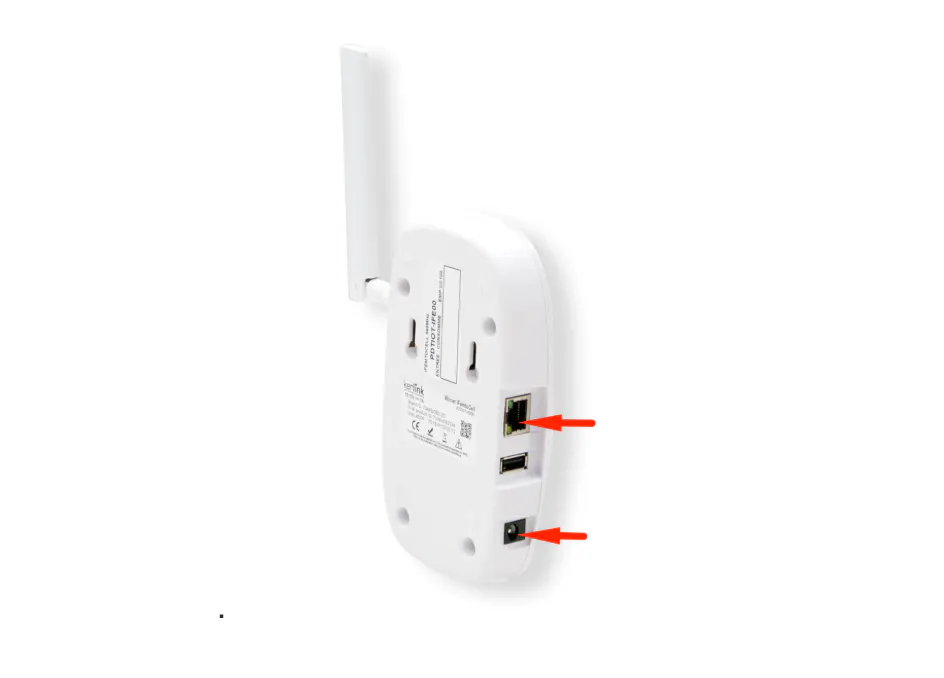
LoRaWAN Gateway LAN and Power connection
.
Power and Status Indicators
The gateway will power on automatically.
LED 1 (Power): Solid green indicates the device is powered and the boot process is complete.
LED 2 (Network): Blinking green indicates the gateway is connecting to the backhaul network.
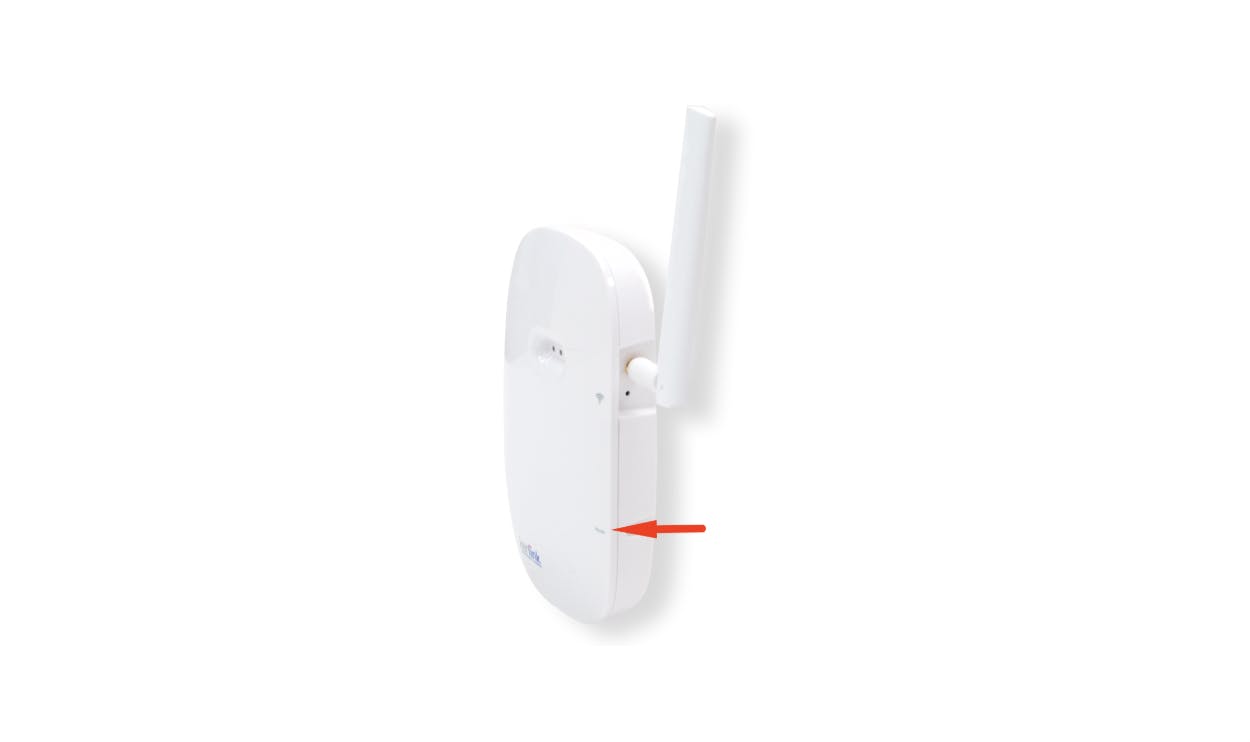
Register the Gateway in Logitech Sync
Log in to Logitech: sync.logitech.com
Navigate to: System > Gateways and click “Add Gateway.”
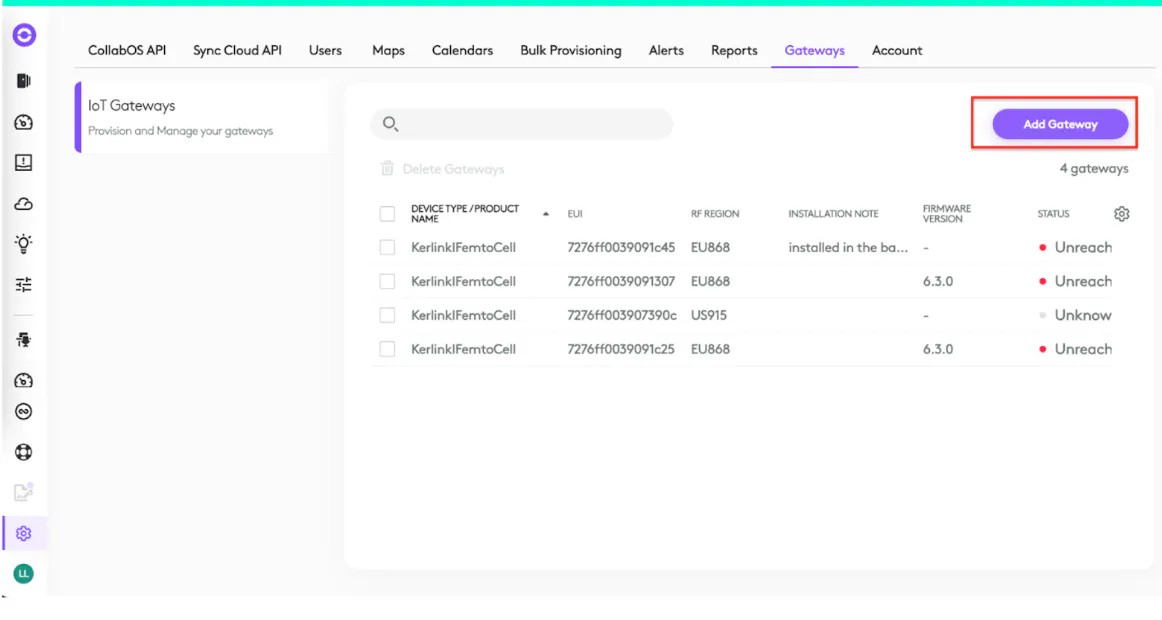
Logitech Sync: Adding LoRaWAN Gateway
Follow the on-screen instructions:
Enter the Gateway EUI (found on the label at the back of the device).
Select the country where the gateway is installed.
Assign a descriptive name for the gateway.
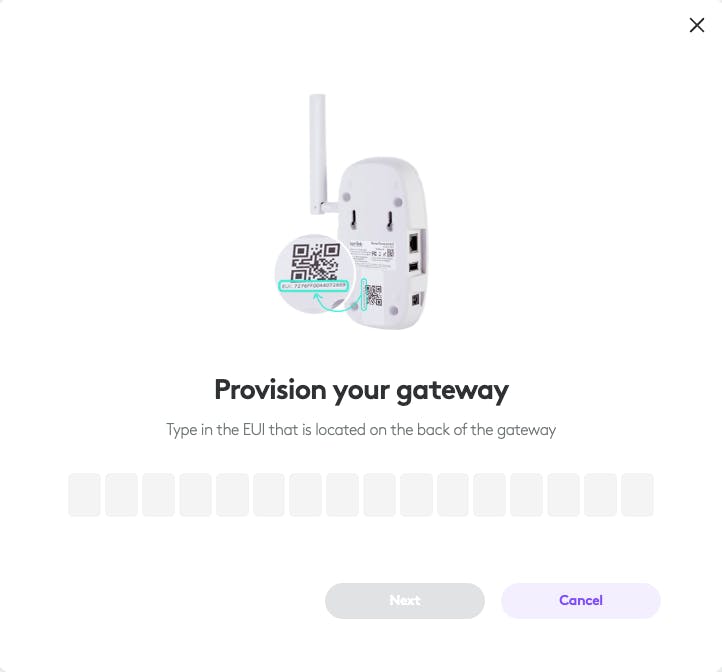
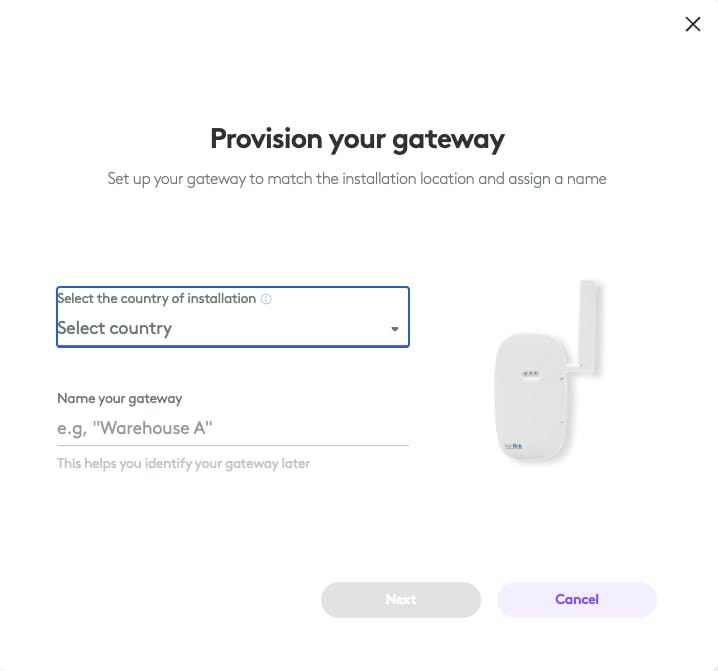
Gateway Provisioning
Once added, the gateway begins configuring itself on the LoRaWAN network.
This process may take up to 1 hour.
When complete:
LED 3 turns solid green.
The gateway status in Sync changes to “Operational.”
Troubleshooting
If the gateway does not appear as Operational in Sync after 1 hour, consult the LoRaWAN Gateway Troubleshooting Guide.
Configure Gateway Network Connection (Highly Recommended)
While not strictly required for initial out-of-the-box setup when DHCP is available, completing this step is highly recommended - especially in enterprise environments with specific network or security requirements. Follow these steps if you need to manually configure static IP settings, adjust network backhaul, or satisfy local security compliance protocols.After power up, the gateway will advertise a Wi-Fi network name with the name "klk-wifc-XXXXX"
On your computer or smartphone:
Open the Wi-Fi settings.
Scan for available Wi-Fi networks.
Locate the default SSID you identified in the previous step.
Select it and click "Connect."
As the passphrase use the Ethernet MAC address (MAC ADDR) printed on the gateway label in uppercase without spaces between the characters.
Once connected to the router's Wi-Fi network, open a web browser (e.g., Chrome, Firefox, Safari, Edge) on your device.
In the address bar, type the router's address: https://klk-wifc-XXXXXX.local - replace XXXXXX with the last 6 characters of the board ID.
Login with username "admin" and a blank password.
Be sure to set a new password.
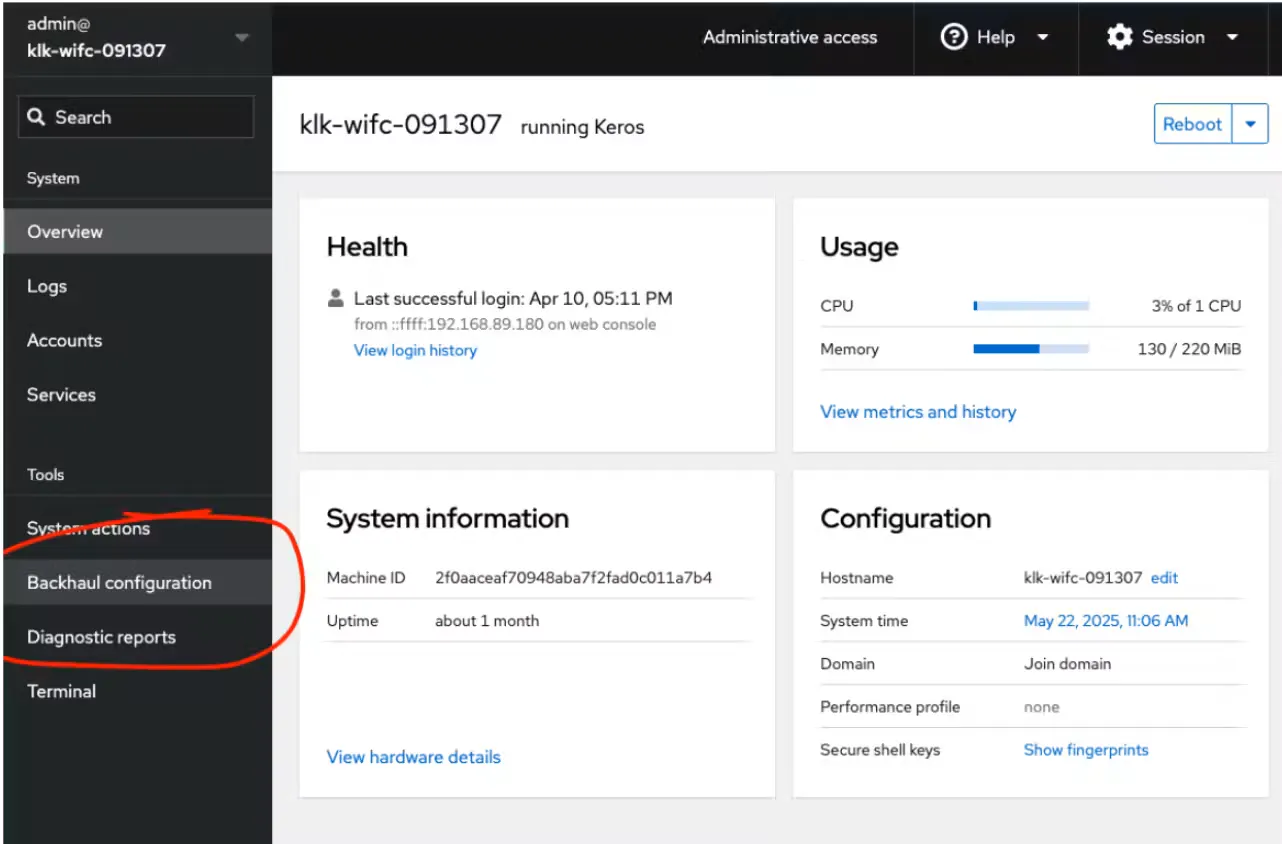
Once logged in, navigate to "Backhaul configuration"
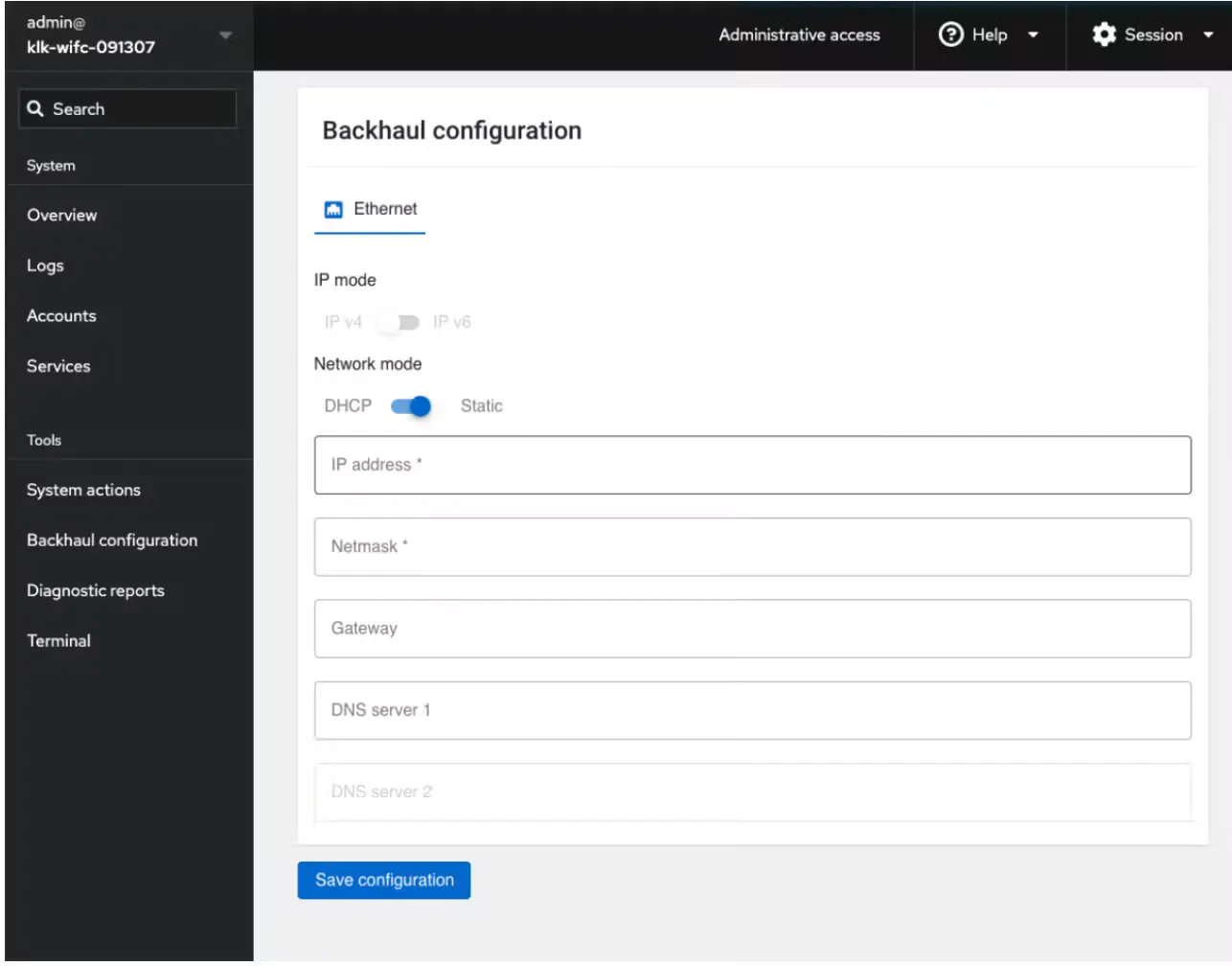
Switch from "DHCP" to "Static" to enter a customer ethernet configuration
Provisioning Spot Over LoRaWAN on Desktop
Before You Begin:
Ensure Spot is powered on.
If this is the first-time setup, remove the battery isolation tab (breaker).
Wait for the boot process to complete. The LED will cycle through red, blue, and green, then blink white twice.
For the optimal environmental measurements, mount Spot at a height of 3-6 feet (~1-1.8m).
Spot can take up to 48 hours to calibrate environmental readings. During this period, reported values may be higher than expected. However, presence detection will work immediately and does not require calibration.
Ensure the Spot is not paired with a CollabOS device or provisioned to another room via LoRaWAN.
Ensure the Gateway is Online and marked as operational in Sync.
Register Spot in Sync to a room:
Login to Sync on your Desktop device and navigate to the Room you want to add a Spot:
Go to Inventory > Room > Provision and select Add Spot.
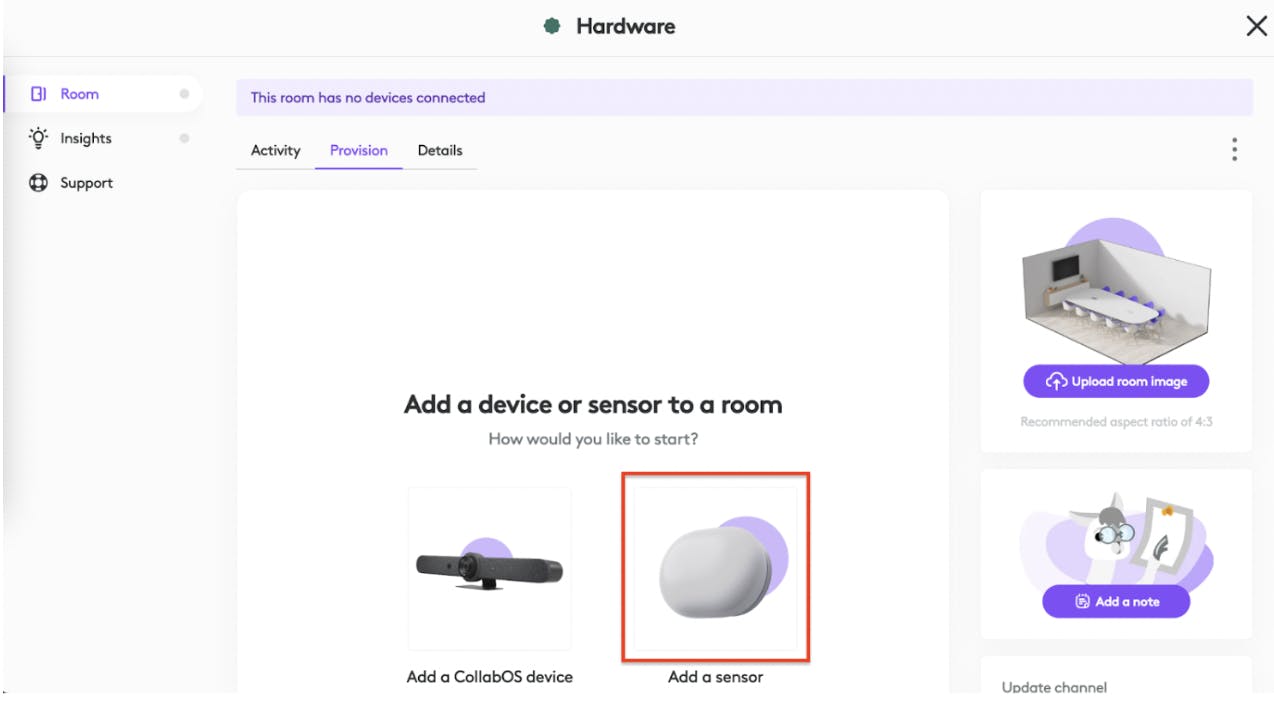
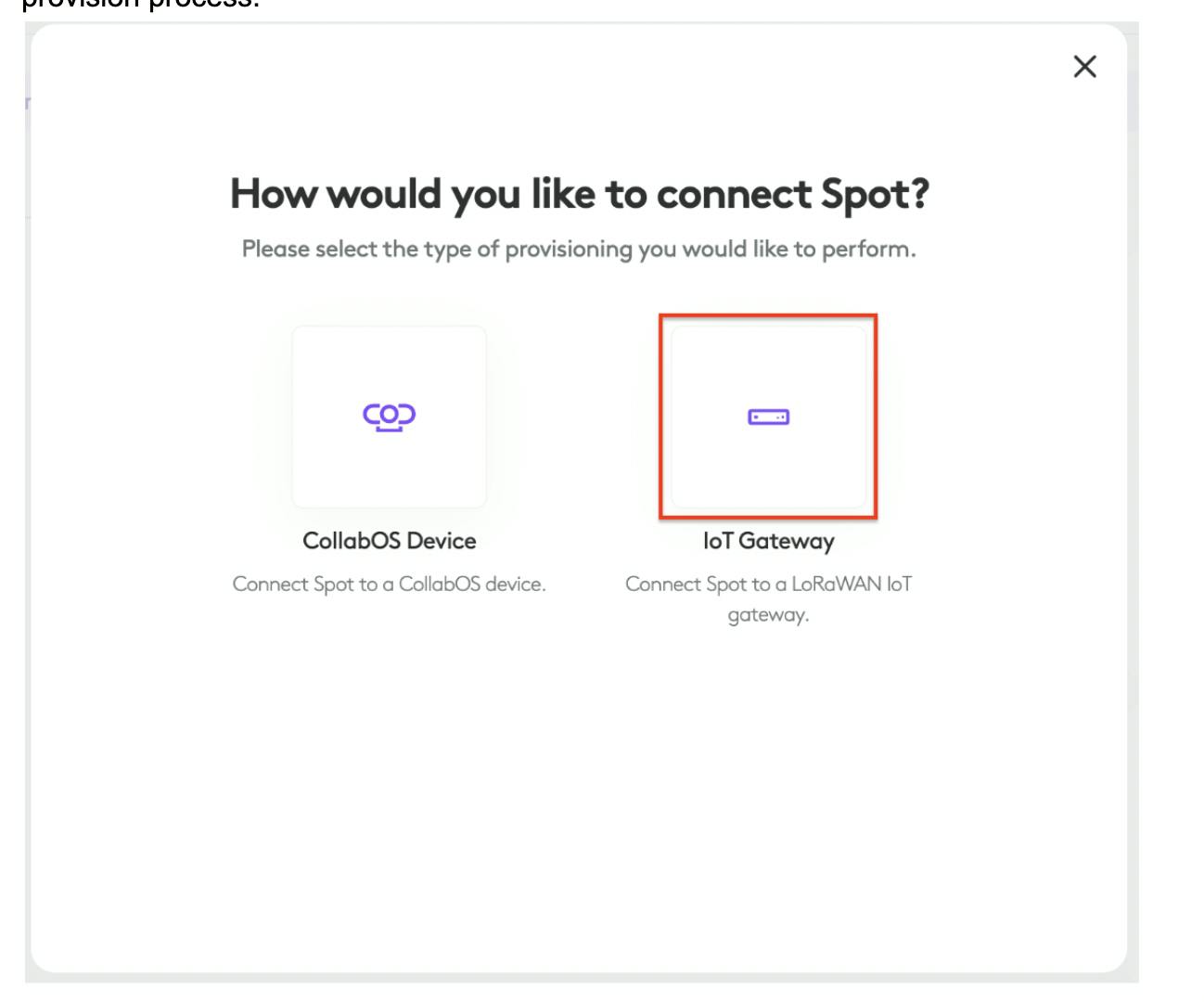
Follow the on-screen instructions, select connect Spot to Iot Gateway and complete the provision process.
Enable LoRa Mode on Spot
Once Spot has booted up, press 5 seconds reset button until the LED is blinking green.
Once Spot has joined the Network, the LED is Green constant for 5 seconds and Spot appears online in Sync (this can take up to 10 minutes).
Provisioning Spot Over LoRaWAN using Sync Mobile App
Before You Begin:
Ensure Spot is powered on.
If this is the first-time setup, remove the battery isolation tab (breaker).
Wait for the boot process to complete. The LED will cycle through red, blue, and green, then blink white twice.
For the optimal environmental measurements, mount Spot at a height of 3-6 feet (~1-1.8m)
Spot can take up to 48 hours to calibrate environmental readings. During this period, reported values may be higher than expected. However, presence detection will work immediately and does not require calibration.
Ensure the LoRaWAN Gateway is online and provisioned in Sync Portal.
Download the Sync Installer App:
iOS: https://apps.apple.com/us/app/logitech-sync-installer/id6499304421
Android: https://play.google.com/store/apps/details?id=com.logitech.companion_app
Setup Spot
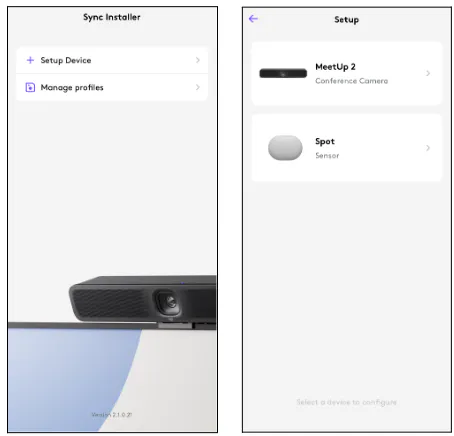
In the Sync Installer App, select + Setup Device, then select Spot.
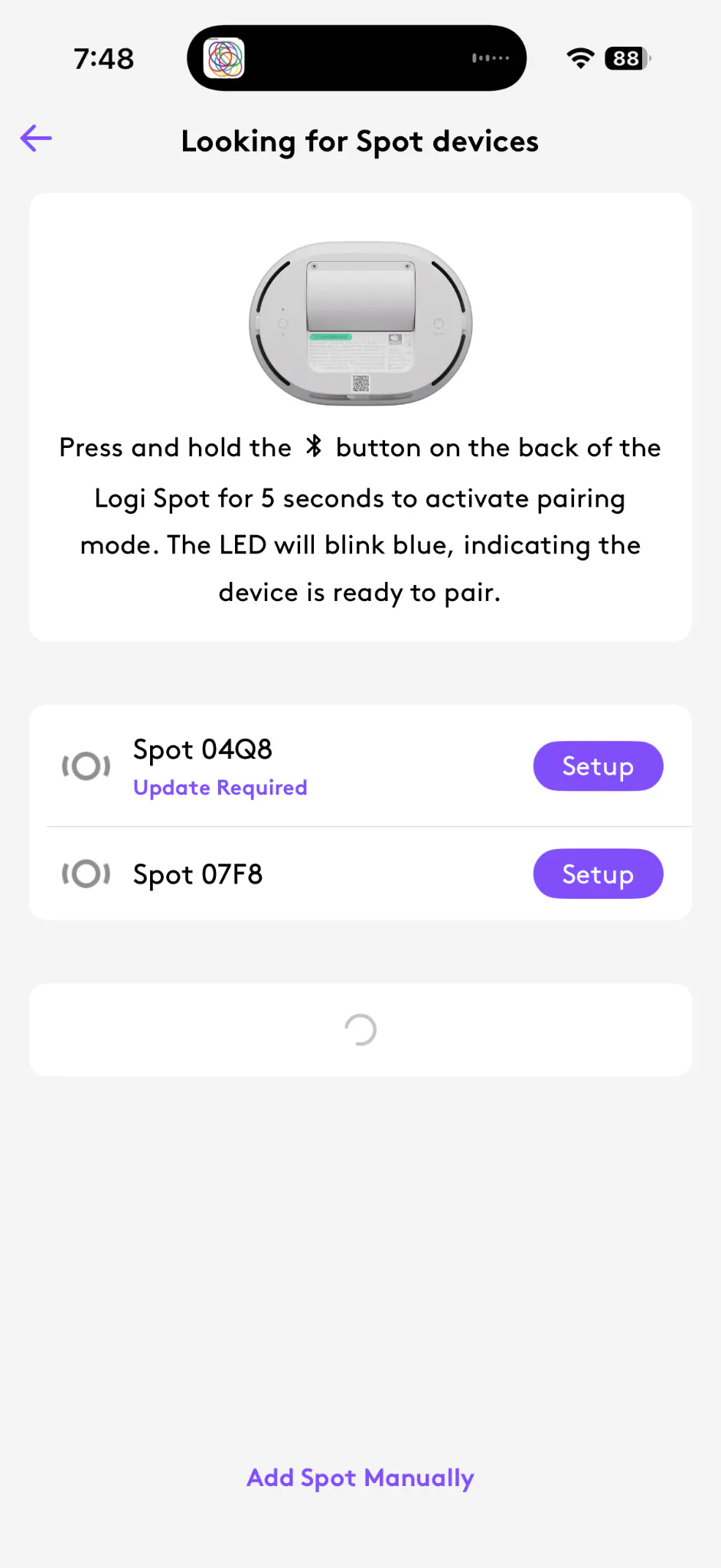
Press and hold the Bluetooth button on the back of the device for 5 seconds to place Spot in pairing mode.
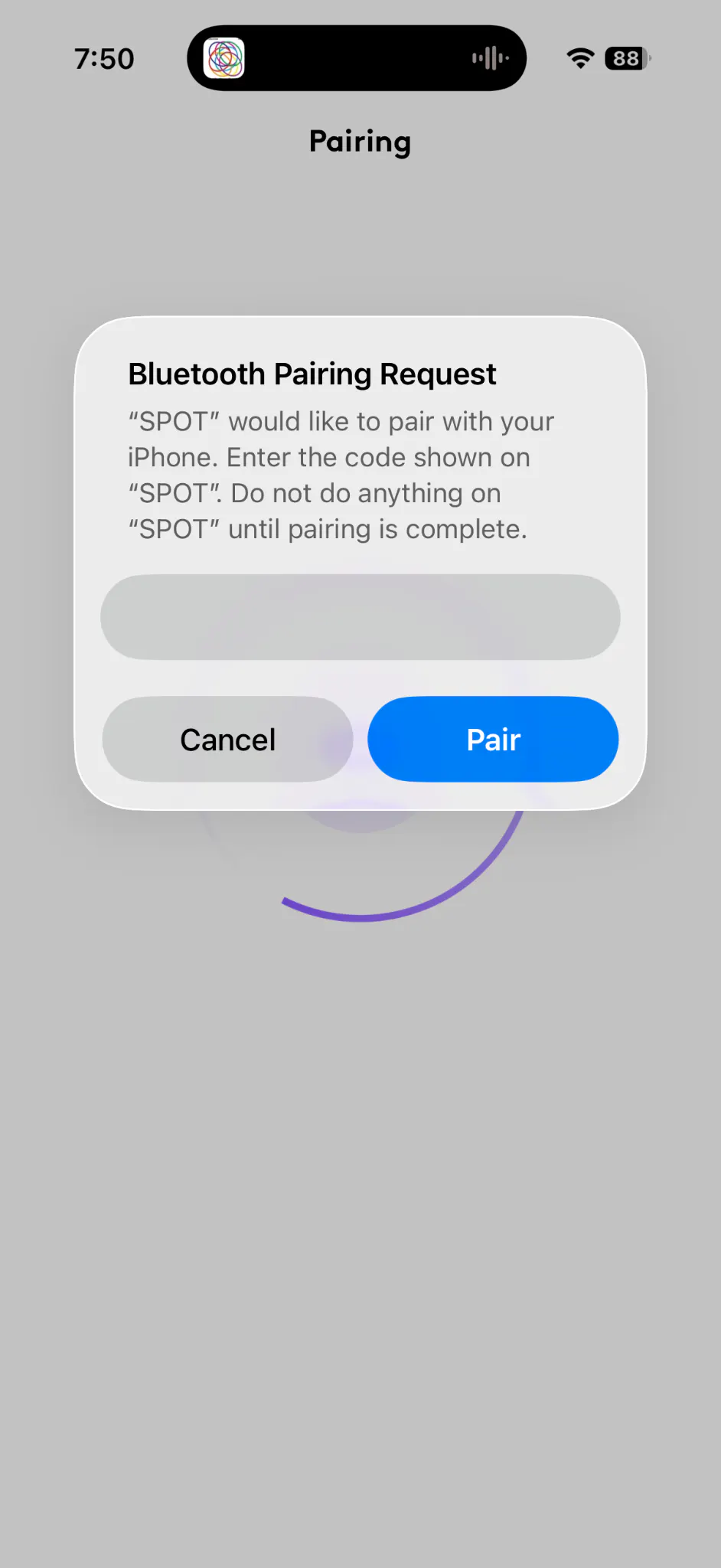
Your mobile device will generate a one-time code. Copy or note down the code and enter it on this screen to establish a secure connection. Select Pair.
Updating the firmware
If your Spot will requires a firmware update, follow these directions:
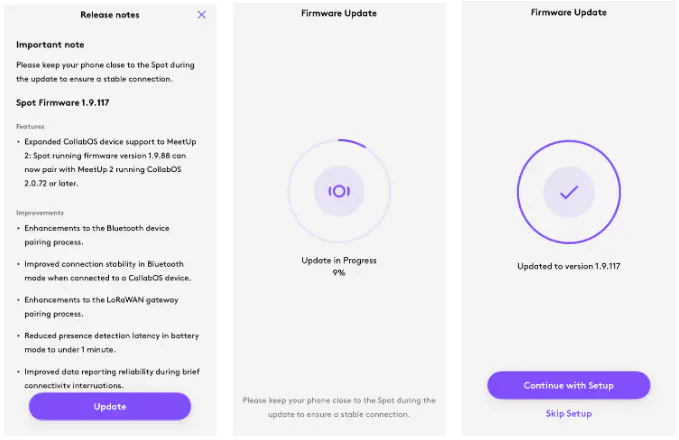
Follow the on-screen instructions to update Spot to the latest firmware. Once the update completes, Spot will automatically reboot.
Connecting to the LoRaWAN gateway
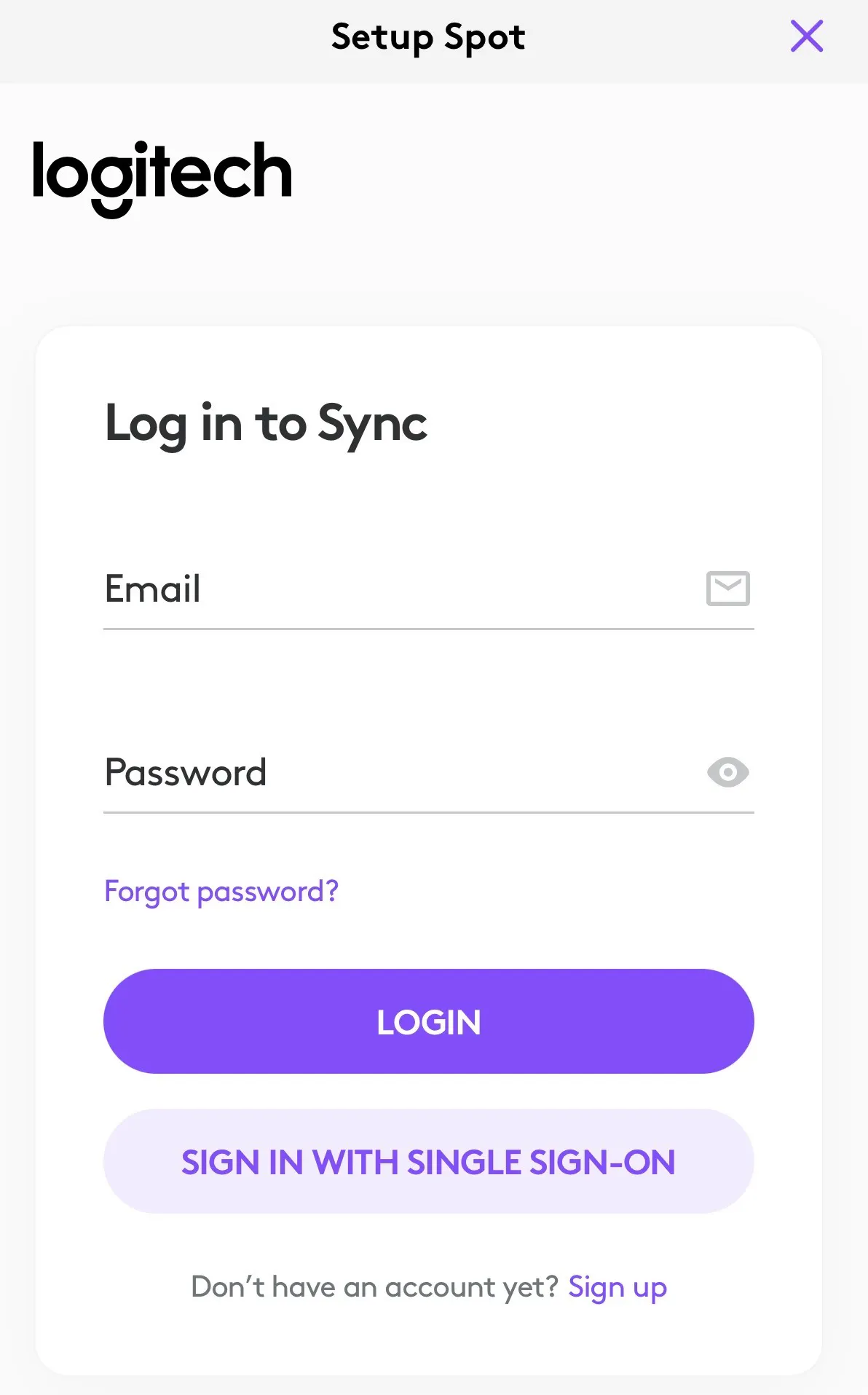
Log in to Sync Portal to continue the setup process.
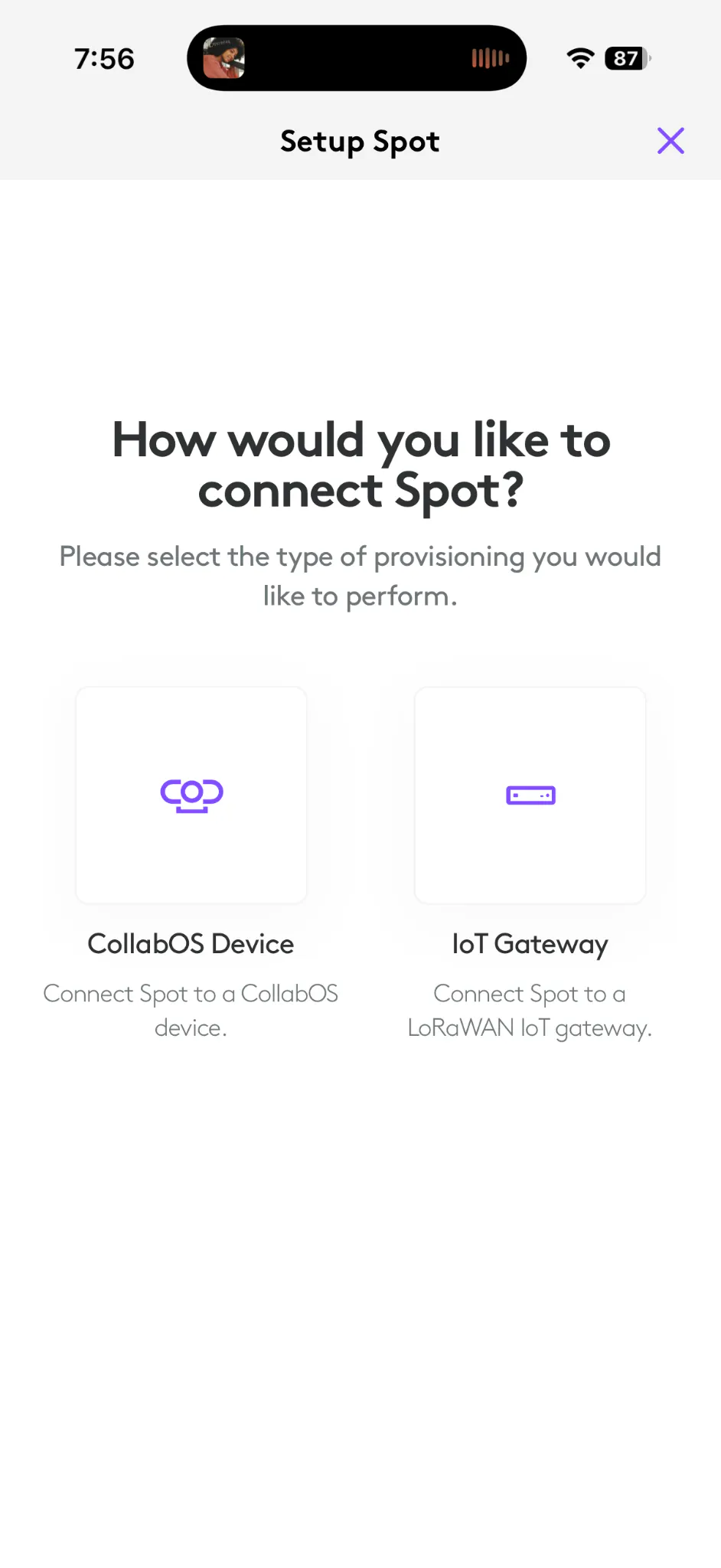
Select IoT Gateway to connect via LoRaWAN.
Note: Connecting Spot to a CollabOS device requires a different workflow. Please refer to the CollabOS section in this document for step-by-step instructions.
Add Spot to a room
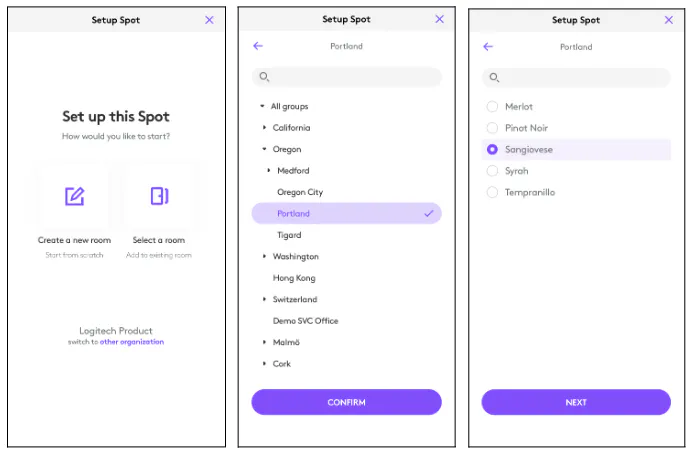
Choose whether to add Spot to an existing room or create a new room in the Installer App. Select the location, then select the room.
Add room details
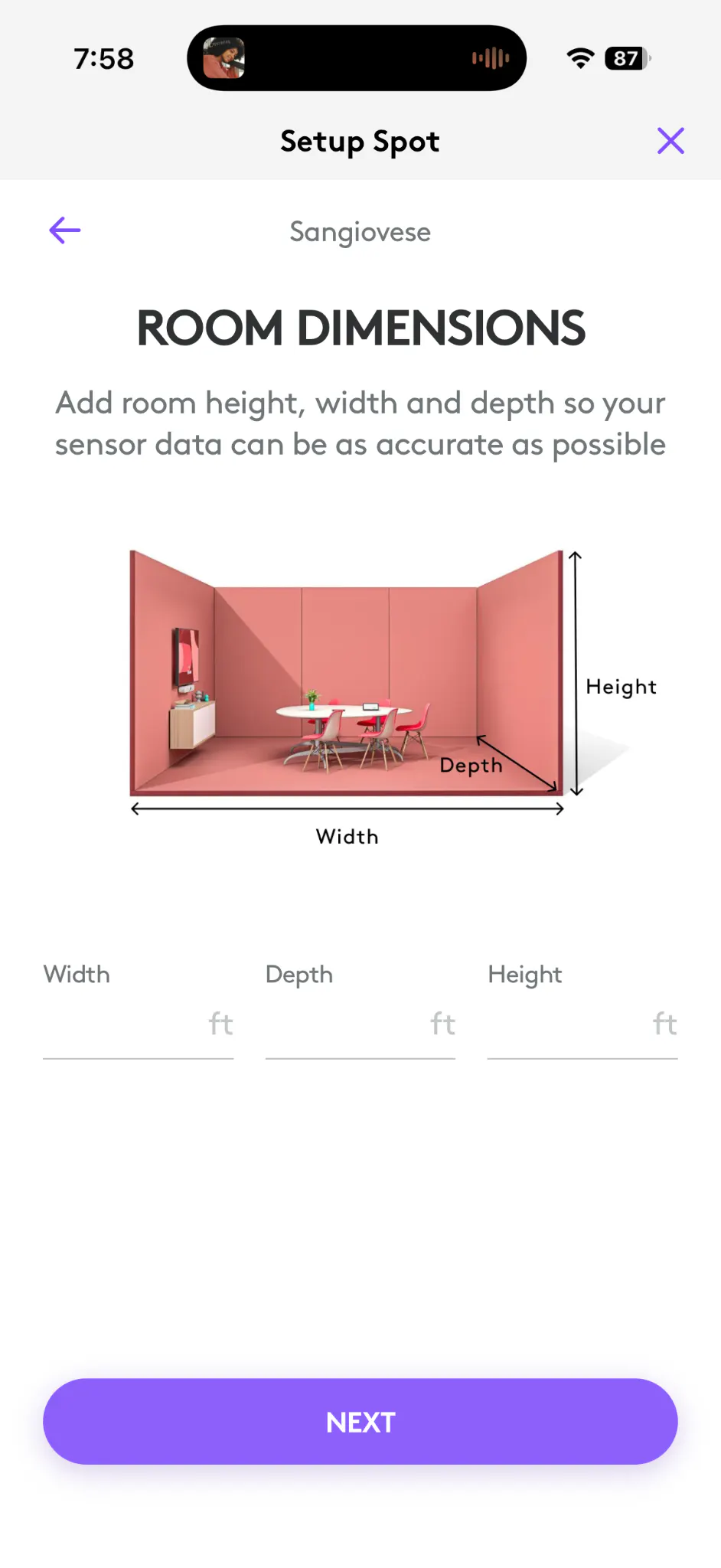
If your room does not have dimensions added, enter them here.
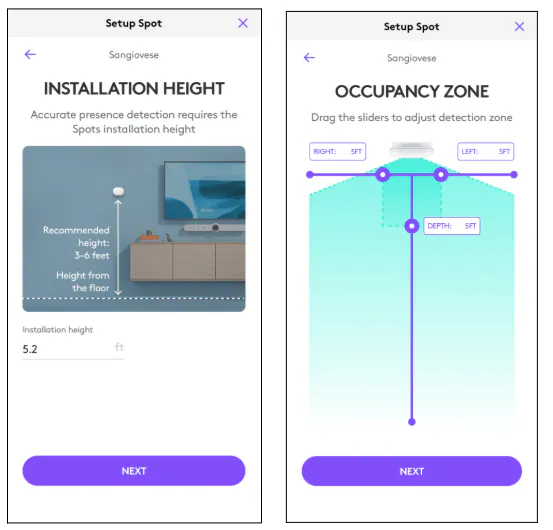
Set Spot’s installation height and occupancy zone. These settings are essential for Spot to accurately assess the room.
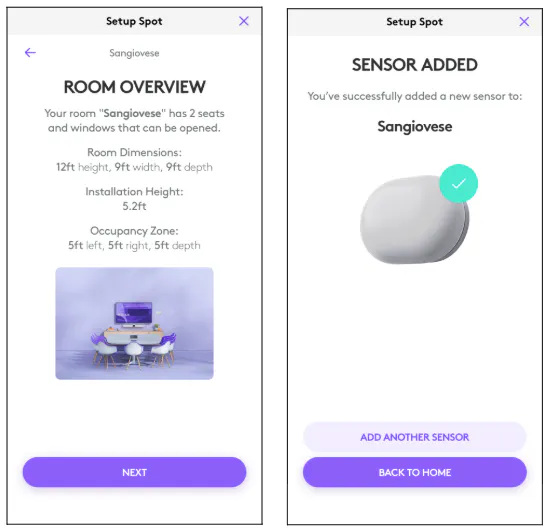
Review the room details and select Next. Spot is now added to the room.
Reconnecting to the LoRaWAN Gateway
Now that you’ve installed Spot, you will need to exit BLE mode and return the device to LoRa mode.
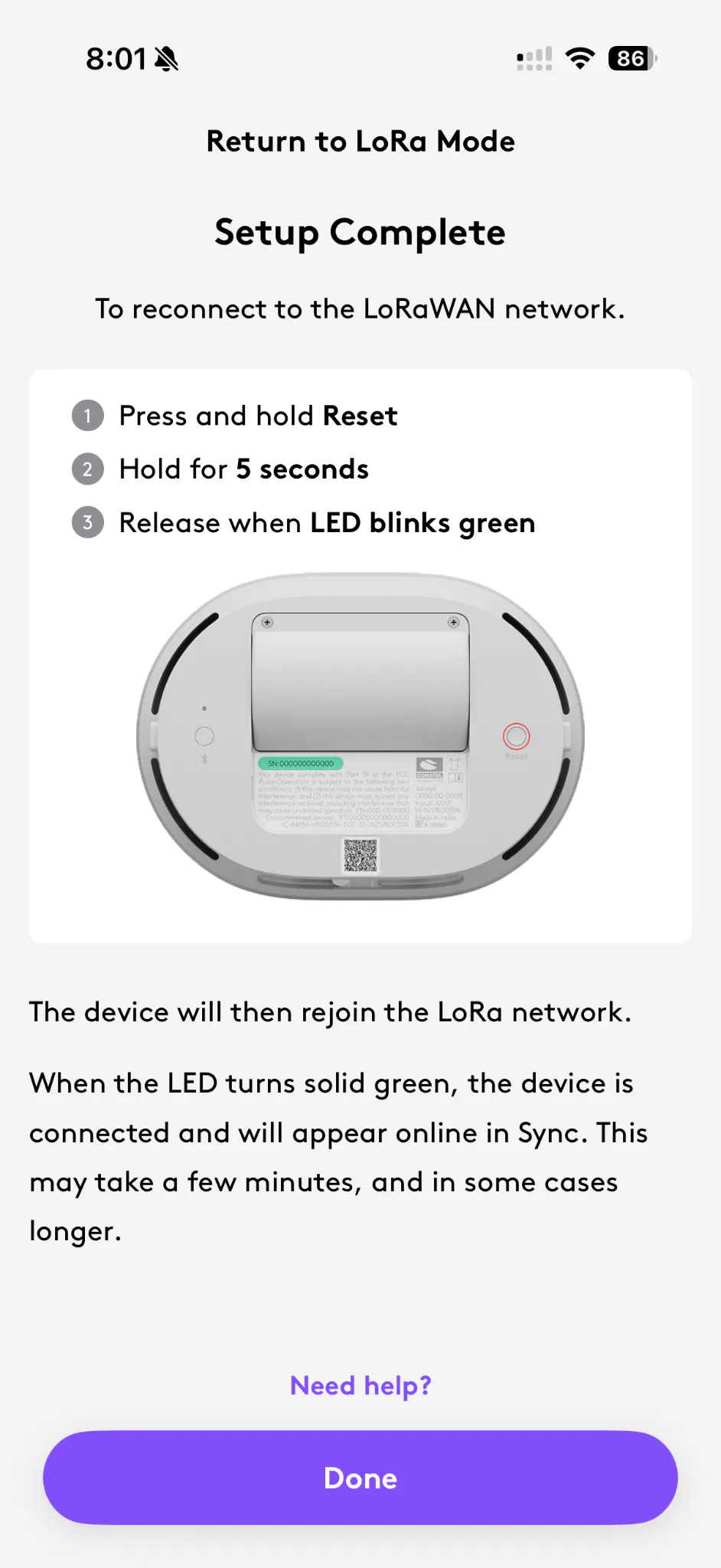
Exit BLE mode and return the device to LoRa mode by following the app prompts. Once completed, Spot will appear under the designated room(s) in Sync.
Deploying Spot in Powered USB mode
Spot can be powered over USB-C. A standard USB wall plug (USB-C 5V, 0.5 A) is sufficient.
Connect the USB wall plug to an AC outlet.
Mount the cable through the opening of the wall mounting bracket.
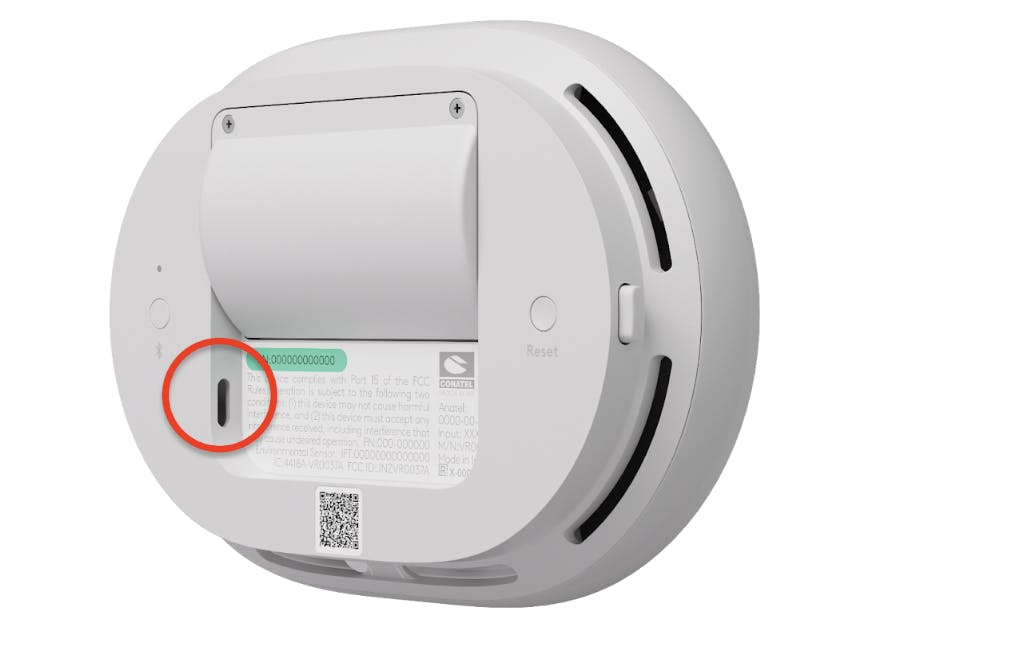
Connect the USB-C cable in Spot
Troubleshooting & Factory Reset
To Factory Reset Spot:
Press and hold the BLE (Bluetooth) & Reset button for 10 seconds, let both buttons go. Spots LED light up Red, blue, green and after 20 seconds blink twice white. This erases all network and pairing configurations, returning the device to its factory state.To Enter BLE Pairing mode on Spot:
Press and hold the BLE (Bluetooth) button for 5 seconds, let the button go. Spot LED start blinking blue. This indicates Spot is now in BLE pairing mode. Once paired to a CollabOS device the LED lights up blue constant for 5 seconds.
To Enter LoRa Joining mode on Spot:
Press and hold the Reset button for 5 seconds, let the button go. Spot LED start blinking green. Once connected to a LoRa Network the LED lights up green constant for 5 seconds.
To Reboot Spot:
Short press the Reset button. Spots LED light up Red, blue, green and after 20 seconds blink twice white.
Country / Region Availability
EMEA Gateway - 868 (950-000124)
AMR Gateway - 915 (950-000124)
AP Gateway - 923 (950-000123)
Albania
Canada
Argentina
Austria
United States
Australia
Belgium
Hong Kong
Bosnia and Herzegovina
Indonesia
Bulgaria
Israel
Croatia
Japan
Cyprus
Malaysia
Czechia
New Zealand
Denmark
Singapore
Egypt
South Korea
Finland
Thailand
France
Vietnam
Germany
Greece
Hungary
Iceland
Ireland
Isle of Man
Italy
Jordan
Latvia
Liechtenstein
Lithuania
Luxembourg
Macedonia The Former Yugoslav Republic of
Malta
Moldova, Republic of
Monaco
Netherlands
Nigeria
Norway
Oman
Philippines
Poland
Portugal
Qatar
Romania
San Marino
Saudi Arabia
Serbia
Slovakia
Slovenia
South Africa
Spain
Sweden
Switzerland
Turkey
Ukraine
United Arab Emirates
United Kingdom
Uganda
India
Firewall Requirements
Below you will find all the information needed to set up your firewall to allow Spot Gateway on your firewall-secured network.
Click here for CollabOS firewall setup: 2.4 Firewall Settings: CollabOS.
Click here for Sync firewall setup: Firewall and Proxy Setup Information for Sync.
Protocol
Ports
Destination/FQDN
Usage of Endpoint
Is it needed for
device functionality
WSS
443
Logitech Sync LoRaWAN network server access
DHCP
67 UDP
DHCP server in local network
Gateway
Not mandatory if a static IP is used in the network
DHCP
68 UDP
Gateway’s local in network IP
DHCP server in local network
Not mandatory if a static IP is used in the network
DNS
53 UDP
DNS server in local network
Gateway
Not mandatory if name resolution is hard-coded in gateway configuration files
NTP
123 UDP
Gateway
Mandatory
Default destination used from KerOS 5.x. For firmware < KerOS 5.x, destinations will be x.pool.ntp.org (with x = 0 to 3).
HTTP
80 TCP
-
Local laptop
Mandatory
For local web access if needed
HTTPS
443 TCP
Gateway
Mandatory
For automatic gateway SW update, configuration, and monitoring (Magic Link, ZTP, ....etc), for KerOS >=4.3.3
HTTPS
443 TCP
Gateway
Mandatory
To collect log files via Wanesy Cockpit, for KerOS >=4.3.3
SSH
22 TCP
Gateway’s local in network IP
Local laptop
Not Mandatory
Required only for SSH access to the gateway
ICMP
-
8.8.8.8
Gateway
Factory default flow configured for network monitoring
HTTP
80 TCP
Gateway
Useful only when 2 different backhauls are used on the gateway (for example, a cellular backhaul and Ethernet backhaul)
For additional support, visit the Logitech Spot Product Support page or refer to the official documentation portal for firmware and accessory compatibility details.