Logitech Spot integration with Microsoft Teams Panels
Overview
Microsoft Teams Panels support integration with Logitech Spot, enabling occupancy-based room status updates using Logitech Spot presence sensing. When paired with a Teams Panel, Logitech Spot provides occupancy information that Microsoft Teams uses to display room occupancy status and support automatic release of unoccupied scheduled meetings when Teams Panels auto-release is enabled.
Supported Features
Displays room occupancy status on Microsoft Teams Panels
Presence changes room status, not meeting status
Meeting check-in remains a manual action
Automatic release of meetings if no one is present
Not Supported
Automatic room booking based on occupancy
Automatic meeting check-in based on occupancy
Limitations
Occupancy status is displayed on Teams Panels only
Room availability in Microsoft Exchange and Outlook is not modified by occupancy status
Environmental sensor data is not displayed in Microsoft Teams Panels or Teams Admin Center
Configuration
To use Logitech Spot occupancy information with Microsoft Teams Panels Auto Release, first be enabled in Microsoft Places and assigned to the room resource.
Microsoft Places management access to room resources
Configure the desired check-in and release timeout settings.
Behavior
The following tables describe the expected behavior of Microsoft Teams Panels when paired with Logitech Spot.
Scheduled Meetings
When a room has a scheduled meeting, Logitech Spot occupancy information is used by Microsoft Teams Panels to indicate whether the room is occupied or unoccupied. Scheduled meetings remain reserved unless released by a configured Teams Panels Auto Release policy.
Occupancy Status
Teams Panels Behavior
Teams Panel
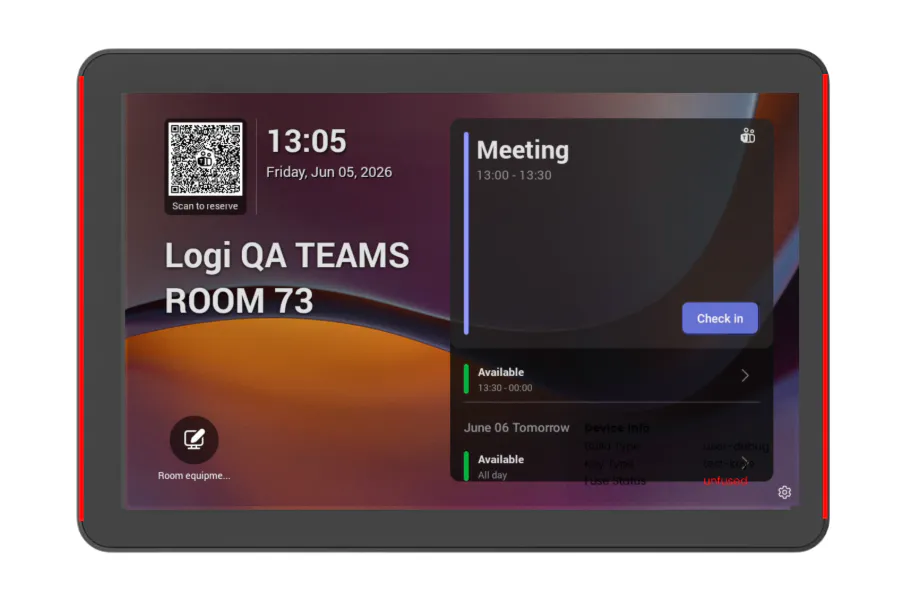
Occupancy Detected
LED remains red
No occupancy banner
Manual check-in required
Meeting remains reserved
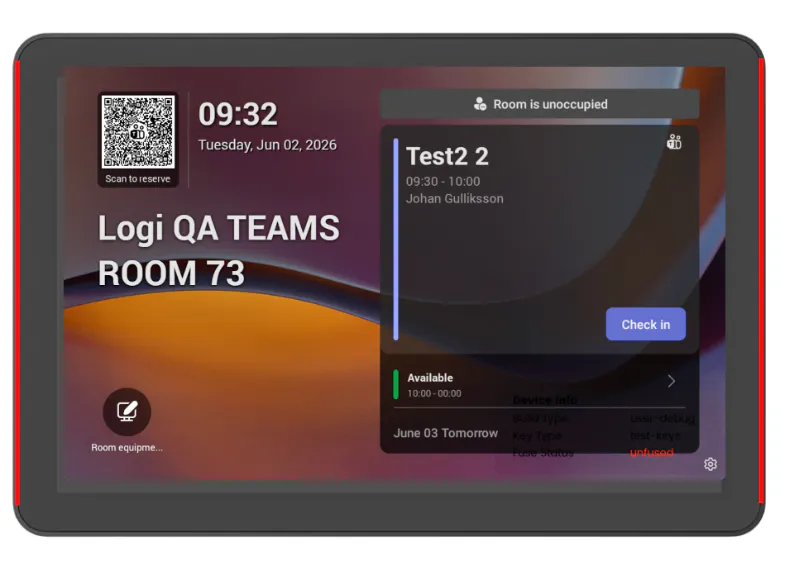
No Occupancy Detected
LED remains red
Shows "Room is unoccupied"
Meeting remains reserved until timeout
Auto-released after timeout
No Scheduled Meeting
When no meeting is scheduled, Logitech Spot occupancy information is used to indicate whether the room is occupied or unoccupied. The room remains available regardless of occupancy status.
Occupancy Status
Availability
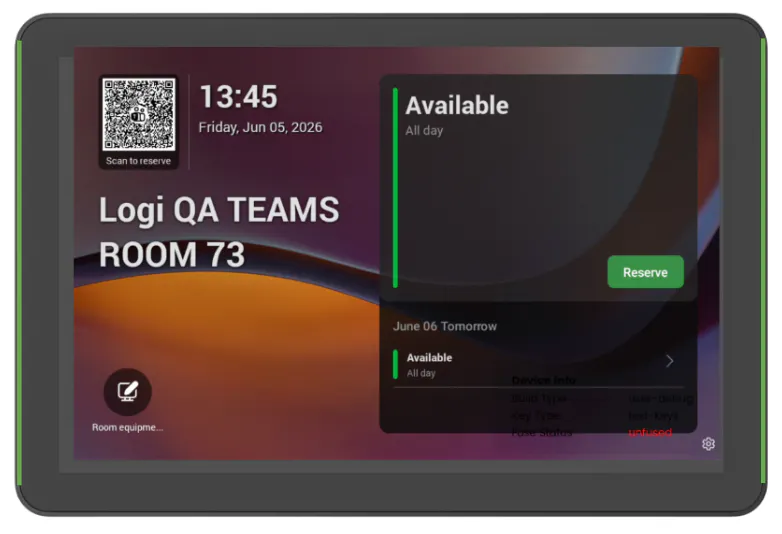
Occupancy Detected
LED remains green
Shows "Room is occupied"
Room remains available
No meeting is created
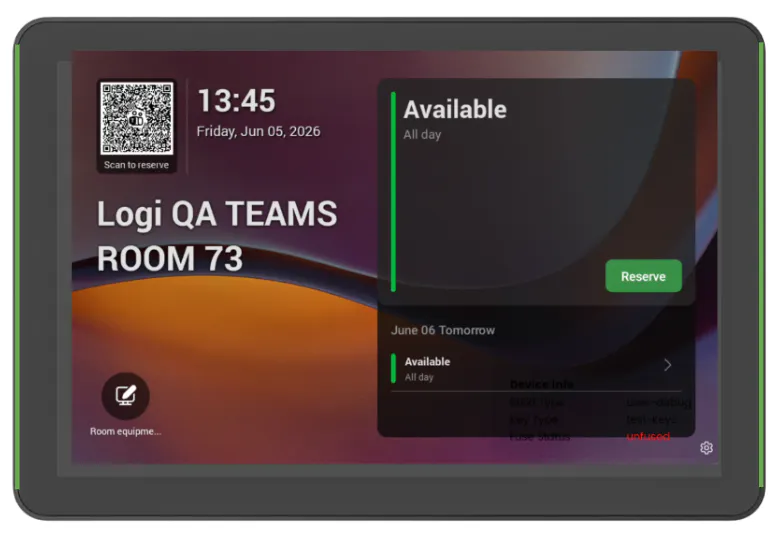
No Occupancy Detected
LED remains green
No occupancy banner is shown
Room remains available
Extending Logitech Spot support with Logitech Sync
For organizations that require capabilities beyond the native Microsoft Teams Panels integration, Logitech Spot can be provisioned in Logitech Sync to enable additional room intelligence and booking automation features.
Logitech Sync extends the native Teams Panels integration by providing additional occupancy-driven automation and workspace analytics capabilities.
Prerequisites
Microsoft Places management access to room resources
Microsoft 365 permissions to manage room calendars
Note: The features below require Logitech Sync. If Logitech Sync Auto Release is enabled, disable Teams Panels Auto Release.
Feature
Description
Configurable Options
Environmental Insights
Provides historical occupancy and environmental analytics for monitored spaces.
Occupancy, Temperature, Humidity, CO₂, PM2.5, PM10, tVOC
Auto Book
Automatically reserves an available room when occupancy is detected.
Detection delay, reservation duration
Auto Release
Releases scheduled meetings when no occupancy is detected or required check-in does not occur.
Check-in requirement, release timeout
Release Meeting Series
Automatically declines future occurrences of recurring meetings after a configurable number of consecutive no-shows.
Missed meeting count, holiday exclusions, holiday calendar
Release Meeting Early
Ends active meetings early when a room becomes vacant for a configured period.
Vacancy timeout
Long Meeting Exclusions
Excludes long-duration meetings from auto-release workflows.
Meeting duration threshold